EasyManua.ls Logo

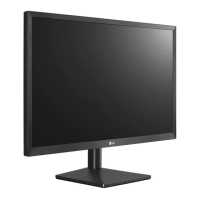
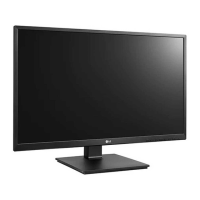
LG 22BL450Y - User Manual

LG 22BL450Y
29 pages
Print Icon
To Next Page IconTo Next Page
Loading...
* LG LED Monitor applies LCD screen with LED backlights.
Please read this manual carefully before operating your set and
retain it for future reference.
22BL450Y
24BL450Y
27BL450Y
OWNER’S MANUAL
LED LCD MONITOR
(LED Monitor*)
www.lg.com
Copyright © 2018 LG Electronics Inc. All Rights Reserved.

Questions and Answers

  • B
    Bruce GarciaJul 28, 2025
    What to do if my LG Monitor has no image?
    • A
      Alyssa GarciaJul 28, 2025
      First, ensure the power cord is properly connected to the power outlet and that you've pressed the Power button. Check the signal cable between the PC and the monitor to ensure it is securely connected. If the monitor is in DPM with the power LED off, press the DC button twice to wake up the screen. Also, if the OSD controls are locked, unlock them by going to the OSD lock menu and turning the items off. Finally, if the signal from your PC's video card is out of the display's horizontal or vertical frequency range, consult the 'Specifications' section of the manual and reconfigure your display.
  • D
    Donald MullenAug 11, 2025
    Why is the display image incorrect on my LG 22BL450Y Monitor?
    • L
      larry15Aug 11, 2025
      The display image might be incorrect on your LG Monitor due to several reasons. Ensure the signal cable is properly connected, using a screwdriver to tighten it if necessary. Also, make sure the video card is properly inserted in its slot. If the color setting is too low, set it higher than 24 bits (true color) in Control Panel settings. If the screen is set to interlace mode, change it to the recommended resolution.

Summary

OPEN SOURCE SOFTWARE NOTICE INFORMATION

ASSEMBLING AND PREPARING

Supported Drivers and Software

Information on downloading and installing drivers and software.

Product and Button Description

How to Use the Joystick Button

Explains how to control monitor functions using the joystick button.

Moving and Lifting the Monitor

Instructions for safely moving and lifting the monitor.

Installing on a Table

Adjusting the Stand Height

Adjusting the Angle

Pivot Feature

Swivel stand

Using the cable holder

Using the Kensington Lock

Installing the Wall Mount Plate

Installing on the Wall

Guidelines for mounting the monitor on a wall.

USING THE MONITOR

Connecting to a PC

Instructions for connecting the monitor to a computer.

HDMI Connection to PC

Details on transmitting video and audio via HDMI.

DisplayPort Connection

Details on transmitting video and audio via DisplayPort.

Connecting AV Devices

HDMI Connection for AV Devices

Details on transmitting video and audio from AV devices via HDMI.

Connecting Peripherals

Information on connecting external devices.

USB Device Connection

How to use the monitor's USB ports as a hub.

Headphones Connection

How to connect headphones to the monitor.

USER SETTINGS

Activating the Main Menu

Steps to access and navigate the monitor's main menu.

Customizing settings

Quick Settings

Accessing and adjusting common monitor settings like brightness and volume.

Input Settings

Selecting input sources and adjusting aspect ratio.

Picture

Picture Mode Settings

Options for optimizing screen display based on content type.

Picture Adjust

SUPER RESOLUTION+ Settings

Adjusting picture quality for clarity and detail.

Black Level Adjustment

Setting the darkest color level for video signals.

DFC Feature

Automatic brightness adjustment for dynamic contrast.

Response Time Settings

Adjusting screen response time for motion clarity.

Game Adjust Settings

Black Stabilizer Feature

Enhancing visibility in dark scenes for gaming.

Cross Hair Feature

Displaying a crosshair for FPS games.

Gamma Settings

Adjusting screen brightness based on gamma values.

Color Adjust Settings

Customizing screen colors and temperature.

Picture Reset

Sound

Sound Volume Adjustment

Adjusting the audio volume for headphones or speakers.

General

Language Settings

Selecting the display language for menu controls.

SMART ENERGY SAVING Feature

Optimizing energy consumption through luminance control.

Automatic Standby Feature

Automatically turns off the monitor after a period of inactivity.

OSD Lock Feature

Prevents accidental changes to monitor settings via the OSD.

Information Display

Shows monitor model, serial number, and resolution details.

Reset Settings

Returns all settings to their factory defaults.

TROUBLESHOOTING

Troubleshooting: No Image

Steps to resolve issues when no image is displayed on the screen.

Troubleshooting: OSD Control Issues

Solutions for when OSD controls are unresponsive or locked.

Troubleshooting: Incorrect Image Display

Diagnosing and fixing issues with screen color or blinking.

Troubleshooting: Unrecognized Monitor Message

Steps to resolve issues with monitor recognition and driver installation.

The screen is flickering.

Troubleshooting: Screen Flickering

Addresses screen flickering issues, often related to resolution settings.

PRODUCT SPECIFICATION (22 BL450 Y)

Monitor Color Depth (22 BL450 Y)

Specifies the color depth supported by the monitor.

Monitor Resolution (22 BL450 Y)

Details the maximum and recommended screen resolutions.

Monitor Power Sources (22 BL450 Y)

Information about the power rating and consumption.

AC;DC Adapter Specifications (22 BL450 Y)

Lists compatible AC/DC adapter models and output.

AC;DC Adapter Specifications (22 BL450 Y)

Environmental Conditions (22 BL450 Y)

Operating and storing temperature and humidity ranges.

Monitor Dimensions (22 BL450 Y)

Physical size of the monitor with and without the stand.

Monitor Weight (22 BL450 Y)

Weight specifications of the monitor with and without the stand.

PRODUCT SPECIFICATION (24 BL450 Y)

Monitor Color Depth (24 BL450 Y)

Specifies the color depth supported by the monitor.

Monitor Resolution (24 BL450 Y)

Details the maximum and recommended screen resolutions.

Monitor Power Sources (24 BL450 Y)

Information about the power rating and consumption.

AC;DC Adapter Specifications (24 BL450 Y)

Lists compatible AC/DC adapter models and output.

AC;DC Adapter Specifications (24 BL450 Y)

Environmental Conditions (24 BL450 Y)

Operating and storing temperature and humidity ranges.

Monitor Dimensions (24 BL450 Y)

Physical size of the monitor with and without the stand.

Monitor Weight (24 BL450 Y)

Weight specifications of the monitor with and without the stand.

PRODUCT SPECIFICATION (27 BL450 Y)

Monitor Color Depth (27 BL450 Y)

Specifies the color depth supported by the monitor.

Monitor Resolution (27 BL450 Y)

Details the maximum and recommended screen resolutions.

Monitor Power Sources (27 BL450 Y)

Information about the power rating and consumption.

AC;DC Adapter Specifications (27 BL450 Y)

Lists compatible AC/DC adapter models and output.

Environmental Conditions (27 BL450 Y)

Monitor Dimensions (27 BL450 Y)

Physical size of the monitor with and without the stand.

Monitor Weight (27 BL450 Y)

Weight specifications of the monitor with and without the stand.

Factory Support Mode (Preset Mode, PC)

HDMI;DP Preset Modes

Supported preset modes for PC input via HDMI/DP.

HDMI Timing (Video)

HDMI Video Timing Modes

Supported timing modes for video input via HDMI.

Suppliers Declaration of Conformity

LG 22BL450Y Specifications

General IconGeneral
Energy efficiency scaleA to G

Related product manuals