EasyManua.ls Logo

LG 23CAV42K-B - User Manual

LG 23CAV42K-B
51 pages
Print Icon
To Next Page IconTo Next Page
Loading...
www.lg.com
OWNER'S MANUAL
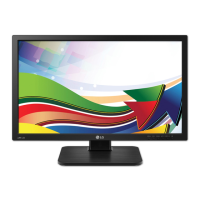
CLOUD MONITOR
(LED LCD MONITOR)
23CAV42K
Please read the safety information carefully before using the product.
CLOUD Monitor(LED LCD Monitor) Model
English

Questions and Answers

  • C
    Cathy SummersAug 12, 2025
    How to fix an LG 23CAV42K-B when nothing is displayed on the screen?
    • R
      Robert LopezAug 12, 2025
      If nothing is displayed on your LG Monitor screen, start by ensuring the power cord is securely plugged into the outlet and check the power indicator. Then, adjust the brightness and contrast settings. If the monitor is in power saving mode, try moving the mouse or pressing a key on the keyboard. Also, verify that your computer is turned on and that the signal cable between the PC and the monitor is properly connected. If the signals from the PC are out of the monitor's frequency range, consult the product specifications to set the appropriate frequency.
  • M
    Melissa PaulAug 20, 2025
    Why is the display color abnormal on my LG 23CAV42K-B Monitor?
    • E
      Eric WalterAug 20, 2025
      If the display color on your LG Monitor appears abnormal, first, set the color to 24 bit (true color) or higher by navigating to Control Panel > Display > Settings > Color Quality in Windows. Also, check that the signal cable is properly connected. Note that pixilated spots (red, green, blue, white, or black) may appear on the screen, which is normal for LCD screens and not related to the monitor's performance.
  • D
    Diana AndersonAug 27, 2025
    Why does my LG Monitor screen retain an image?
    • C
      Christian BernardAug 27, 2025
      Displaying a still image for a prolonged time may cause damage to the screen of your LG Monitor, resulting in image retention. To prevent this, use a screen saver when using the monitor for extended periods.
  • G
    greynoldsSep 3, 2025
    What to do if my LG Monitor says "OSD LOCKED"?
    • J
      Jeffrey MendozaSep 3, 2025
      If your LG Monitor displays the message "OSD LOCKED", press and hold the MENU button for a few seconds to unlock the OSD. The message "OSD UNLOCKED" should then appear.

LG 23CAV42K-B Specifications

General IconGeneral
Screen Size23 inches
Resolution1920 x 1080 (Full HD)
Panel TypeIPS
Aspect Ratio16:9
Refresh Rate60 Hz
Brightness250 cd/m²
Contrast Ratio1000:1
Response Time5ms (GTG)
Viewing Angle178° (H) / 178° (V)
Color Gamut72% NTSC
PortsHDMI, D-Sub (VGA)
Power Consumption25W

Related product manuals