ENGENGLISH
9
Settings
Automatically Setting Up Programme
SETTINGS SETUP Auto Tuning
Automatically tunes the programmes.
y
If Input Source is not connected properly, programme
registration may not work.
y
Auto Tuning only finds programmes that are currently
broadcasting.
y
If Lock System is turned on, a pop-up window will appear
asking for password.
To select Picture Mode
SETTINGS PICTURE Picture Mode
Select the picture mode optimized for the viewing environment or the
programme.
y
Vivid : Heightens contrast, brightness and sharpness to display
vivid images.
y
Standard : Displays images in standard levels of contrast,
brightness and sharpness.
y
Eco/APS: [Depending on model]
The Energy Saver feature changes settings on the TV to reduce
power consumption.
y
Cinema/Game : Displays the optimum picture for movie,
game.
y
Sport : Optimizes the video image for high and dynamic
actions by emphasizing primary colours such as white, grass,
or sky blue.
y
Expert 1,2 : Menu for adjusting picture quality that
allows experts and amateurs to enjoy the best TV viewing.
This is the adjustment menu provided for ISF-certified picture
tuning professionals. (ISF logo can only be used on ISF-certified
TVs.)
ISFccc: Imaging Science Foundation Certified Calibration
Control
y
Depending on input signal, available range of picture modes
may differ.
y
Expert mode is for picture tuning professionals to
control and fine-tune using a specific image. For normal
images, the effects may not be dramatic.
y
The ISF function is only available on some models.
To set advanced control
SETTINGS PICTURE Picture Mode
Advanced Control / Expert Control
Calibrates the screen for each picture mode; or adjusts picture settings
for a special screen. First select a Picture Mode of your choice.
y
Dynamic Contrast : Adjusts the contrast to the optimal level
according to the brightness of the image.
C
D
C
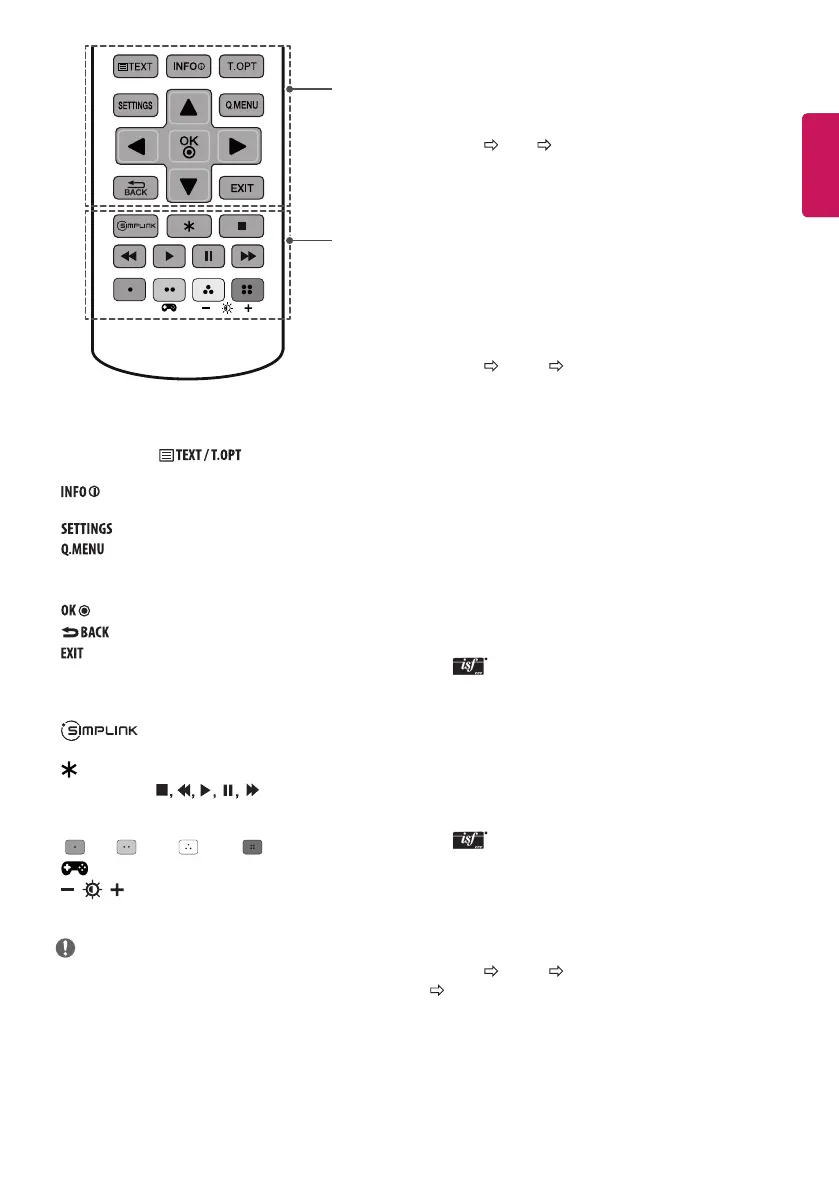
Teletext buttons
( )
These buttons are used for
teletext.
Views the information of the current programme and
screen.
Accesses the main menus.
Accesses the quick menus.
Navigation buttons (up/down/left/right) Scrolls through
menus or options.
Selects menus or options and conrms your input.
Returns to the previous level.
Clears on-screen displays and returns to TV viewing.
D
Accesses the AV devices connected with the HDMI
cable through HDMI-CEC. Opens the SIMPLINK menu.
Not functional.
Control buttons ( ) Controls the MY MEDIA
menus, or the SIMPLINK compatible devices (USB, SIMPLINK).
Colour buttons These access special functions in some menus.
( : Red, : Green, : Yellow, : Blue)
(Gaming mode) Turns the gaming mode on or o.
(Backlight) Adjusts the brightness of the screen by
controlling the screen backlight.
NOTE
y
On MHEG programme, you cannot adjust the backlight with
the yellow or blue key.



 To Next Page