EasyManua.ls Logo

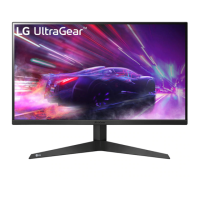
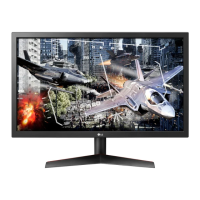
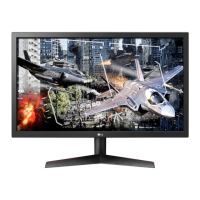
LG 24GM79G - User Manual

LG 24GM79G
27 pages
Print Icon
To Next Page IconTo Next Page
Loading...
www.lg.com
Please read the safety information carefully before using the product.
LED Monitor Model List
Owner's Manual
LED MONITOR*
*LG LED Monitors are LCD Monitors with LED Backlighting.
24GM79G

Questions and Answers

  • M
    myerstoniJul 27, 2025
    What to do if nothing is displayed on my LG Monitor screen?
    • S
      Steven PaulJul 27, 2025
      If nothing is displayed on your LG Monitor screen, here are some things to check: * Ensure the power cord is correctly plugged into the power outlet. * Check the power cable connection and press the power button. * Verify that the connected input is enabled by going to Menu > Quick Settings > Input. * If the monitor is in sleep mode, move the mouse or press any key on the keyboard. * Confirm that the computer is turned on. * Check the signal cable and reconnect it if it's missing or disconnected. If the signals transferred from the PC (graphics card) are out of the horizontal or vertical frequency range of the monitor, please see the Product Specification section of this manual to set the appropriate frequency.
  • P
    Patrick YoungJul 31, 2025
    What to do if screen display is unstable and shaky on LG 24GM79G Monitor?
    • S
      shawnrodriguezJul 31, 2025
      If your LG Monitor's screen display is unstable and shaky, or if images displayed on the monitor leave shadow trails, and the selected resolution is HDMI 1080i 60/50 Hz (interlaced), the screen may be flickering. Change the resolution to 1080P or the recommended resolution.
  • A
    Adriana EllisonAug 4, 2025
    How to fix no sound from LG 24GM79G Monitor headphone port?
    • N
      Nathan BakerAug 4, 2025
      If there is no sound from the headphone port or speaker of your LG monitor: * Try increasing the volume using the button on the monitor. * Set the audio output of the PC to the monitor you are using. On Microsoft Windows, go to Control Panel > Hardware and Sound > Sound > set the monitor as default device.
  • K
    kelly28Aug 8, 2025
    Why is the display color abnormal on my LG Monitor?
    • W
      wheelerjamesAug 8, 2025
      If the display color is abnormal on your LG Monitor, there are a few things you can try: * Set the color to 24 bit (true color) or higher. In Windows, go to Control Panel > Display > Settings > Color Quality. * Check if the signal cable is connected properly. Try reconnecting the cable or reinserting the PC's graphics card. When using the monitor, pixilated spots (red, green, blue, white, or black) may appear on the screen. This is normal for an LCD screen and not an error related to the monitor's performance.
  • K
    Kathleen CunninghamAug 13, 2025
    What to do if I see an "Unrecognized monitor, Plug&Play (VESA DDC) monitor found" message on my LG Monitor?
    • D
      Dean ReynoldsAug 13, 2025
      If you see an "Unrecognized monitor, Plug&Play (VESA DDC) monitor found" message, be sure to install the display driver from the display driver CD (or diskette) that comes with your display. You can also download the driver from http://www.lg.com. Also, make sure to check if the video card supports Plug&Play function.
  • R
    Rachel GrahamAug 17, 2025
    How to turn off OSD lock message on LG 24GM79G?
    • J
      John WilliamsAug 17, 2025
      If the OSD lock message is being displayed on your LG Monitor, go to Menu > General and set OSD Lock to Off.
  • D
    Dana NavarroAug 21, 2025
    Why does my LG Monitor screen retain an image?
    • R
      Ryan HarrisonAug 21, 2025
      Displaying a still image for a prolonged time may cause damage to the screen, resulting in the retention of the image. To extend the lifetime of your LG monitor, use a screensaver.

Summary

Assembling and Preparing Your Monitor

Monitor Component and Button Overview

Joystick Button Operation Guide

Basic Functions: Power and Volume Control

Explains joystick use for power, volume, and menu navigation.

Monitor Installation Procedures

Adjusting Monitor for Optimal Viewing

Installing the Monitor on a Wall

Using the Monitor for Display

Connecting to a PC via HDMI or DisplayPort

How to connect the monitor to a computer using HDMI or DisplayPort inputs.

Connecting Peripherals via USB

USER SETTINGS

Activating the Main Menu

How to open and use the monitor's on-screen display menu.

Main Menu Features Overview

Description of primary menu items like Menu, Input, Power Off, and Exit.

Configuring Monitor Settings

Picture Mode and Color Customization

Setting picture modes and fine-tuning colors for optimal display.

Picture and Game Performance Tuning

Game Adjustments: Response Time & FreeSync

Optimizing gaming with response time settings and FreeSync technology.

Advanced Gaming and Color Tuning

Black Stabilizer and Motion Blur Reduction

Enhancing dark scene visibility and reducing motion blur for gaming.

General Settings and System Configuration

TROUBLESHOOTING

No Display and Signal Problems

Solutions for blank screens, "No Signal" messages, and power issues.

Image Retention and Display Instability

Tips for image sticking, screen flickering, and unstable display.

Troubleshooting Display and Audio

Abnormal Display Colors and Spots

Steps to resolve discolored screens or pixel artifacts.

SPECIFICATIONS (24 GM79 G)

LCD Screen, Resolution, and Video Signals

Technical details of the screen, supported resolutions, and video signal types.

Power, Connectivity, and Dimensions

Information on power consumption, input ports, and monitor size.

Factory Support Modes and HDMI Timing

LG 24GM79G Specifications

General IconGeneral
Screen Size24 inches
Panel TypeTN
Resolution1920 x 1080
Refresh Rate144 Hz
Response Time1 ms
Brightness350 cd/m²
Contrast Ratio1000:1
Adaptive SyncAMD FreeSync
Aspect Ratio16:9
VESA Mount100 x 100 mm
PortsHDMI
Viewing Angle170° (H) / 160° (V)

Related product manuals