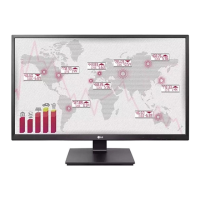
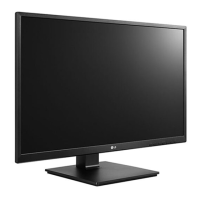
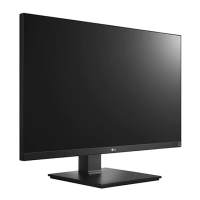
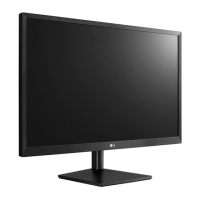
This document serves as the owner's manual for LG IPS LED Monitors, specifically covering models 24BK550Y, 24BK55YP, 27BK550Y, and 27BK55YP. The manual clarifies that "LG LED Monitors" are LCD Monitors equipped with LED Backlighting. It provides comprehensive instructions for assembling, preparing, using, customizing, and troubleshooting the monitor, ensuring users can operate their device safely and efficiently.
Function Description
The LG IPS LED Monitor is designed to display digital video and audio signals from various sources, including PCs and AV devices. It functions as a primary display for computing tasks, multimedia consumption, and professional applications. The monitor supports multiple input types, including D-SUB, DVI-D, HDMI, and DisplayPort, offering versatility in connectivity. Additionally, it features USB ports, allowing it to act as a USB hub for connecting peripherals like mice, keyboards, and memory sticks. The monitor is equipped with an IPS (In-Plane Switching) panel, which typically provides wide viewing angles and accurate color reproduction, making it suitable for tasks requiring consistent visual quality.
Usage Features
The monitor offers a range of features designed to enhance user experience and ergonomic comfort:
- Assembly and Preparation: The manual details the process of attaching the stand base, which is crucial for stable placement. It emphasizes safety precautions during assembly, such as covering the screen with a soft cloth to prevent scratches and holding the stand base firmly to avoid injury.
- Mounting on a Table: Instructions are provided for safely placing the monitor on a table, recommending a minimum 100 mm space from the wall for proper ventilation. It also advises against carrying the monitor by the stand base alone to prevent personal injury.
- Cable Management: A cable holder is integrated into the design to help users arrange and manage cables neatly, contributing to a clutter-free workspace.
- Adjustability:
- Stand Height Adjustment: The monitor's height can be adjusted up to 130.0 mm, allowing users to set it at an ergonomic level. A warning is included to prevent users from placing fingers or hands between the screen and the base during adjustment.
- Angle Adjustment: The screen's angle can be tilted forwards or backwards within a range of 35° to -5°, enabling users to find a comfortable viewing position.
- Swivel Stand: The stand allows the monitor to swivel 355 degrees, providing flexibility to adjust the viewing angle for multiple users or different tasks.
- Pivot Feature: A key ergonomic feature, the pivot function allows the monitor to rotate 90° clockwise and -90° counter-clockwise. This is particularly useful for tasks like document editing or programming, where a vertical display is more efficient. The manual provides instructions for safely utilizing this feature, including raising the monitor to its maximum height before pivoting and being careful not to scratch the stand base. It also mentions Windows screen pivot shortcut keys for easy rotation.
- Kensington Security System: The monitor includes a connector for a Kensington security system, allowing users to secure the device to a table and deter theft.
- Wall Mount Installation: For users who prefer a wall-mounted setup, the manual provides detailed instructions for detaching the stand body and installing a VESA-compatible wall mount plate. It highlights the importance of using the correct screw length and avoiding excessive force to prevent damage.
- Connectivity:
- PC Connection: Supports D-SUB, DVI-D, HDMI, and DisplayPort connections to PCs, ensuring compatibility with a wide range of graphics cards.
- AV Device Connection: HDMI input allows connection to various AV devices, such as DVD players or gaming consoles.
- USB Hub Functionality: The monitor's USB ports (one upstream, two downstream) enable it to act as a convenient hub for connecting USB peripherals directly to the display.
- Headphone Connection: A dedicated headphone port allows users to connect headphones for private audio listening. The manual recommends using straight headphones to avoid interference with other external devices.
- On-Screen Display (OSD) Menu: The OSD menu provides extensive customization options for display settings:
- Quick Settings: Adjusts brightness, contrast, and screen ratio (Wide or Original). It also includes "SMART ENERGY SAVING" modes (High, Low, Off) which conserve energy by adjusting luminance.
- Picture Mode: Offers various preset modes like Custom, Reader 1, Reader 2, Photo, Cinema, Color Weakness, and Game, each optimized for specific content types.
- Picture Adjust: Fine-tunes sharpness, black level, and response time. The "Black Stabilizer" feature enhances visibility in dark scenes, beneficial for gaming. DFC (Digital Fine Contrast) automatically adjusts brightness.
- Color Adjust: Controls Gamma, Color Temperature (Warm, Medium, Cool, Custom), and provides a "Six Color" option for precise adjustment of individual color hues and saturations (Red, Green, Blue, Cyan, Magenta, Yellow).
- Display: Adjusts horizontal and vertical image position, clock, and phase to optimize image clarity and eliminate noise.
- Sound: Controls headphone/speaker volume and allows selection of the audio source input.
- General: Sets OSD language, controls the power LED indicator, and enables "Automatic Standby" to turn off the display after 4 hours of inactivity (for Europe market models).
- Resolution: Allows users to set the desired screen resolution, with a note on compatibility with PC output.
- OSD Lock: Prevents incorrect key input by disabling OSD controls.
- Auto Configuration: Automatically optimizes display settings for D-SUB input.
- Reset: Returns all settings to their default values.
Maintenance Features
The manual provides guidance on maintaining the monitor and troubleshooting common issues:
- Cleaning: When moving or lifting the monitor, users are advised to avoid touching the screen directly to prevent damage. For cleaning, a soft cloth is recommended to protect the screen from scratches.
- Troubleshooting: A dedicated section addresses common problems:
- No Image: Guides users to check power cord connection, power indicator status, and messages like "Out of Range" or "NO SIGNAL." It explains that "Out of Range" indicates an unsupported frequency/resolution, while "NO SIGNAL" means the signal cable is disconnected.
- OSD Control Issues: If OSD functions are inaccessible, users are directed to check if OSD Lock is enabled.
- Incorrect Display Image: For mono or abnormal colors, users should check signal cable connection, video card insertion, and color settings (24 bits or higher). If the screen blinks, it might be set to interlace mode, and changing to the recommended resolution is advised.
- "Unrecognized monitor, Plug&Play (VESA DDC) monitor found" Message: Users are instructed to install the display driver from the LG website and verify Plug&Play function support by the video card.
- Flickering Screen: If the screen flickers, especially with HDMI 1080i 60/50 Hz resolution, changing to the recommended 1080P resolution is suggested.
The manual also includes important notes throughout, such as using genuine components for safety and performance, the possibility of components looking different from illustrations, and the availability of optional accessories. It emphasizes that product specifications are subject to change without prior notice for product function upgrades.



 To Next Page
 General