EasyManua.ls Logo

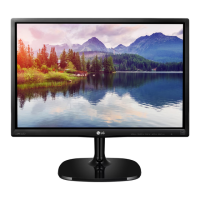
LG 27ML600S - User Manual

LG 27ML600S
33 pages
Print Icon
To Next Page IconTo Next Page
Loading...
* LG LED Monitor applies LCD screen with LED backlights.
Please read this manual carefully before operating your set and
retain it for future reference.
24ML600M/24ML60MP
27ML600M/27ML60MP
24ML600S/24ML60SP
27ML600S/27ML60SP
27MN60T
OWNER’S MANUAL
LED LCD MONITOR
(LED Monitor*)
www.lg.com
Copyright © 2018 LG Electronics Inc. All Rights Reserved.

Other manuals for LG 27ML600S

Questions and Answers

  • J
    Jason McdonaldAug 12, 2025
    What to do if my LG Monitor shows no image?
    • C
      cordovaianAug 12, 2025
      First, ensure the power cord is properly connected to the power outlet. Then, check the signal cable between your PC and the monitor to make sure it is connected securely. Also, check Control Panel - Display - Settings and see if the frequency or the resolution were changed. If yes, readjust the video card to the recommend resolution. Make sure to select the recommend resolution. You can unlock the OSD controls at any time by entering the OSD lock menu and changing items to off. If the signal from the PC (video card) is out of horizontal or vertical frequency range of the display, see the 'Specifications' section of this manual and configure your display again. If this does not help, please ask to the computer or the video card manufacturer.
  • P
    pittmankarenAug 16, 2025
    What to do if no image appears on my LG 27ML600S Monitor?
    • G
      Gloria WhitneyAug 16, 2025
      First, verify that the power cord is securely connected to the power outlet. If the issue persists, and you see a message indicating a frequency range problem, consult the 'Specifications' section of the manual to reconfigure your display settings. Also, check the signal cable and ensure it's properly reconnected.
  • B
    bwallaceAug 20, 2025
    Why does my LG 27ML600S display 'No Image'?
    • G
      gbaileyAug 20, 2025
      There are several reasons why your LG Monitor might not be displaying an image: * Ensure the power cord is properly connected to the power outlet. * The signal cable between your PC and the monitor may be missing or disconnected; check the cable and reconnect it. * The signal from the PC (video card) might be out of the horizontal or vertical frequency range of the display. Refer to the 'Specifications' section of this manual and configure your display again. * The OSD controls may be locked. You can unlock them by entering the OSD lock menu and changing items to 'off'.
  • D
    Diamond WhitneyAug 23, 2025
    Why is my LG 27ML600S Monitor screen flickering?
    • S
      steelevincentAug 23, 2025
      If the selected resolution is HDMI 1080i 60/50 Hz, the screen may flicker. Change the resolution to the recommended resolution 1080P.
  • A
    Amanda ThomasAug 27, 2025
    Why is the display image on my LG 27ML600S incorrect?
    • R
      rogerscrystalAug 27, 2025
      An incorrect display image on your LG Monitor can be due to several factors. First, ensure the signal cable is properly connected, using a screwdriver to fasten it if necessary. Also, make sure the video card is properly inserted in its slot. Check that your color setting is higher than 24 bits (true color) in Control Panel settings. If the screen is set to interlace mode, change it to the recommended resolution. If the selected resolution is HDMI 1080i 60/50 Hz, the screen may be flickering. Change the resolution to the recommended resolution 1080P. Be sure to install the display driver from our web site: http://www.lg.com. Make sure to check if the video card supports Plug&Play function.
  • J
    Jamie GillAug 30, 2025
    Why is the display image incorrect on my LG Monitor?
    • M
      marcus60Aug 30, 2025
      An incorrect display image can be caused by several factors. First, ensure the signal cable is properly connected, tightening it with a screwdriver if necessary. Also, verify that the video card is correctly inserted. Check that the color setting is higher than 24 bits (true color) in Control Panel settings. Confirm that the screen isn't set to interlace mode; if it is, change it to the recommended resolution. Ensure you've installed the display driver from the LG website and that the video card supports Plug&Play.
  • E
    Edward CareySep 3, 2025
    How to unlock OSD controls on LG Monitor?
    • A
      alexander95Sep 3, 2025
      You can unlock the OSD controls at any time by entering the OSD lock menu and changing items to off.
  • J
    Jacqueline JonesSep 7, 2025
    How to unlock OSD menu on LG 27ML600S?
    • J
      Jeffrey HenrySep 7, 2025
      You can unlock the OSD controls at any time by entering the OSD lock menu and changing items to off.

Summary

Assembling and Preparing the Monitor

Safety and Preparation Precautions

Important safety guidelines and precautions for assembling the monitor.

Product and Button Description

Moving and Lifting the Monitor Safely

Guidelines for safely moving and lifting the monitor to prevent damage.

Installing on a Table

Electrical Safety and Power Cord Information

Precautions regarding power cord usage and electrical shock hazards.

Security and Mounting Options

Installing the Monitor on a Wall

Instructions for wall mounting, ensuring proper ventilation and spacing.

Wall Mounting Installation

Wall Mount Dimensions and Screw Requirements

Specifications for wall mount dimensions and required screw types for different models.

Wall Mounting Safety Precautions

Cautions regarding electrical shock, secure mounting, and appropriate screw usage for wall mounting.

Using the Monitor

User Settings

Activating the Main Menu

Step-by-step guide to accessing and navigating the monitor's main menu.

Joystick Button Menu Navigation

Details on using the joystick button for menu navigation, input selection, and function control.

Main Menu Features

Main Menu Options (HDMI)

Overview of main menu features available when using an HDMI connection.

Main Menu Item Descriptions

Detailed descriptions of each main menu option, including Input, Settings, and Power Off.

Menu Settings

Navigating to Settings Menu

Instructions for accessing and navigating the monitor's detailed settings menu.

Customizing Settings

Quick Settings Adjustment

Adjusting brightness, contrast, volume, color temperature, and auto configuration.

Picture

Picture Mode Settings

Optimizing screen display with various picture modes like Cinema, Photo, and Game.

Advanced Picture Adjustments

Game Adjust Features

FreeSync Functionality and Requirements

Enabling FreeSync for smooth gaming and its necessary hardware/software requirements.

Color and Configuration Adjustments

Troubleshooting Common Issues

No Image or Signal Problems

Solutions for common issues like no image, 'Out of Range', or 'NO SIGNAL' messages.

OSD Control and Display Settings

Resolving OSD control issues and addressing display settings or resolution problems.

Image Quality and Flickering Issues

Troubleshooting incorrect image colors, flickering screens, and driver recognition problems.

Product Specifications

LG 27ML600S Specifications

General IconGeneral
Screen Size27 inches
Resolution1920 x 1080 (Full HD)
Panel TypeIPS
Refresh Rate75 Hz
Brightness250 cd/m²
Contrast Ratio1000:1
Aspect Ratio16:9
HDRHDR10
AMD FreeSyncYes
Color GamutsRGB 99%
Power Consumption22W (Typical)
Stand AdjustmentsTilt
VESA Mount100 x 100 mm
ConnectivityHDMI, DisplayPort
Response Time5ms (GTG)
PortsHDMI, DisplayPort, Headphone Out
Viewing Angle178°/178°
FeaturesBlack Stabilizer, Dynamic Action Sync, Reader Mode, Flicker Safe

Related product manuals