EasyManua.ls Logo

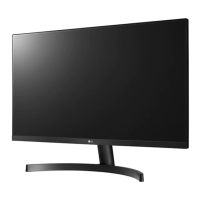
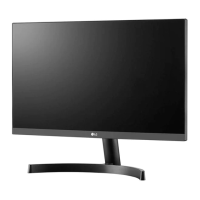
LG 27MN60T - User Manual

LG 27MN60T
33 pages
Print Icon
To Next Page IconTo Next Page
Loading...
* LG LED Monitor applies LCD screen with LED backlights.
Please read this manual carefully before operating your set and
retain it for future reference.
24ML600M/24ML60MP
27ML600M/27ML60MP
24ML600S/24ML60SP
27ML600S/27ML60SP
27MN60T
OWNER’S MANUAL
LED LCD MONITOR
(LED Monitor*)
www.lg.com
Copyright © 2018 LG Electronics Inc. All Rights Reserved.

Other manuals for LG 27MN60T

Questions and Answers

  • C
    carrollstephanieAug 13, 2025
    What to do if my LG Monitor shows no image?
    • S
      Steven GilesAug 13, 2025
      First, ensure the power cord is properly connected to the power outlet. Then, check the signal cable between your PC and the monitor to make sure it is connected securely. Also, check Control Panel - Display - Settings and see if the frequency or the resolution were changed. If yes, readjust the video card to the recommend resolution. Make sure to select the recommend resolution. You can unlock the OSD controls at any time by entering the OSD lock menu and changing items to off. If the signal from the PC (video card) is out of horizontal or vertical frequency range of the display, see the 'Specifications' section of this manual and configure your display again. If this does not help, please ask to the computer or the video card manufacturer.
  • T
    Tim FloresAug 17, 2025
    What to do if no image appears on my LG 27MN60T Monitor?
    • K
      kayla01Aug 17, 2025
      First, verify that the power cord is securely connected to the power outlet. If the issue persists, and you see a message indicating a frequency range problem, consult the 'Specifications' section of the manual to reconfigure your display settings. Also, check the signal cable and ensure it's properly reconnected.
  • E
    Emily DoyleAug 20, 2025
    Why does my LG 27MN60T display 'No Image'?
    • E
      Emily ParkAug 20, 2025
      There are several reasons why your LG Monitor might not be displaying an image: * Ensure the power cord is properly connected to the power outlet. * The signal cable between your PC and the monitor may be missing or disconnected; check the cable and reconnect it. * The signal from the PC (video card) might be out of the horizontal or vertical frequency range of the display. Refer to the 'Specifications' section of this manual and configure your display again. * The OSD controls may be locked. You can unlock them by entering the OSD lock menu and changing items to 'off'.
  • L
    lonnie53Aug 25, 2025
    Why is my LG 27MN60T screen flickering?
    • W
      wolfejamesAug 25, 2025
      If the selected resolution is HDMI 1080i 60/50 Hz, the screen may flicker. Change the resolution to the recommended resolution 1080P.
  • L
    Leslie DuranAug 28, 2025
    Why is the display image on my LG Monitor incorrect?
    • M
      Michael JohnsonAug 29, 2025
      An incorrect display image on your LG Monitor can be due to several factors. First, ensure the signal cable is properly connected, using a screwdriver to fasten it if necessary. Also, make sure the video card is properly inserted in its slot. Check that your color setting is higher than 24 bits (true color) in Control Panel settings. If the screen is set to interlace mode, change it to the recommended resolution. If the selected resolution is HDMI 1080i 60/50 Hz, the screen may be flickering. Change the resolution to the recommended resolution 1080P. Be sure to install the display driver from our web site: http://www.lg.com. Make sure to check if the video card supports Plug&Play function.
  • M
    meganscottSep 1, 2025
    Why is the display image incorrect on my LG 27MN60T?
    • B
      Bruce WilliamsSep 1, 2025
      An incorrect display image can be caused by several factors. First, ensure the signal cable is properly connected, tightening it with a screwdriver if necessary. Also, verify that the video card is correctly inserted. Check that the color setting is higher than 24 bits (true color) in Control Panel settings. Confirm that the screen isn't set to interlace mode; if it is, change it to the recommended resolution. Ensure you've installed the display driver from the LG website and that the video card supports Plug&Play.
  • D
    Daniel NelsonSep 4, 2025
    How to unlock OSD controls on LG Monitor?
    • T
      Tina MooreSep 5, 2025
      You can unlock the OSD controls at any time by entering the OSD lock menu and changing items to off.
  • C
    Cynthia WalkerSep 8, 2025
    How to unlock OSD menu on LG 27MN60T Monitor?
    • T
      tylershepardSep 8, 2025
      You can unlock the OSD controls at any time by entering the OSD lock menu and changing items to off.

Summary

Assembling and Preparing

Safety and Component Usage

Safety precautions for assembly, component usage, and handling.

Product Information Notes

Notes on potential component differences and product information updates.

Supported Drivers and Software

Details on downloading the latest drivers and software from the LG website.

Monitor Overview and Handling

Joystick Button Functionality

Explains the function and operation of the monitor's joystick button.

Using the Joystick Button

Step-by-step guide on using the joystick for power and volume control.

Moving and Lifting Safety

Guidelines for safely moving and lifting the monitor to prevent damage.

Screen Handling Caution

Warning against touching the monitor screen to prevent damage.

Installation and Adjustments

Installing on a Table

Instructions for placing the monitor on a table and ensuring ventilation.

Adjusting Screen Angle

Procedures for adjusting the monitor screen's viewing angle for comfort.

Angle Adjustment Warning

Warning to avoid finger injury when adjusting the monitor screen angle.

Electrical Safety Caution

Safety precautions regarding power cord connection and electric shock.

Security and Mounting

Kensington Lock Installation

Information on using the Kensington security system to secure the monitor.

Wall Mount Plate Installation

Information on monitor compatibility with wall mount plates.

Installing Monitor on Wall

Guidelines for installing the monitor on a wall, including ventilation space.

Wall Mounting Specifications

Wall Mount Dimensions

Specifications for wall mount dimensions and screw types for different models.

Wall Mounting Notes

Notes regarding non-VESA screws, wall mount kits, and screw length.

Wall Mounting Safety

Safety warnings for wall mounting, electric shock, and force application.

Using the Monitor

Monitor Usage Cautions

Warnings about prolonged screen pressing and image retention.

Connecting to a PC

Details on PC connectivity, including Plug and Play feature.

D-SUB Connection

Information on analog video connection via D-SUB.

HDMI Connection

Information on digital video and audio connection via HDMI.

Connecting Devices

AV Device HDMI Connection

Notes on HDMI connection compatibility and recommended cables for AV devices.

Connecting Peripherals

Instructions for connecting peripherals like headphones to the monitor.

Headphones Connection Guide

Guidance on connecting headphones, including earphone type recommendations.

User Settings and OSD Navigation

OSD Display Variations

Note on potential differences in the On Screen Display (OSD) appearance.

Activating Main Menu

Instructions on how to activate and navigate the main menu using the joystick.

Joystick Button Functions

Table detailing joystick button functions for menu navigation and control.

Main Menu Features

HDMI Input Features

Overview of menu options like Input, Settings, Picture Mode for HDMI.

D-SUB Input Features

Overview of menu options like Input, Settings, Auto Configuration for D-SUB.

Main Menu Item Descriptions

Descriptions of main menu items such as Input, Power Off, Settings, and Exit.

Menu Settings Navigation

OSD Menu Navigation

Steps for accessing and navigating the OSD menu settings.

Model-Specific Menu Options

Shows different menu options available for specific monitor series.

Customizing Display Settings

Quick Settings Adjustments

Options for adjusting brightness, contrast, volume, and color temperature.

Input and Aspect Ratio Settings

Settings for selecting input source and adjusting aspect ratio.

Aspect Ratio Note

Note on aspect ratio options being disabled at certain resolutions.

Picture Settings

Picture Mode Options

Descriptions of picture modes like Custom, Reader, Photo, Cinema, and Game.

Picture Mode Change Effects

Notes on potential screen flicker or resolution changes when Picture Mode is altered.

Advanced Picture Adjustments

Basic Picture Adjustments

Adjustments for screen brightness, contrast, and sharpness.

SUPER RESOLUTION+

Settings for SUPER RESOLUTION+ to improve image quality.

Black Level and DFC

Controls for black level adjustment and Dynamic Contrast Feature (DFC).

Game Response Time

Settings for response time optimization for gaming.

Game Adjust Features

FreeSync Functionality

Explanation of FreeSync for smooth gaming, requirements, and limitations.

Black Stabilizer Feature

Feature to enhance visibility in dark scenes by adjusting black contrast.

Game Adjust (Continued)

1 ms Motion Blur Reduction

Function to minimize motion blur in fast-moving videos and games.

Crosshair for Gaming

On-screen crosshair feature for FPS games, with selectable styles.

Game Adjust Notes

Notes on motion blur reduction, FreeSync, and crosshair behavior.

Color and Configuration Adjustments

Gamma Settings

Adjusts image gamma to control overall brightness and darkness.

Color Temperature Settings

Settings for color temperature (Custom, Warm, Medium, Cool).

RGB Color Customization

Customizing picture color using Red, Green, and Blue adjustments.

D-SUB Configuration Adjust

Adjustments for image position, clock, and phase for D-SUB input.

D-SUB Resolution Settings

Setting display resolution for D-SUB input, with supported modes listed.

Picture Settings Reset

Option to reset all picture settings to default values.

Sound Settings

Volume and Audio Source

Adjusting volume and selecting the audio input source.

MaxxAudio Feature

Description of MaxxAudio feature for improved sound quality.

General Settings

Language Selection

Option to select the display language for the OSD.

SMART ENERGY SAVING

Settings for SMART ENERGY SAVING to conserve power.

Automatic Standby Mode

Configuration for automatic standby mode.

OSD Lock Function

Prevents incorrect key input by locking OSD controls.

Information Display

Shows monitor model, power time, serial number, and resolution.

General Settings Reset

Option to reset all general settings to default values.

Energy Saving Notes

Notes on energy saving data variation and luminance dependency on source.

Troubleshooting

No Image Display Issues

Troubleshooting steps for cases where no image is displayed.

Signal Error Messages

Solutions for "Out of Range" and "NO SIGNAL" error messages.

OSD Control Problems

Troubleshooting for inability to control OSD functions or select menu items.

Incorrect Image Display

Solutions for incorrect screen color, blinking, or unrecognized monitor messages.

Screen Flickering Solutions

Steps to resolve screen flickering issues, often related to resolution.

Product Specifications

Color Depth

Details on the color depth supported by the monitor.

Resolution Capabilities

Information on maximum and recommended display resolutions.

Power Ratings and Consumption

Specifications for power rating, consumption, and AC/DC adapters.

Environmental Operating Conditions

Operating and storing conditions including temperature and humidity.

Physical Dimensions and Weight

Physical dimensions and weight of the monitor with and without stand.

Factory Support Modes

D-SUB Preset Modes

Table of preset modes, frequencies, and polarity for D-SUB connection.

HDMI Preset Modes

Table of preset modes, frequencies, and polarity for HDMI connection.

HDMI Video Timing

HDMI Video Preset Modes

List of supported video preset modes and their timing parameters for HDMI.

LG 27MN60T Specifications

General IconGeneral
Screen Size27 inches
Panel TypeIPS
Refresh Rate75Hz
Aspect Ratio16:9
Brightness250 cd/m²
Response Time5ms (GtG)
Contrast Ratio1000:1
Headphone OutYes
Resolution1920 x 1080 (FHD)
PortsHDMI
Viewing Angle178° (H) / 178° (V)
Color Depth8-bit
Color GamutNTSC 72%
Weight3.6 kg (with stand)

Related product manuals