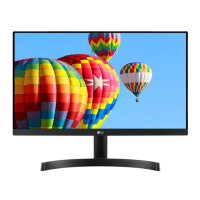
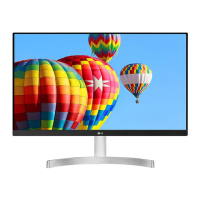
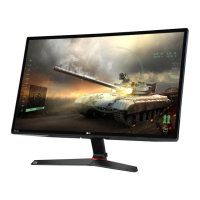
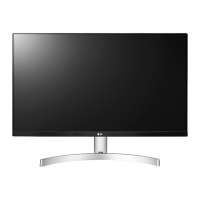
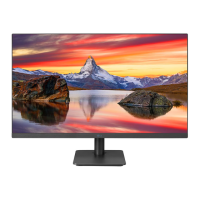
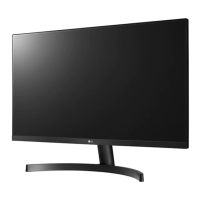
This document is an owner's manual for an LG LED LCD Monitor, specifically covering models 22MK600M, 24MK600M, 27MK600M, and 27MK60TM. It provides comprehensive instructions for setting up, using, and maintaining the monitor.
Function Description
The LG LED LCD Monitor serves as a display device for personal computers and AV devices. It supports both analog (D-SUB) and digital (HDMI) video and audio signals, offering versatility in connectivity. The monitor is designed to provide a clear and vibrant visual experience, enhanced by features like various picture modes and display adjustments. It also includes a headphone output for audio.
Usage Features
Assembly and Preparation:
The manual details the components included in the box, such as the stand body, stand base, screws, power cord, AC-DC adapter, HDMI cable, and D-SUB cable. It provides step-by-step instructions for assembling the stand and mounting the monitor on a table. For wall mounting, it advises on proper clearance and the use of VESA standard screws and an authorized LG wall mount bracket. It emphasizes the importance of using genuine components and the supplied cables to ensure safety and product performance.
Controlling the Monitor:
The monitor features a joystick button located at the bottom for easy control of its functions.
- Power On/Off: Pressing the joystick button once turns the monitor on. Pressing and holding it turns the monitor off.
- Volume Control: Moving the joystick left or right adjusts the volume (for HDMI only).
- Main Menu Access: Pressing the joystick button brings up the main menu, allowing navigation through various settings.
Connectivity:
- Connecting to a PC: The monitor supports D-SUB and HDMI connections for PCs. D-SUB transmits analog video, while HDMI transmits digital video and audio. The manual recommends using certified HDMI cables to avoid compatibility issues.
- Connecting to AV Devices: HDMI connections are also used for AV devices, transmitting digital video and audio signals.
- Connecting Peripherals: A headphone port is available for connecting external headphones. The manual suggests using straight headphones to avoid interference with other external devices.
Customizing Settings (Main Menu Features):
The main menu offers several categories for customization:
- Quick Settings:
- Brightness/Contrast: Adjusts the display's brightness and contrast levels.
- Volume: Controls the audio output volume (for HDMI only), with an option to mute/unmute.
- Input:
- Input List: Allows selection of the desired input mode (D-SUB, HDMI 1, HDMI 2).
- Aspect Ratio: Adjusts the screen's aspect ratio. Options include "Full Wide" (displays video in wide-screen regardless of signal input) and "Original" (displays video according to the signal input's aspect ratio).
- Picture:
- Picture Mode: Offers various preset modes optimized for different content:
- Custom: Allows manual adjustment of each element.
- Reader: Optimizes the screen for viewing documents, with adjustable brightness.
- Photo: Optimizes for viewing photos.
- Cinema: Enhances visual effects for videos.
- Color Weakness: Designed for users who have difficulty distinguishing between red and green, making it easier to differentiate colors.
- Game: Optimizes settings for gameplay.
- Picture Adjust:
- Brightness/Contrast: Further fine-tunes brightness and contrast.
- Sharpness: Adjusts the sharpness of the screen.
- SUPER RESOLUTION+: Enhances picture quality, with settings for "High" (crystal clear images for high-quality video/game), "Middle" (optimized for comfortable viewing of UCC or SD video), and "Low" (smooth and natural images for slow-moving pictures/still images).
- Black Level: Sets the offset level for HDMI signals, defining the darkest color the monitor can display. Options include "High" (keeps current contrast ratio) and "Low" (lowers black levels and raises white levels).
- DFC (Digital Fine Contrast): Automatically adjusts brightness based on screen content. Can be turned "On" or "Off".
- Game Adjust:
- Response Time: Sets the response time for displayed pictures based on screen speed. Options are "Faster," "Fast," "Normal," and "Off." "Faster" is recommended for fast-moving pictures.
- FreeSync: Synchronizes the vertical frequency of the input signal with the output signal for seamless and natural images. Requires an AMD FreeSync-compatible graphic card and HDMI interface.
- Black Stabilizer: Improves visibility in dark scenes by brightening low gray level areas.
- Cross Hair: Provides a crosshair mark on the screen for FPS games, with various styles to choose from.
- Color Adjust:
- Gamma: Adjusts the gamma value, affecting image darkness/lightness. Options include Mode 1, Mode 2, Mode 3, and Mode 4.
- Color Temp: Selects factory default picture colors (Custom, Warm, Medium, Cool).
- Red/Green/Blue: Allows customization of picture color using individual RGB sliders.
- Configuration Adjust (D-SUB only):
- Horizontal/Vertical: Moves the image left/right or up/down.
- Clock: Minimizes vertical bars or stripes and adjusts horizontal screen size.
- Phase: Adjusts display focus, removing horizontal noise and sharpening characters.
- Resolution (D-SUB only): Allows users to set the desired resolution, with a note that this is only enabled when the computer's resolution matches specific settings.
- Picture Reset: Resets all picture settings to default.
- General:
- Language: Selects the display language for control names.
- SMART ENERGY SAVING: Offers "High" (high-efficiency), "Low" (low-efficiency), or "Off" to save energy. Note that this affects monitor luminance.
- Automatic Standby: Sets a period after which the monitor automatically switches to standby mode.
- OSD Lock: Prevents incorrect key input by disabling all functions except brightness, contrast, input, information, and volume when "On."
- Information: Displays monitor details like model, serial number, total power on time, and resolution.
- Reset: Resets all monitor settings to default.
Maintenance Features
Moving and Lifting the Monitor:
The manual provides guidelines for safely moving and lifting the monitor to prevent scratches or damage. It advises placing the monitor in its original box, disconnecting all cables, and holding the top and bottom of the frame firmly, avoiding the panel itself. It also warns against touching the screen, carrying the monitor upside down by the stand base, or turning it on its side.
Troubleshooting:
A dedicated section addresses common issues:
- No image: Checks power cord connection and signal cable, and advises on "Out of Range" or "NO SIGNAL" messages.
- Cannot control OSD functions: Explains how to unlock OSD controls.
- Incorrect display image: Suggests checking signal cable connection, video card insertion, color settings (24 bits true color), and interlace mode.
- "Unrecognized monitor, Plug&Play (VESA DDC) monitor found" message: Recommends installing the display driver from lg.com and verifying Plug&Play support.
- Screen flickering: Advises changing resolution if using HDMI 1080i 60/50 Hz to the recommended 1080P.
General Care:
- The manual implicitly encourages careful handling during assembly and movement to prevent physical damage.
- It advises against applying foreign substances like oils or lubricants to screw parts during assembly, as this can damage the product.
- It warns against applying excessive force when tightening screws, which could damage the monitor and void the warranty.
- For optimal display and to prevent injury, it recommends maintaining a proper posture when using the monitor.
The manual emphasizes that specifications are subject to change without notice and that power consumption levels can vary based on operating conditions and monitor settings.


 To Next Page
 General