EasyManua.ls Logo

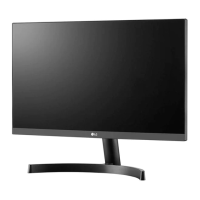
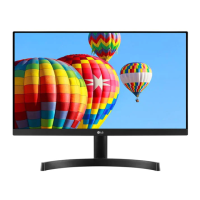
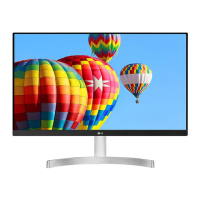
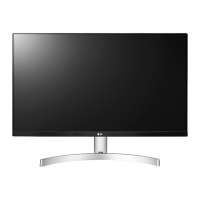
LG 27MK430H - User Manual

LG 27MK430H
30 pages
Print Icon
To Next Page IconTo Next Page
Loading...
www.lg.com
Please read this manual carefully before operating
your set and retain it for future reference.
OWNER'S MANUAL
LED LCD Monitor
(LED Monitor*)
*LG LED Monitors are LCD Monitors with LED Backlighting.
LED LCD MONITOR MODEL
22MK4 series
24MK4 series
27MK4 series
22BK4 series
24BK4 series
27BK4 series
(22MK400H,22MK420H,22MK430H)
(24MK400H,24MK430H)
(27MK400H,27MK430H)
(22BK400H,22BK420H,22BK430H)
(24BK400H,24BK430H)
(27BK400H,27BK430H)

Other manuals for LG 27MK430H

Questions and Answers

  • D
    durhambrandySep 3, 2025
    Why does no image appear on my LG 27MK430H Monitor?
    • P
      paullewisSep 4, 2025
      If no image appears on your LG Monitor, first, check that the power cord is properly connected to the power outlet. If that's not the issue, and the signal cable between the PC and the monitor is either missing or disconnected, check the cable and reconnect it, and verify your PC's status. This message might also appear if the signal from the PC (video card) is out of the horizontal or vertical frequency range of the display. In this case, consult the 'Specifications' section of this manual and configure your display again.
  • K
    Kevin MorganSep 18, 2025
    What to do if my LG 27MK430H Monitor says 'Unrecognized monitor, Plug&Play (VESA DDC) monitor found'?
    • D
      dunlapbillySep 18, 2025
      If your LG Monitor displays a message indicating it's an "Unrecognized monitor, Plug&Play (VESA DDC) monitor found", ensure you install the display driver from the provided CD or diskette. Alternatively, download the driver from the LG website. Also, verify that your video card supports the Plug&Play function.
  • T
    Tanya ClementsSep 16, 2025
    How to unlock OSD controls on an LG Monitor?
    • A
      Austin AllenSep 16, 2025
      If you cannot control some functions in the OSD (On-Screen Display) of your LG Monitor, you can unlock the OSD controls by entering the OSD lock menu and changing the settings to 'off'.
  • J
    John RodriguezSep 14, 2025
    What to do if my LG 27MK430H Monitor shows 'Unrecognized monitor, Plug&Play (VESA DDC) monitor found'?
    • S
      Sean WarnerSep 14, 2025
      If you see an "Unrecognized monitor, Plug&Play (VESA DDC) monitor found" message on your LG Monitor, install the display driver from the CD or diskette that came with your display. Also, verify that your video card supports the Plug&Play function.
  • O
    othompsonSep 12, 2025
    How to unlock OSD controls on LG 27MK430H?
    • S
      Sara NewtonSep 12, 2025
      You can unlock the OSD controls on your LG Monitor by entering the OSD lock menu and changing the settings to 'off'. This will restore your ability to control the OSD functions.
  • J
    Jennifer BurnsSep 12, 2025
    How to unlock OSD menu on LG 27MK430H Monitor?
    • C
      Cheyenne JohnstonSep 12, 2025
      If you can't select some menu in the OSD of your LG Monitor, you can unlock the OSD controls at any time by entering the OSD lock menu and changing items to off.
  • G
    Gregory GutierrezSep 9, 2025
    What to do if I see an 'Unrecognized monitor' message on my LG Monitor?
    • F
      foleybradleySep 9, 2025
      If you see an "Unrecognized monitor, Plug&Play (VESA DDC) monitor found" message on your LG Monitor, be sure to install the display driver from the LG website. Also, make sure to check if the video card supports the Plug&Play function.
  • J
    Jason ValdezSep 7, 2025
    Why is the screen color on my LG 27MK430H Monitor mono or abnormal?
    • A
      Alec PerkinsSep 7, 2025
      If the display image on your LG Monitor is incorrect, showing mono or abnormal colors, first check if the signal cable is properly connected, using a screwdriver to fasten it if necessary. Next, ensure that the video card is properly inserted in its slot. Finally, go to Control Panel settings and set the color setting higher than 24 bits (true color).
  • J
    james24Sep 5, 2025
    How to fix incorrect display image on LG 27MK430H?
    • D
      Destiny BurkeSep 5, 2025
      If the display image on your LG Monitor is incorrect, first check if the signal cable is properly connected, and use a screwdriver to fasten it if necessary. Also, ensure that the video card is properly inserted in its slot. Verify that the color setting is higher than 24 bits (true color) in Control Panel settings. If the screen is set to interlace mode, change it to the recommended resolution.
  • E
    Eric BrownAug 20, 2025
    How to fix no image on my LG 27MK430H?
    • A
      Adam CollinsAug 20, 2025
      If no image appears on your LG Monitor, first, ensure the power cord is properly connected to the power outlet. If that's not the issue, check the signal cable between the PC and the monitor to ensure it's securely connected. Finally, this issue might occur when the signal from the PC (video card) is out of the horizontal or vertical frequency range of the display. Refer to the 'Specifications' section of this manual and configure your display again.

Summary

Assembling and Preparing Your Monitor

Product Components Overview

Lists and illustrates all components included in the monitor box.

Input Connector Details

Illustrates and labels the various input ports available on the monitor.

Setting Up the Monitor

Attaching the Stand Base

Step-by-step guide on how to attach the monitor stand base for various models.

Mounting the Monitor on a Table

Instructions for placing and connecting the monitor for use on a table.

Mounting the Monitor on a Wall

Detailed steps and precautions for safely mounting the monitor on a wall.

Using the Monitor

Connecting to a PC

Guide on connecting the monitor to a personal computer via different cable types.

D-SUB Connection for PC

Instructions for establishing a video connection using the D-SUB signal cable.

Customizing Monitor Settings

Troubleshooting Common Issues

LG 27MK430H Specifications

General IconGeneral
3DNo
DDC/CIYes
Screen shapeFlat
Display diagonal27 \
Display technologyLED
Native aspect ratio16:9
Vertical scan range56 - 75 Hz
Contrast ratio (typical)1000:1
Display number of colors16.78 million colors
Display brightness (typical)250 cd/m²
Supported graphics resolutions1920 x 1080 (HD 1080)
Product colorBlack
Market positioningHome
VGA (D-Sub) ports quantity0
Tilt angle range-5 - 20 °
Cables includedAC
Sustainability certificatesENERGY STAR
AC input voltage100 - 240 V
AC input frequency50 - 60 Hz
Energy efficiency scaleA to G
Power consumption (standby)- W
Weight and Dimensions IconWeight and Dimensions
Depth (with stand)204 mm
Height (with stand)469 mm
Weight (with stand)4600 g
Depth (without stand)44 mm
Width (without stand)626 mm
Height (without stand)375 mm
Weight (without stand)4200 g

Related product manuals