EasyManua.ls Logo

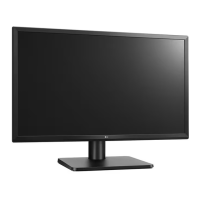
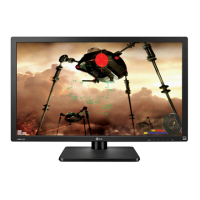
LG 27MU67-B - User Manual

LG 27MU67-B
32 pages
Print Icon
To Next Page IconTo Next Page
Loading...
www.lg.com
Owner's Manual
IPS LED MONITOR
(LED MONITOR*)
27MU67
Please read the safety information carefully
before using the product.
* Disclaimer: LG LED Monitor applies LCD screen with LED backlights.

Questions and Answers

  • K
    Kathryn MarksAug 8, 2025
    What to do if nothing is displayed on my LG 27MU67-B Monitor screen?
    • T
      Tara MartinAug 8, 2025
      If nothing is displayed on your LG Monitor's screen, first, ensure the power cord is correctly plugged into the power outlet. Then, check the power cable connection and press the power button. Verify that the connected input is enabled by going to Menu > Quick Settings > Input. If the monitor is in sleep mode, move the mouse or press any key on the keyboard. Also, make sure your computer is turned on. If signals from the PC are out of the monitor's frequency range, refer to the Product Specification section of this manual to set the appropriate frequency. Finally, check the cable and reconnect it.
  • C
    charlene29Aug 13, 2025
    How to fix no sound from headphone port on LG 27MU67-B Monitor?
    • E
      Emma HoganAug 13, 2025
      If you're getting no sound from the headphone port on your LG Monitor, first ensure the headphone connections are properly made. Then, try increasing the volume using the button on the monitor. Lastly, set the audio output of your PC to the monitor. On Microsoft Windows, go to Control Panel > Hardware and Sound > Sound and set the monitor as the default device.
  • W
    wayne93Aug 17, 2025
    How to fix LG Monitor when nothing is displayed on the screen?
    • B
      Brandy ClarkAug 17, 2025
      If nothing is displayed on your LG Monitor screen, make sure the power cord is correctly plugged into the power outlet and that the power cable is properly connected. Press the power button to turn on the monitor. Also, ensure the connected input is enabled by going to Menu > Quick Settings > Input. If the monitor is in sleep mode, move the mouse or press any key on the keyboard. Verify that your computer is also turned on. If the signal cable between the PC and the monitor is missing or disconnected, check the cable and reconnect it. If signals from the PC are out of the monitor's frequency range, refer to the Product Specification section of this manual to set the appropriate frequency.
  • A
    Anna LewisAug 21, 2025
    Why is the display color abnormal on my LG Monitor?
    • H
      hannahmeadowsAug 21, 2025
      If the display color on your LG Monitor is abnormal, set the color to 24 bit (true color) or higher by navigating to Control Panel > Display > Settings > Color Quality in Windows. Also, check if the signal cable is properly connected, and if not, reconnect the cable or reinsert the PC's graphics card. Note that some color variations are normal for an LCD screen and not related to a malfunction.
  • G
    glenn05Aug 26, 2025
    Why does my LG Monitor screen retain an image?
    • J
      Jamie WeberAug 26, 2025
      If your LG Monitor screen retains an image, it may be due to displaying a still image for a prolonged time, which can cause damage. To extend the monitor's lifetime, use a screensaver.
  • D
    Denise JacksonAug 30, 2025
    What to do if LG 27MU67-B screen display is unstable and shaky?
    • T
      thompsonchristopherAug 30, 2025
      If the screen display of your LG Monitor is unstable, shaky, or images leave shadow trails, and the resolution is set to HDMI 1080i 60/50 Hz (interlaced), the screen may be flickering. Change the resolution to 1080P or the recommended resolution to resolve this issue.
  • S
    Samantha HarperSep 3, 2025
    How to turn off OSD Lock on LG Monitor?
    • V
      villarreallaurieSep 3, 2025
      If the OSD Lock message is displayed on your LG Monitor, go to Menu > General and set OSD Lock to Off.

LG 27MU67-B Specifications

General IconGeneral
Screen Size27 inches
Resolution3840 x 2160 (4K UHD)
Panel TypeIPS
Aspect Ratio16:9
Refresh Rate60 Hz
Response Time5 ms (GTG)
Brightness300 cd/m²
Contrast Ratio1000:1
Viewing Angle178° (H) / 178° (V)
Color Gamut99% sRGB
AMD FreeSyncYes
VESA Mount100 x 100 mm
Color Depth10-bit (8-bit + FRC)
ConnectivityDisplayPort, HDMI, USB

Related product manuals