EasyManua.ls Logo

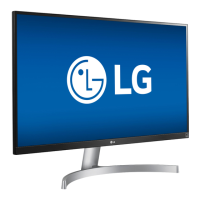
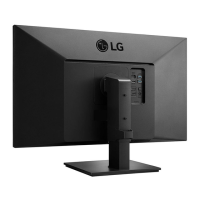
LG 27UK580-B - User Manual

LG 27UK580-B
52 pages
Print Icon
To Next Page IconTo Next Page
Loading...
* LG LED Monitor applies LCD screen with LED backlights.
Please read this manual carefully before operating your set and retain it for future reference.
www.lg.com
Copyright 2021 LG Electronics Inc. All Rights Reserved.
Owner’s Manual
LED LCD MONITOR
(LED Monitor*)
27UK580
32UK580
Questo manuale d’istruzione è fornito da trovaprezzi.it. Scopri tutte le offerte per LG 27UK580-B o
cerca il tuo prodotto tra le migliori offerte di Monitor

Questions and Answers

  • M
    medinastevenAug 13, 2025
    What to do if nothing is displayed on my LG 27UK580-B Monitor screen?
    • V
      vbrockAug 13, 2025
      If nothing is displayed on your LG Monitor screen, ensure the power cord is correctly plugged into the outlet. Check if the outlet has power by testing with another device. Also, verify the power cable connection and press the power button. Finally, confirm the connected input is enabled in the monitor's settings under Input.
  • E
    Erin WallAug 17, 2025
    What to do if the 'No Signal' message appears on my LG 27UK580-B (32UK580)?
    • S
      stephencastroAug 17, 2025
      If the 'No Signal' message appears on your LG Monitor, first check the signal cable between your PC and the monitor to ensure it is properly connected. If the screen remains blank after reconnecting the cable, navigate to the monitor's General settings and set HDMI ULTRA HD Deep Color to 'off'.
  • V
    Vanessa DuarteAug 20, 2025
    Why does the 'Out of Range' message appear on my LG 27UK580-B?
    • M
      Michael GouldAug 21, 2025
      The 'Out of Range' message appears on your LG Monitor because the signals from your PC's graphics card are outside the monitor's supported horizontal or vertical frequency range. To resolve this, refer to the Product Specification section of this manual to set the appropriate frequency.
  • J
    Jennifer JonesAug 25, 2025
    How to fix flickering screen on LG 27UK580-B with HDMI 1080i?
    • K
      Kiara JordanAug 25, 2025
      If your LG Monitor screen is flickering when using HDMI 1080i 60/50 Hz (interlaced) resolution, change the resolution to 1080p or the recommended resolution for optimal display.
  • B
    Brittany KruegerAug 28, 2025
    What to do if the 'No Signal' message is displayed on LG 27UK580-B (27UK580)?
    • M
      Mrs. Dominique PerryAug 28, 2025
      If the 'No Signal' message is displayed on your LG Monitor, it indicates that the signal cable between your PC and the monitor might be missing or disconnected. Check the cable and reconnect it securely.
  • B
    Bruce MccoySep 1, 2025
    Why does image sticking occur on my LG 27UK580-B Monitor even when it's off?
    • C
      Caleb BarnesSep 1, 2025
      Image sticking on your LG Monitor occurs because displaying a still image for an extended period can damage the screen, causing the image to be retained. To prevent this and extend the monitor's lifespan, use a screensaver.
  • B
    Brandon GlennSep 4, 2025
    Why are some functions not available when I press the Menu button on my LG Monitor?
    • T
      Trevor Mercado Jr.Sep 5, 2025
      If some functions are unavailable when you press the Menu button on your LG Monitor, it's likely because the OSD (On-Screen Display) is locked. To unlock it, disable OSD Lock in the General settings.
  • M
    Margaret MooreSep 9, 2025
    Why are there spots on my LG 27UK580-B screen?
    • R
      Ryan GoldenSep 9, 2025
      The pixilated spots (red, green, blue, white, or black) that may appear on your LG Monitor screen are normal for an LCD screen. This is not an error and does not indicate a problem with the monitor's performance.

Summary

Open Source Software Notice Information

Assembling and Preparing

Monitor Buttons and Controls

How to Use the Joystick Button

Instructions on using the monitor's joystick button for basic functions like power and volume.

Monitor Handling and Movement

Table Installation Guide

Clamp Installation Method

Monitor Swivel Stand Function

Monitor Pivot Feature

Stand Height and Angle Adjustment

Adjusting the Stand Height

Guide on how to adjust the monitor's height using the stand handle.

Adjusting the Angle

Adjusts the angle of the screen forward or backward for a comfortable viewing experience.

Kensington Security System

Wall Mounting Instructions

Wall Mount Plate Installation

Instructions for attaching a wall mounting bracket to the monitor and wall.

Monitor Operation Guide

PC Connectivity Options

Guides on connecting the monitor to a computer via HDMI or DisplayPort.

AV Device Connections

HDMI Audio;Video Connection

Connects digital video and audio signals from an AV device to the monitor via HDMI.

Peripheral Connections

Headphone Port Usage

Connects peripherals, such as headphones, to the monitor via the headphones port.

User Settings and Menu Navigation

Accessing the Main Menu

Steps to activate the monitor's main menu using the joystick button.

Main Menu Features

Details on the functions and options available in the monitor's main menu.

Quick Settings Adjustments

Adjusts contrast, brightness, volume, and color temperature settings for the monitor.

Input Source Selection

Selects the input mode and adjusts the aspect ratio of the screen for optimal display.

Picture Mode Settings

Configures picture modes like Vivid, HDR Effect, Reader, Cinema, FPS, RTS, and Color Weakness.

Advanced Picture Adjustments

Fine-tunes picture quality with settings like Brightness, Contrast, Sharpness, SUPER RESOLUTION+, and Black Level.

Gaming Adjustments

Optimizes monitor settings for gaming, including Response Time, FreeSync, and Black Stabilizer.

Color and Reset Settings

Customizes color temperature, RGB settings, and resets picture settings to default.

General Configuration Options

Manages general settings like language, energy saving, power LED, automatic standby, and DisplayPort version.

Troubleshooting Common Issues

Monitor Technical Specifications

Factory Support Modes

DisplayPort Signal Modes

Lists display modes, frequencies, and polarity for DisplayPort connection.

HDMI Signal Modes

HDMI Timing and Deep Color

Specifies HDMI modes, frequencies, and Deep Color settings for optimal video display.

HDMI Video Timing

Power LED Indicator

Beep Guide Menu Reference

Supplier Declaration of Conformity

LG 27UK580-B Specifications

General IconGeneral
Screen Size27 inches
Resolution3840 x 2160 (4K UHD)
Panel TypeIPS
Refresh Rate60 Hz
Brightness350 cd/m²
Response Time5ms (GTG)
Aspect Ratio16:9
ConnectivityHDMI, DisplayPort
Contrast Ratio1000:1
Color GamutsRGB 99%
HDRHDR10
Ports2 x HDMI, 1 x DisplayPort, 1 x Headphone Out
VESA Mount100 x 100 mm
FeaturesAMD FreeSync, Black Stabilizer, Reader Mode
Viewing Angle178°

Related product manuals