EasyManua.ls Logo

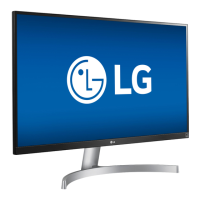
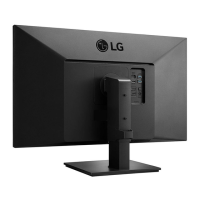
LG 27UK580 - User Manual

LG 27UK580
52 pages
Print Icon
To Next Page IconTo Next Page
Loading...
* LG LED Monitor applies LCD screen with LED backlights.
Please read this manual carefully before operating your set and retain it for future reference.
www.lg.com
Copyright 2021 LG Electronics Inc. All Rights Reserved.
Owner’s Manual
LED LCD MONITOR
(LED Monitor*)
27UK580
32UK580

Questions and Answers

  • J
    Jeffery ColemanAug 15, 2025
    How to troubleshoot a blank screen on my LG 27UK580 Monitor?
    • M
      Marissa SingletonAug 15, 2025
      If nothing is displayed on your LG Monitor, verify that the power cord is properly connected to the power outlet. Also, ensure the outlet is providing power by testing it with another electrical device.
  • A
    Amanda SaundersAug 18, 2025
    Why does my LG Monitor (27UK580) say 'No Signal'?
    • M
      Misty MatthewsAug 18, 2025
      The 'No Signal' message on your LG Monitor indicates that the signal cable between the PC and the monitor is either missing or disconnected. To resolve this, check the cable connection and reconnect it securely.
  • W
    Willie PooleAug 22, 2025
    Why does my LG 27UK580 Monitor display an 'Out of Range' message?
    • M
      Miss Olivia GardnerAug 22, 2025
      The 'Out of Range' message appears when the signals from your PC's graphics card are outside the monitor's supported horizontal or vertical frequency range. To fix this, refer to the Product Specification section of this manual to set the appropriate frequency.
  • K
    Kenneth JohnsonAug 25, 2025
    What happens if I select the wrong resolution on my LG Monitor?
    • D
      Dr. Hector ConwayAug 26, 2025
      If you select HDMI 1080i 60/50 Hz (interlaced) resolution, the screen may flicker. Change the resolution to 1080p or the recommended resolution. Not setting the graphics card to the recommended resolution may result in blurred text, a dimmed screen, a truncated display area, or misalignment of the display.
  • R
    Rebecca GallegosAug 28, 2025
    What to do if the power LED is off on my LG 27UK580 Monitor?
    • A
      Ashley ForbesAug 28, 2025
      If the power LED on your LG Monitor is off, check the power cable connection and make sure to press the power button.
  • W
    wdavisAug 31, 2025
    What to check if my LG 27UK580's power LED is white but there's no display?
    • C
      Christopher WaltersAug 31, 2025
      If the power is on and the power LED is white, ensure that the connected input is enabled. You can verify this by going to Settings > Input on your LG Monitor.
  • P
    Pamela FletcherSep 4, 2025
    Why are some menu functions unavailable on my LG 27UK580 Monitor?
    • C
      Carlos WattsSep 4, 2025
      If some functions are unavailable when you press the Menu button on your LG Monitor, the OSD (On-Screen Display) might be locked. To unlock it, disable OSD Lock in the General settings.
  • A
    Ana GreenSep 7, 2025
    How to prevent image sticking on my LG 27UK580?
    • G
      gboyerSep 7, 2025
      Displaying a still image for a long time can damage the screen, causing image retention. To extend the life of your LG Monitor, use a screensaver.
  • K
    Kathleen WilliamsSep 12, 2025
    Why are there spots on my LG 27UK580 screen?
    • A
      Angel BennettSep 12, 2025
      When using the LG Monitor, you might notice pixilated spots (red, green, blue, white, or black) on the screen. This is normal for an LCD screen and does not indicate an error or affect the monitor's performance.

Summary

License Information

Open Source Software Notice

Assembling and Preparing

Safety and Handling Precautions

Essential safety advice for assembling and handling the monitor.

Product and Button Description

Joystick Button Operation

How to use the monitor's joystick button for controls.

Moving and Lifting the Monitor

Moving and Lifting Safety

Instructions for safe movement and lifting of the monitor.

Table Installation

Table Installation Safety

Safety guidelines for installing the monitor on a table.

Clamp Installation

Clamp Installation Safety

Safety precautions for securing the monitor stand clamp.

Pivot Functionality

Pivot Operation

How to use the monitor's pivot function for screen rotation.

Leveling the Screen

Stand Adjustments

Adjusting Stand Height

How to change the monitor's vertical height.

Adjusting Stand Angle

How to adjust the monitor's tilt angle.

Kensington Lock Usage

Kensington Lock Safety

Safety and usage tips for the Kensington security lock.

Wall Mounting

Wall Mount Plate Installation

Steps for attaching the optional wall mount plate.

Wall Mounting Safety

Safety advice and considerations for wall mounting.

Monitor Usage

Connecting to a PC

How to connect and use the monitor with a computer.

HDMI Connection

Connecting the monitor via HDMI for video and audio.

DisplayPort Connection

Connecting the monitor via DisplayPort for video and audio.

Connecting AV and Peripherals

Connecting AV Devices

Connecting audio-visual equipment to the monitor.

Connecting Peripherals

Connecting audio peripherals like headphones to the monitor.

User Settings

Menu Navigation

Accessing and navigating the on-screen display (OSD) menu.

Button Functions

Joystick Button Functions

Detailed description of joystick button functions for different models.

Menu Features and Settings

Main Menu Features

Overview of the main menu options and their functions.

Menu Settings Navigation

How to navigate and set options within the menu system.

Quick Settings

Brightness and Volume

Adjusting basic display settings like brightness and volume.

Input and Aspect Ratio

Selecting input sources and configuring screen aspect ratios.

Picture Settings

Picture Modes

Configuring various picture modes and image quality settings.

HDR Picture Modes

Specific picture modes optimized for HDR content.

Picture Adjustments

Fine-tuning contrast, sharpness, and black levels.

Game Adjust Settings

Optimizing settings for gaming, including response time and FreeSync.

Color Adjustments

Fine-tuning colors, gamma, and white balance for desired picture.

General Settings

Language and Energy Saving

Configuring language and power saving modes.

Power LED and Standby

Settings for the power indicator light and automatic standby.

DisplayPort Version

Setting the DisplayPort version for optimal compatibility.

HDMI ULTRA HD Deep Color

Enhancing image sharpness with deep color support.

Buzzer and OSD Lock

Configuring buzzer sounds and locking the OSD menu.

OSD Size and Information

Adjusting OSD display size and viewing system information.

Reset to Initial Settings

Restoring the monitor to its factory default settings.

Troubleshooting Common Issues

No Display or Signal Issues

Solutions for problems with screen display or signal reception.

Display Instability and Image Quality

Addressing screen flickering, shadow trails, and image sticking.

Feature Malfunctions

Resolving issues where menu functions are unavailable or locked.

Product Specifications

27 UK580 Specifications

Technical details and operational requirements for the 27UK580 model.

32 UK580 Specifications

Technical details and operational requirements for the 32UK580 model.

Special Modes and Indicators

Factory Support Modes

Supported resolutions and frequencies for PC connections via DisplayPort.

HDMI Timing Modes

Supported resolutions and frequencies for video signals via HDMI.

Power LED Indicator

Understanding the status indicated by the monitor's power LED.

Beep Guide and Compliance

Beep Guide Navigation

Reference for menu item locations and corresponding beep guide codes.

Supplier Declaration of Conformity

Manufacturer's declaration regarding product compliance and safety standards.

LG 27UK580 Specifications

General IconGeneral
BrandLG
Model27UK580
CategoryMonitor
LanguageEnglish

Related product manuals