EasyManua.ls Logo

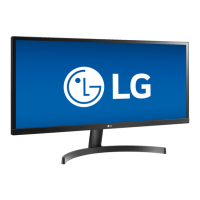
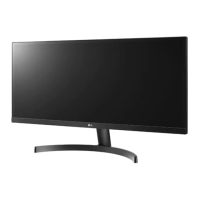
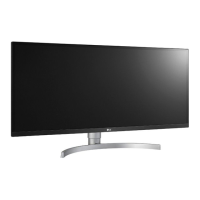
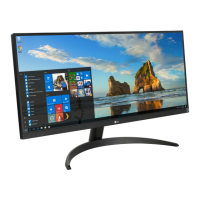
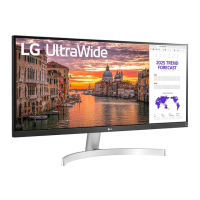
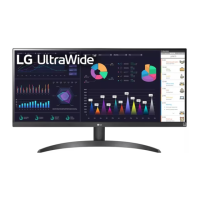
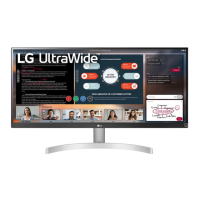
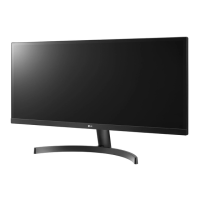
LG 29WL50S - User Manual

LG 29WL50S
26 pages
Print Icon
To Next Page IconTo Next Page
Loading...
* LG LED Monitor applies LCD screen with LED backlights.
Please read this manual carefully before operating your set and
retain it for future reference.
29WL50S
34WL50S
OWNER’S MANUAL
LED LCD MONITOR
(LED Monitor*)
www.lg.com
Copyright © 2019 LG Electronics Inc. All Rights Reserved.

Other manuals for LG 29WL50S

Questions and Answers

  • A
    Anthony Duncan Jr.Aug 18, 2025
    What to do if nothing is displayed on my LG 29WL50S screen?
    • P
      Patricia GutierrezAug 18, 2025
      First, ensure the power cord is correctly plugged into the power outlet. If it is, test the power plug using a lamp or another device to verify the outlet is working.
  • D
    Denise BrownAug 20, 2025
    How to fix 'No Signal' message on LG 29WL50S?
    • M
      Marcus DavisAug 20, 2025
      Check the monitor cable and reconnect it securely. This should resolve the 'No Signal' message.
  • A
    adam97Aug 23, 2025
    How to fix the 'Out of Range' message on LG Monitor?
    • G
      Gary CollierAug 23, 2025
      The 'Out of Range' message appears when the signals from the PC's graphics card are outside the monitor's frequency range. Refer to the Product Specification section of this manual to set the appropriate frequency.
  • N
    Nicholas VelazquezAug 26, 2025
    How to get sound when using DisplayPort or HDMI input on my LG 29WL50S?
    • B
      Brandon WebbAug 26, 2025
      First, try increasing the volume using the button on the monitor. If that doesn't work, set the audio output of the PC to the monitor you are using. On Microsoft Windows, go to Control Panel > Hardware and Sound > Sound and set the monitor as the default device.
  • E
    Elizabeth MooreAug 28, 2025
    Do I need to install a display driver for my LG Monitor?
    • M
      Mark GardnerAug 28, 2025
      Yes, be sure to install the display driver from the LG website: http://www.lg.com. Also, make sure to check if the video card supports Plug&Play function.
  • J
    Jessica HallAug 30, 2025
    What to do if the power LED is blinking on my LG 29WL50S Monitor?
    • L
      Lisa MccannAug 30, 2025
      If the LG monitor is in sleep mode, try moving the mouse or pressing any key on the keyboard to wake it. Also, verify that the computer is turned on.
  • E
    Elizabeth HoganSep 2, 2025
    Why does the display color appear unstable or monochrome on my LG 29WL50S Monitor?
    • B
      brownnathanSep 2, 2025
      Ensure the signal cable is properly connected to your LG monitor. Try reconnecting the cable or reinserting the PC's graphics card.
  • B
    Bryan GrahamSep 4, 2025
    What to do if the power LED is not on on my LG 29WL50S?
    • T
      Tyler MarshallSep 4, 2025
      Check the power cable connection and press the power button on your LG monitor.
  • C
    Curtis ChenSep 7, 2025
    What to do if the power is on and the power LED displaying white on my LG 29WL50S Monitor?
    • H
      harry59Sep 7, 2025
      Check that the connected input is enabled. You can find this setting under Settings > Input > Input list.
  • D
    Dr. Nancy BrownSep 9, 2025
    Why are some functions unavailable when I press the Menu button on my LG 29WL50S?
    • Y
      yfranklinSep 9, 2025
      The OSD (On-Screen Display) might be locked. To unlock it, go to Settings > General and set OSD Lock to Off.

Summary

Assembling and Preparing

Product and Button Description

Joystick Button Usage

Explains how to control monitor functions by pressing or moving the joystick button.

Moving and Lifting the Monitor

Provides instructions for safely moving and lifting the monitor to prevent damage.

Installing the Monitor on a Table

Adjusting the Monitor Angle

Wall Mounting Instructions

Using the Monitor

Connecting to a PC

Details how to connect the monitor to a personal computer, including Plug and Play and HDMI connection.

Connecting AV Devices

Explains how to connect audio-visual devices to the monitor, focusing on HDMI connectivity.

Connecting Peripherals

Covers connecting external devices like headphones to the monitor through the headphone port.

User Settings

Activating the Main Menu

Describes how to access and navigate the monitor's main menu using the joystick button.

Menu Settings Overview

Introduces the different settings categories available for user configuration, including Quick, Input, Picture, Sound, and General.

Picture Settings

General Settings

Troubleshooting

No Display or Signal Issues

Addresses problems like no image on screen, power LED status, out of range, and no signal messages.

Product Specifications

LG 29WL50S Specifications

General IconGeneral
Screen Size29 inches
Resolution2560 x 1080
Aspect Ratio21:9
Panel TypeIPS
Refresh Rate75Hz
Response Time5ms (GTG)
Brightness250 cd/m²
Color GamutsRGB 99%
Adaptive SyncAMD FreeSync
Contrast Ratio1000:1
VESA Mount100 x 100 mm
PortsHDMI, Headphone Out
Viewing Angle178°
Weight4.8 kg

Related product manuals