EasyManua.ls Logo

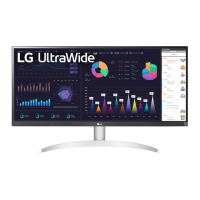
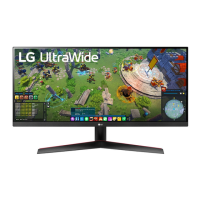
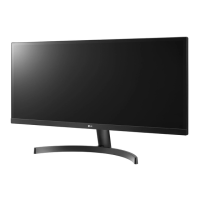
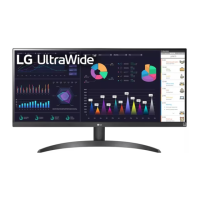
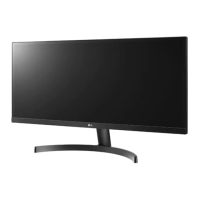
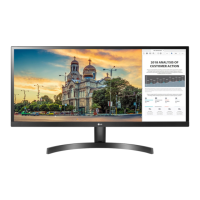
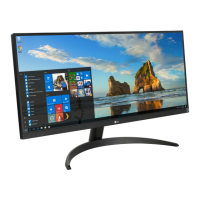
LG 29WR30MR-B - User Manual

LG 29WR30MR-B
45 pages
Print Icon
To Next Page IconTo Next Page
Loading...
www.lg.com
OWNER’S MANUAL
MONITOR SIGNAGE
29WR30MR
Please read this manual carefully before operating the your set and
retain it for future reference.
MONITOR SIGNAGE MODELS

Questions and Answers

  • J
    Jacob KeithAug 8, 2025
    Why is no image displayed on my LG 29WR30MR-B?
    • J
      Jessica BrownAug 9, 2025
      There could be several reasons why your LG Monitor isn't displaying an image: * Ensure the power cord is properly connected to the outlet. * The signal cable between your PC and the monitor might not be connected correctly; double-check the connection. * The signal from your PC's video card may be outside the monitor's supported frequency range. Refer to the manual's specifications to adjust the frequency range. Maximum resolution HDMI/DVI: 2560 x 1080(60Hz). * Verify the input signal by pressing the 'INPUT' menu on the remote control.
  • K
    kingryanAug 13, 2025
    What to do if the audio function does not work on LG Monitor?
    • J
      Jeffrey RoblesAug 13, 2025
      If the audio function on your LG Monitor isn't working, try the following: * Make sure the audio cable is connected properly. * Adjust the volume settings on your monitor and computer. * Check that the sound settings are configured correctly on your computer.
  • C
    Cindy AdamsAug 17, 2025
    Why is the screen color abnormal on my LG 29WR30MR-B?
    • M
      Megan WalshAug 17, 2025
      Abnormal screen color on your LG Monitor can be due to several factors: * Ensure the color depth is set to more than 24 bits (true color) in your operating system's display settings (Control Panel - Display - Settings - Color Table in Windows). * Check the connection status of the signal cable. * Try re-inserting the PC video card. Note: Several pixels (red, green, white or black color) may appear on the screen, which can be attributable to the unique characteristics of the LCD panel. It is not a malfunction of the LCD.
  • A
    Alejandra BrownAug 21, 2025
    What to do if the screen image looks abnormal on my LG 29WR30MR-B Monitor?
    • Z
      zsmithAug 21, 2025
      If the screen image looks abnormal, it could be due to the following reasons: * The screen position might be wrong. Check if the video card resolution and frequency are supported by the monitor. If the frequency is out of range, set to the recommended resolution in the Control Panel 'Display' Setting menu. * The proper input signal might not be connected to the signal port. Connect the signal cable that matches with the source input signal.
  • C
    cookmichelleAug 26, 2025
    What to do if 'Key Lock On' message appears on LG Monitor?
    • D
      debra59Aug 26, 2025
      The 'Key Lock On' message indicates that the OSD settings are locked to prevent accidental changes. To disable this feature on your LG Monitor, navigate to the Menu, then Option, and disable the Key Lock option.
  • L
    Laura MontgomeryAug 30, 2025
    Why does after-image appear on my LG Monitor?
    • J
      jenna01Aug 30, 2025
      An after-image appearing on your LG Monitor can be attributed to: * Using a fixed image for an extended period, which may cause pixel damage. It's recommended to use the screen-saver function. * Displaying a dark image after an image with high contrast (black and white or gray), which can cause image sticking. This is normal for LCD screens.
  • R
    Robin WhiteSep 3, 2025
    Why does 'Unknown Product' message appear when LG Monitor is connected?
    • C
      Christopher MillerSep 3, 2025
      The 'Unknown Product' message appearing when the monitor is connected may be related to plug-and-play functionality. Verify if the plug&play function is supported by referring to the video card user manual.

LG 29WR30MR-B Specifications

General IconGeneral
Screen Size29 inches
Resolution2560 x 1080
Aspect Ratio21:9
Panel TypeIPS
Refresh Rate100 Hz
Response Time5 ms (GtG)
Contrast Ratio1000:1
Color GamutsRGB 99%
Headphone OutYes
HDRHDR10
VESA Mounting100 x 100 mm
Tilt AdjustmentYes
Height AdjustmentYes
ConnectivityHDMI, DisplayPort, USB-C
USB HubYes
FeaturesAMD FreeSync
Built-in SpeakersYes
Brightness250 cd/m² (Typ.)

Related product manuals