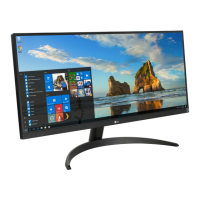
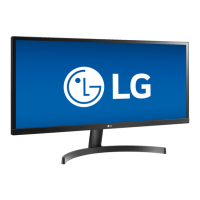
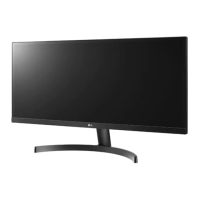
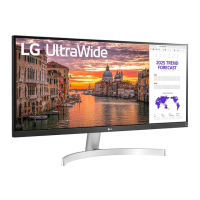
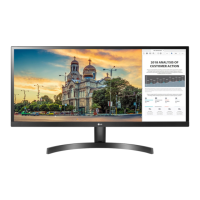
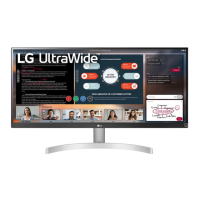
This document is an owner's manual for an LG LED LCD Computer Monitor, specifically covering models 29WP500, 34WP500, and 34WP550. The device functions as a computer monitor and is not intended for television purposes. It utilizes an LCD screen with LED backlights.
Important Technical Specifications
Resolution:
- 29WP500: Max Resolution 2560 x 1080 @ 75 Hz, Recommended Resolution 2560 x 1080 @ 60 Hz.
- 34WP500/34WP550: Max Resolution 2560 x 1080 @ 75 Hz, Recommended Resolution 2560 x 1080 @ 60 Hz.
Color Depth:
- All models support 8-bit / 10-bit color.
Power Sources:
- Power Rating: 19 V --- 1.3 A (29WP500), 19 V --- 2.0 A (34WP500/34WP550).
- Power Consumption:
- On mode: 16 W Typ. (ENERGY STAR® standard)* (29WP500), 23 W Typ. (ENERGY STAR® standard)* (34WP500/34WP550).
- Sleep Mode (Standby Mode): ≤ 0.5 W**.
- Off Mode: ≤ 0.3 W.
- *The On mode power consumption is measured with ENERGY STAR® test standard.
- **The monitor goes to the Sleep Mode in a couple of minutes (Max 5 minutes).
AC/DC Adapter:
The manual lists various compatible AC/DC adapters from SHENZHEN HONOR ELECTRONIC, LIEN CHANG ELECTRONIC ENTERPRISE, and PI Electronics (H.K.) Ltd., with an output of 19 V --- 1.3 A (29WP500) or 19 V --- 2.1 A (34WP500/34WP550).
Environmental Conditions:
- Operating Conditions: Temperature 0 °C to 40 °C, Humidity Less than 80 %.
- Storing Conditions: Temperature -20 °C to 60 °C, Humidity Less than 85 %.
Dimensions and Weight (Without Packaging):
- 29WP500:
- With Stand (mm): 688.5 x 405.0 x 223.8
- Without Stand (mm): 688.5 x 313.4 x 76.9
- With Stand (kg): 4.5
- Without Stand (kg): 4.0
- 34WP500:
- With Stand (mm): 816.7 x 483.8 x 223.3
- Without Stand (mm): 816.7 x 364.9 x 65.3
- With Stand (kg): 5.9
- Without Stand (kg): 4.9
- 34WP550:
- With Stand (mm): 816.7 x 568.3 x 260.0
- Without Stand (mm): 816.7 x 364.9 x 65.3
- With Stand (kg): 6.8
- Without Stand (kg): 4.9
Wall Mount Plate (Optional):
- Wall Mount (mm): 100 x 100
- Standard screw: M4 x L10
- Number of screws: 4
- Wall Mount Plate (Optional): LSW 149
Factory Support Mode (Preset Mode, PC) for HDMI:
The manual provides a table of supported resolutions, horizontal frequencies (kHz), vertical frequencies (Hz), and polarity (H/V) for various PC resolutions, including:
- 640 x 480 (31.469 kHz, 59.94 Hz, -/-)
- 800 x 600 (37.879 kHz, 60.317 Hz, +/+)
- 1024 x 768 (48.363 kHz, 60 Hz, -/-)
- 1280 x 720 (45 kHz, 60 Hz, +/+)
- 1920 x 1080 (67.5 kHz, 60 Hz, +/-)
- 2560 x 1080 (66.636 kHz, 59.98 Hz, -/-, Recommend Mode)
- 2560 x 1440 (88.86 kHz, 59.95 Hz, -/-, Only for XBOX)
HDMI Timing (Video):
Supported video modes include:
- 480p (31.5 kHz, 60 Hz)
- 576p (31.25 kHz, 50 Hz)
- 720p (37.5 kHz, 50 Hz or 45.0 kHz, 60 Hz)
- 1080p (56.25 kHz, 50 Hz or 67.5 kHz, 60 Hz)
- 2160p (67.5 kHz, 30 Hz)
Usage Features
Joystick Button Control:
The monitor is controlled using a single joystick button located at the bottom.
- Power on: Press the joystick button once with your finger to turn on the monitor.
- Power off: Press and hold the joystick button once more than 3 seconds with your finger to turn off the monitor.
- Volume control: You can control the volume by moving the joystick button left/right.
- Menu navigation: Moving the joystick up/down/left/right allows navigation through the On Screen Display (OSD) menu. Pressing the joystick button confirms selections.
Adjusting the Stand Height:
- 29WP500/34WP500: Max 110.0 mm adjustment.
- 34WP550: Max 110.0 mm adjustment.
The monitor can be placed on the stand base in an upright position, and the height can be adjusted.
Adjusting the Angle:
The screen angle can be adjusted forward or backward.
- 29WP500/34WP500: -5° to 15° for a comfortable viewing experience.
- 34WP550: -5° to 20° for a comfortable viewing experience.
Kensington Lock:
The monitor includes a connector for a Kensington security system, located at the bottom. This allows securing the monitor to a table using a Kensington security system cable (optional accessory).
Wall Mount Installation:
The monitor can be installed on a wall using a VESA-compatible wall mounting bracket (100 x 100 mm). The manual provides instructions for installing the wall mount plate and emphasizes using appropriate screws and ensuring sufficient ventilation.
Connecting Peripherals:
- Headphones: Connect headphones to the monitor via the headphones port. Straight or angled headphone jacks are supported.
- PC Connection: The monitor supports "Plug and Play" feature, allowing automatic detection and configuration with a computer.
- HDMI Connection: Transmits digital video and audio signals from your PC to the monitor. It is recommended to use certified HDMI cables with the HDMI logo attached. The manual lists supported HDMI cable types: High-Speed HDMI™/™ cable and High-Speed HDMI™/™ cable with Ethernet.
User Settings (OSD Menu):
The OSD menu is accessed by pressing the joystick button.
- Main Menu: Includes options for Input, Power Off, Settings, Picture Mode, and Exit.
- Quick Settings:
- Brightness, Contrast, Volume: Adjusts these display and audio parameters.
- Color Temp: Custom, Warm, Medium, Cool, Manual settings to adjust the screen color (red, green, blue, reddish, bluish, fine-tune).
- Input Settings:
- Input List: Selects the input mode.
- Aspect Ratio: Adjusts the aspect ratio of the screen (Full Wide, Original, Cinema 1, Cinema 2).
- Auto Input Switch: Enables or disables automatic switching to new input when connected.
- Picture Settings:
- Picture Mode: Custom, Vivid, HDR Effect, Reader, Cinema, FPS, RTS, Color Weakness. These modes optimize the screen for different content types (e.g., vibrant images, reading, movies, gaming, color distinction).
- Picture Adjust:
- Brightness, Contrast, Sharpness: Adjusts these display parameters.
- SUPER RESOLUTION+: Optimizes the screen for clear images, high-definition video, games, and natural images. Can be set to High, Middle, Low, or Off.
- Black Level: Sets the offset level for HDMI input only, adjusting the darkest color the monitor can display (High, Low).
- DFC (Digital Fine Contrast): On/Off setting to automatically adjust brightness according to the screen.
- Game Adjust:
- Response Time: Sets the response time for displayed pictures (Faster, Fast, Normal, Off).
- FreeSync: Provides seamless and natural images by synchronizing the vertical frequency of the input signal with that of the output signal. Requires a supported AMD graphics card.
- Black Stabilizer: Controls the black contrast to enhance visibility in dark scenes.
- Cross Hair: Provides a mark on the center of the screen for First Person Shooter (FPS) games.
- Color Adjust:
- Gamma: Adjusts the gamma value (Mode 1, 2, 3, 4).
- Color Temp: Custom, Warm, Medium, Cool, Manual settings.
- Red, Green, Blue: Customizes the picture color using Red, Green, and Blue colors.
- Six Color: Meets user requirements for colors by adjusting hue and saturation of six colors (red, green, blue, cyan, magenta, yellow).
- Picture Reset: Resets picture settings to default.
- General Settings:
- Language: Sets the menu screen to the desired language.
- SMART ENERGY SAVING: Conserves energy by using luminance compensation algorithm (High, Low, Off).
- Power LED: On/Off setting for the power LED.
- Automatic Standby: Feature that automatically turns off the monitor when there is no movement on the screen for a period of time (8H, 6H, 4H, 0H and Off).
- OSD Lock: Enables or disables OSD Lock.
- Information: Displays information such as Total Power On Time, Resolution.
- Reset to Initial Settings: Resets all settings to default.
Maintenance Features
Safety Precautions:
- Always use genuine LG components to ensure safety and product performance.
- The product warranty will not cover damage caused by unauthorized components.
- Use only supplied components.
- If generic cables are used, the screen may not display or there may be image noises.
- Do not apply foreign substances (oils, lubricants, etc.) to the product.
- Applying excessive force when tightening screws may cause damage.
- Do not carry the monitor upside down by just holding the base.
- When lifting or moving the monitor, do not touch the monitor screen.
- For wave pattern on appearance, unlike the general method of coating, it's applied to added glittering material in raw material. With no peeled-off appearance, it has good durability.
- Unplug the power cord before moving or installing the monitor to avoid electric shock.
- Installing the monitor on the ceiling or on a slanted wall may result in the monitor falling off, which could lead to injury.
- To prevent injury, this apparatus must be securely attached to the wall in accordance with the installation instructions.
- Use the wall mounting bracket and screws that conform to VESA standards.
- When measured from the back of the monitor, the length of each installed screw must be 8 mm or less.
Troubleshooting:
The manual provides guidance for common issues:
- Nothing is displayed on the screen: Check if the power cord is correctly plugged in, if the power LED is on, if the connected input is enabled, if the signal cable is connected, and if the PC graphics card is within the monitor's frequency range.
- Screen display is unstable and shaky / Images displayed on the monitor leave shadow trails: Check if the selected resolution is HDMI 1080i 60/50 Hz (interlaced), which may cause flickering. Adjust the resolution to 1080p or the recommended resolution. Ensure the graphics card supports the recommended optimal resolution. Verify that the setting methods are compatible with the computer or graphics card.
- Does image sticking occur even when the monitor is turned off?: Displaying a still image for a prolonged time may cause damage to the screen, resulting in image retention. Use a screensaver to extend the lifetime of the monitor.
- Are there spots on the screen?: When using the monitor, pixelated spots (red, green, blue, white, or black) may appear. This is normal for an LCD screen.
- Some features are disabled: The OSD is locked. Disable OSD Lock in General settings.
- "Unrecognized monitor, Plug and Play (VESA DDC) monitor found" message: Install the display driver from www.lg.com. Check if the graphics card supports Plug and Play function.
- No sound from the headphone port: Ensure headphone port connections are made properly. Try increasing the volume with the joystick. Set the audio output of the PC to the monitor.
ENERGY STAR® Qualification:
The product qualifies for ENERGY STAR®. Changing the factory default configuration and settings or enabling certain optional features and functionalities may increase energy consumption beyond the limits required for ENERGY STAR® certification. More information is available at ENERGYSTAR.gov.

 Need help?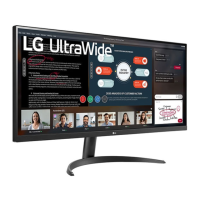

 To Next Page
 General