EasyManua.ls Logo

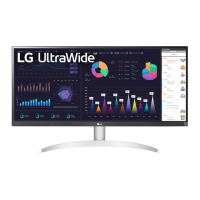
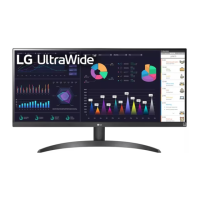
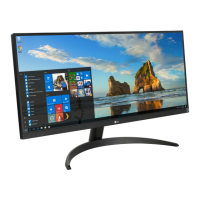
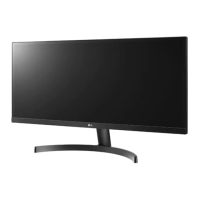
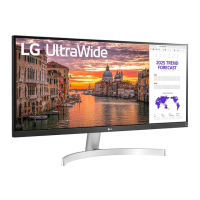
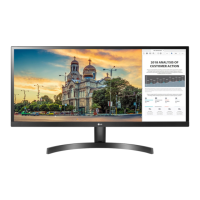
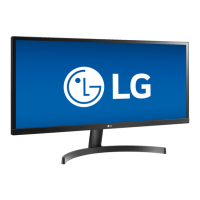
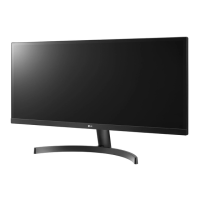
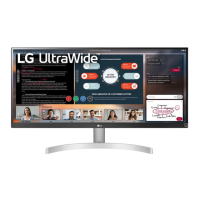
LG 29WQ60A - User Manual

LG 29WQ60A
37 pages
Print Icon
To Next Page IconTo Next Page
Loading...
* LG LED Monitor applies LCD screen with LED backlights.
Please read this manual carefully before operating your set and
retain it for future reference.
29WQ600
34WQ650
34WQ65X
29WQ60A
34WQ60A
29BQ650
34BQ650
OWNER’S MANUAL
LED LCD MONITOR
(LED Monitor*)
www.lg.com
Copyright © 2022 LG Electronics Inc. All Rights Reserved.

Other manuals for LG 29WQ60A

Questions and Answers

  • J
    Justin JacksonAug 20, 2025
    What to do if nothing is displayed on my LG Monitor screen?
    • K
      Kelly DavisAug 20, 2025
      If nothing is displayed on your LG Monitor, first, ensure the power cord is correctly plugged into the outlet. Then, check the power cable connection and press the power button. Verify the connected input is enabled in the monitor's settings. Also, check the signal cable between the PC and the monitor, reconnecting it if necessary. Finally, ensure signals from your PC are within the monitor's frequency range; refer to the manual's Product Specification section to set the appropriate frequency.
  • T
    Thomas SmithAug 22, 2025
    Why is my LG 29WQ60A screen display unstable and shaky?
    • M
      Michele QuinnAug 22, 2025
      If your LG Monitor's screen display is unstable or shaky, or if images leave shadow trails, it could be due to the resolution being set to HDMI 1080i 60/50 Hz (interlaced). Try changing the resolution to 1080p or the recommended resolution. It could also be caused by not setting the graphics card to the recommended (optimal) resolution. This may result in blurred text, a dimmed screen, a truncated display area or misalignment of the display.
  • C
    Crystal BarnesAug 25, 2025
    What to do if there is no sound from the headphone port on my LG 29WQ60A Monitor?
    • J
      Jennifer PayneAug 25, 2025
      If there is no sound from the headphone port on your LG Monitor, first, ensure that the headphone port connections are properly made. Next, try increasing the volume using the joystick. Finally, set the audio output of your PC to the monitor you are using. Note that the settings may differ depending on your operating system.
  • C
    Christopher MarquezAug 26, 2025
    How to fix an LG 29WQ60A Monitor when nothing is displayed on the screen?
    • J
      Joshua SinghAug 26, 2025
      If nothing is displayed on your LG monitor, ensure the power cord is correctly plugged into the outlet and that the power cable is securely connected. Press the power button. Also, verify that the connected input is enabled in the monitor's settings under the Input section. Check and reconnect the signal cable between your PC and the monitor. Finally, confirm that the signals from your PC's graphics card are within the monitor's horizontal or vertical frequency range, referring to the product specifications for appropriate settings.
  • T
    Timothy MannAug 28, 2025
    What to do if my LG 29WQ60A screen display is unstable and shaky?
    • L
      Larry JohnsonAug 28, 2025
      If your LG monitor's screen display is unstable, shaky, or images leave shadow trails, and if the resolution is set to HDMI 1080i 60/50 Hz (interlaced), the screen may be flickering. Try changing the resolution to 1080p or the recommended resolution. Also, ensure that the graphics card is set to the recommended (optimal) resolution to avoid blurred text, a dimmed screen, a truncated display area, or misalignment of the display. Note that setting methods may vary depending on the computer or operating system, and some resolutions may not be available depending on the performance of the graphics card.
  • K
    Katherine MarksAug 30, 2025
    Why is there no sound from the headphone port on my LG 29WQ60A Monitor?
    • B
      brownbrandiAug 30, 2025
      If there is no sound from the headphone port on your LG monitor, first, ensure that the headphone connections are properly made. Then, try increasing the volume using the joystick. Finally, set the audio output of your PC to the monitor you are using. Note that the settings may differ depending on the operating system.
  • H
    houstondaltonSep 1, 2025
    How to fix LG 29WQ60A Monitor when nothing is displayed on the screen?
    • R
      rogersmichelleSep 1, 2025
      If nothing is displayed on your LG Monitor screen, first ensure the power cord is correctly plugged into the power outlet and that the power cable is properly connected. Then, press the power button. Also, verify that the connected input is enabled in the monitor's settings under the Input menu. Check the signal cable between your PC and the monitor to ensure it is properly connected. If the issue persists, your PC's graphics card signals may be outside the monitor's frequency range. Refer to the Product Specification section of this manual to set the appropriate frequency.
  • F
    fjohnsonSep 3, 2025
    Why is my LG 29WQ60A Monitor displaying nothing?
    • F
      fleeSep 3, 2025
      If your LG Monitor displays nothing, it could be due to a missing or disconnected signal cable between your PC and the monitor. Check the cable and reconnect it securely. Also, the signals transferred from the PC (graphics card) might be out of the horizontal or vertical frequency range of the monitor. Refer to the Product Specification section of this manual to set the appropriate frequency.
  • S
    Sarah BennettSep 5, 2025
    How to enable disabled features on LG Monitor?
    • J
      Jeffery RoseSep 5, 2025
      To enable disabled features on your LG monitor, disable OSD Lock in General settings.
  • X
    xyoungSep 7, 2025
    How to fix a blank screen on my LG Monitor?
    • T
      trodriguezSep 7, 2025
      To fix a blank screen on your LG Monitor, start by checking if the power cord is properly connected to the power outlet. Also, check the power cable connection and make sure to press the power button. Verify that the correct input source is selected in the monitor's settings under the 'Input' menu.

LG 29WQ60A Specifications

General IconGeneral
Screen Size29 inches
Resolution2560 x 1080
Panel TypeIPS
Aspect Ratio21:9
Refresh Rate75 Hz
Brightness250 cd/m²
Contrast Ratio1000:1
HDRHDR10
sRGB99%
AMD FreeSyncYes
VESA Mount100 x 100 mm
Response Time5ms (GtG)
ConnectivityHDMI, DisplayPort
Viewing Angle178°

Related product manuals