EasyManua.ls Logo

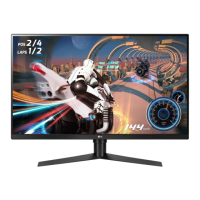
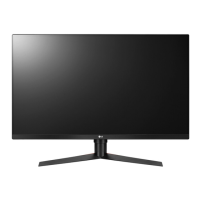
LG 32GK850F-B - User Manual

LG 32GK850F-B
45 pages
Print Icon
To Next Page IconTo Next Page
Loading...
* LG LED Monitor applies LCD screen with LED
backlights.
Please read this manual carefully before operating
your set and retain it for future reference.
www.lg.com
32GK850F
OWNER’S MANUAL
LG Gaming Monitor
(LED MONITOR*)

Questions and Answers

  • S
    Scott LeeJul 29, 2025
    How to fix a LG 32GK850F-B Monitor when nothing is displayed on the screen?
    • V
      vmartinezJul 29, 2025
      If your LG Monitor screen is blank, ensure the power cord is securely plugged into the outlet and that the power cable is properly connected. Press the power button. Check the input settings (Settings > Input) to ensure the correct input is enabled. If the monitor is in sleep mode, move the mouse or press a key. Also, verify that your computer is turned on. If the signal cable between the PC and the monitor is missing or disconnected, check the cable and reconnect it. Install the display driver from the provided CD or download it from the LG website. Ensure your graphics card supports Plug and Play.
  • J
    Jose CoxAug 4, 2025
    What to do if the screen display is unstable and shaky on LG 32GK850F-B?
    • T
      tonybuckAug 5, 2025
      If your LG Monitor display is unstable, shaky, or images leave shadow trails, it might be due to the resolution being set to HDMI 1080i 60/50 Hz (interlaced). To resolve this, change the resolution to 1080p or the recommended resolution for your monitor.
  • Q
    qreyesAug 9, 2025
    How to troubleshoot no sound from the headphone port on LG Monitor?
    • D
      David WeaverAug 9, 2025
      If you are experiencing no sound from the headphone port on your LG Monitor, first, ensure that the headphone port connections are properly made. Then, try increasing the volume using the joystick on the monitor. Finally, set the audio output of your PC to the monitor by going to Control Panel > Hardware and Sound > Sound on Microsoft Windows, and set the Monitor as the default device.
  • A
    Alexander SchultzAug 16, 2025
    How to enable disabled features on LG Monitor?
    • J
      Jennifer MatthewsAug 16, 2025
      If some features on your LG Monitor are disabled, the OSD might be locked. To unlock it, go to Settings > General and set OSD Lock to Off.
  • J
    James BowersAug 21, 2025
    Why is the display color abnormal on my LG Monitor?
    • G
      Gregory FritzAug 21, 2025
      If the color on your LG Monitor appears abnormal, first, set the color to 24 bit (true color) or higher by navigating to Control Panel > Display > Settings > Color Quality in Windows. Also, check the signal cable connection; try reconnecting it or reinserting the PC's graphics card. It's normal for pixilated spots (red, green, blue, white, or black) to appear on an LCD screen; this isn't an error or related to performance.

Summary

Assembling and Preparing

Product Composition

Lists and illustrates the components included in the product box.

Supported Drivers and Software

Product and Button Description

How to Use the Joystick Button

Explains how to control monitor functions using the joystick button.

Input Connector

Moving and Lifting the Monitor

Installing the Monitor

Assembling the Stand

Provides step-by-step instructions for assembling the monitor stand.

Installing on a Table

Adjusting the Stand Height

Adjusting the Angle

Pivot Feature

Tidying up Cables

Using the Kensington Lock

Explains how to connect and use the Kensington security system.

Detaching the Stand Body

Installing the Wall Mount Plate

Details the steps for mounting the monitor plate for wall installation.

Installing on the Wall

Using the Monitor

Connecting to a PC

Instructions on connecting the monitor to a computer via Plug and Play.

HDMI Connection

Explains transmitting digital video and audio via HDMI cable.

DisplayPort Connection

Connecting AV Devices

HDMI Connection

Details connecting AV devices to the monitor using HDMI.

Connecting Peripherals

Explains USB cable connection for peripherals and USB hub functionality.

Connecting Headphones

User Settings

Activating the Main Menu

Steps to press the joystick button and navigate the main menu.

Main Menu Features

User Settings Menu Configuration

Menu Settings

Explains how to navigate and configure various settings like Game Mode, Picture Adjust.

Game Mode on SDR (Non-HDR) Signal

Game Mode on HDR Signal

Game Adjust Settings

1 ms Motion Blur Reduction

Explains the 1ms Motion Blur Reduction feature for minimizing motion blur.

Game Adjust FreeSync

Game Adjust Response Time

Cross Hair

Describes the crosshair feature for FPS games.

Game Reset

Resets gaming-related settings to default values.

Picture Adjust Settings

Input Settings

Input List

Allows selection of the desired input source (e.g., HDMI, DP).

Aspect Ratio

Adjusts the aspect ratio of the displayed image.

General Settings

General Settings - Quick Charge

OSD Lock

Disables or enables the On-Screen Display (OSD) menu.

Information

Displays model, serial number, and resolution information.

Reset

Restores all monitor settings to their default values.

Troubleshooting

Nothing is displayed on the screen

Guides on troubleshooting when the screen shows no image.

Some features are disabled

Explains how to resolve issues where certain functions are unavailable.

Screen Image Retention Issues

Screen display instability or shadow trails

Addresses issues with screen instability, shakiness, or shadow trails.

Display Color Abnormalities

No sound from the headphone port

Provides troubleshooting steps for no sound from the headphone port.

Product Specifications

Factory Support Mode

HDMI Timing (Video)

LG 32GK850F-B Specifications

General IconGeneral
3DNo
DDC/CIYes
Panel typeVA
Color gamut95 %
Pixel pitch0.2724 x 0.2724 mm
Screen shapeFlat
Display surfaceMatt
Display diagonal31.5 \
Display technologyLED
Native aspect ratio16:9
Peak luminance ratio80 %
Response time (fast)1 ms
Viewable size, vertical398.48 mm
Contrast ratio (typical)3000:1
Display number of colors16.78 million colors
Viewable size, horizontal708.42 mm
Digital vertical frequency24 - 144 Hz
Digital horizontal frequency30 - 240 kHz
Display brightness (typical)400 cd/m²
Supported graphics resolutions2560 x 1440
Dynamic contrast ratio marketing nameMega Contrast
USB hub version3.2 Gen 1 (3.1 Gen 1)
DisplayPort version1.2
Headphone connectivity3.5 mm
USB upstream port typeUSB Type-B
VGA (D-Sub) ports quantity0
AC input voltage100 - 240 V
AC input frequency50 - 60 Hz
Energy efficiency scaleA to G
Power consumption (off)0.3 W
Power consumption (standby)0.5 W
Power consumption (typical)44 W
Pivot angle0 - 90 °
Tilt angle range-5 - 15 °
Number of OSD languages17
Panel mounting interface100 x 100 mm
On Screen Display (OSD) languagesCHI (SIMPL), CHI (TR), DEU, ENG, ESP, FIN, FRE, GRE, ITA, JPN, KOR, POL, POR, RUS, SWE, UKR
CertificationUL(cUL), TUV, FCC-B, CE, ErP, Windows (Win10), CCC, KC
Product colorBlack
Market positioningGaming
Package depth516 mm
Package width927 mm
Package height213 mm
Package weight12100 g
Sustainability certificatesEPEAT Gold, ENERGY STAR
Cables includedDisplayPort, HDMI, USB
Built-in speaker(s)-
Weight and Dimensions IconWeight and Dimensions
Depth (with stand)272.2 mm
Width (with stand)715.2 mm
Height (with stand)603.9 mm
Weight (with stand)8300 g
Depth (without stand)57.1 mm
Height (without stand)423.9 mm
Weight (without stand)6500 g

Related product manuals