EasyManua.ls Logo

LG 34WL500-B - User Manual

LG 34WL500-B
27 pages
Print Icon
To Next Page IconTo Next Page
Loading...
* LG LED Monitor applies LCD screen with LED backlights.
Please read this manual carefully before operating your set and
retain it for future reference.
29WL500
34WL500
OWNER’S MANUAL
LED LCD MONITOR
(LED Monitor*)
www.lg.com
Copyright © 2019 LG Electronics Inc. All Rights Reserved.

Questions and Answers

  • M
    melissa35Aug 12, 2025
    What to do if nothing is displayed on my LG 34WL500-B Monitor screen?
    • K
      Kristen GravesAug 12, 2025
      If nothing is displayed on your LG Monitor screen, try the following: * Ensure the power cord is correctly plugged into the power outlet, testing the outlet with another device. * Verify the power cable connection and press the power button. * Confirm the connected input is enabled in the monitor's settings (Settings > Input > Input list). * If the monitor is in sleep mode, move the mouse or press a key. Also, check if the computer is turned on. * If the signal cable is disconnected, check the cable and reconnect it. * If the PC (graphics card) signals are out of the monitor's frequency range, refer to the Product Specification section to set the appropriate frequency.
  • S
    Susan YoungAug 16, 2025
    How to fix no sound on LG 34WL500-B using DisplayPort or HDMI?
    • J
      Jennifer ParsonsAug 16, 2025
      If you're not getting sound with DisplayPort or HDMI input on your LG Monitor, try these steps: * Increase the volume using the monitor's button. * Set the PC's audio output to the monitor. For Microsoft Windows, go to Control Panel > Hardware and Sound > Sound and set the monitor as the default device.
  • Y
    ydavisAug 20, 2025
    How to fix flickering screen on LG 34WL500-B with HDMI 1080i?
    • A
      Amanda BrownAug 20, 2025
      If your LG Monitor screen is flickering and the resolution is set to HDMI 1080i 60/50 Hz (interlaced), change the resolution to 1080P or the recommended resolution.
  • I
    Isaac BaldwinAug 25, 2025
    How to install LG Monitor display driver?
    • R
      ruthdrakeAug 25, 2025
      Be sure to install the display driver for your LG Monitor from http://www.lg.com. Also, make sure to check if the video card supports Plug&Play function.
  • B
    brownsamuelAug 27, 2025
    Why is my LG 34WL500-B Monitor display color unstable or monochrome?
    • S
      Sandra Wells MDAug 27, 2025
      If the display color appears unstable or monochrome on your LG Monitor, check if the signal cable is connected properly. Try reconnecting the cable or reinserting the PC's graphics card.
  • E
    eburtonAug 31, 2025
    What to do if my LG Monitor display appears discolored (16 colors)?
    • K
      Kenneth JuarezAug 31, 2025
      If your LG Monitor display appears discolored (16 colors), set the color to 24 bit (true color) or higher. In Windows, go to Control Panel > Display > Settings > Color Quality.
  • C
    christinatranSep 4, 2025
    How to unlock OSD on LG 34WL500-B Monitor?
    • K
      Karen KennedySep 4, 2025
      If some functions are unavailable when you press the Menu button on your LG Monitor, the OSD may be locked. To unlock it, go to Settings > General and set OSD Lock to Off.
  • A
    Abigail JohnsonSep 8, 2025
    How to prevent image sticking on LG Monitor?
    • S
      Stephen BallardSep 8, 2025
      If image sticking occurs on your LG Monitor, displaying a still image for a prolonged time may cause damage to the screen, resulting in the retention of the image. To extend the lifetime of the monitor, use a screensaver.

Summary

LG LED LCD Monitor Owners Manual

Monitor Product and Button Description

Using the Joystick Button

Guide on operating monitor functions using the joystick button.

Using the Monitor: Connections and Operation

Connecting the Monitor to a PC

Steps for connecting the monitor to a personal computer.

HDMI Connection for PC Input

How to transmit digital video and audio signals from a PC via HDMI.

User Settings and Menu Navigation

Accessing and Navigating the Main Menu

How to access and navigate the monitor's main menu using the joystick.

Monitor Main Menu Features Overview

Detailed User Settings Configuration

Navigating and Adjusting Menu Settings

How to navigate and adjust various monitor menu settings.

Quick Settings for Brightness, Volume, and Color

Input Selection and Aspect Ratio

Picture Mode Settings for SDR Signals

Picture Mode Settings for HDR Signals

Picture Adjustments for Sharpness and Black Level

Adjusting Brightness, Contrast, and Sharpness

Adjusting key visual parameters for clarity and detail.

Game Adjust Settings for Response Time and FreeSync

Optimizing Response Time for Gaming

Adjusting response time for smoother motion in games.

Enabling FreeSync for Gaming

Enabling FreeSync for synchronized frame rates in games.

Color Adjustments for Gamma and Hue

Gamma and Color Temperature Settings

Adjusting gamma values and color temperature for desired output.

General Settings: Language, Power, and OSD Lock

Resetting Monitor Settings to Initial Defaults

Troubleshooting Monitor Display Issues

No Display or Power Issues

Troubleshooting steps for when the screen shows no image or power.

Resolving OSD Lock and Image Retention

Resolving OSD lock messages and image sticking issues.

Addressing Screen Instability and Shadow Trails

Addressing screen flickering, shaking, or shadow trail problems.

Graphics Card Resolution and Display Problems

Troubleshooting Display Color and Sound Issues

Product Specifications: 29 WL500 Model

Product Specifications: Environmental and Dimensions

Product Specifications: 34 WL500 Model

Product Specifications: Weight and Power Notes (34 WL500)

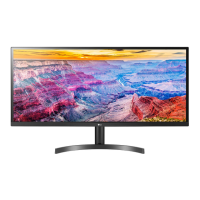
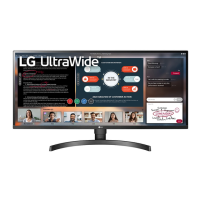
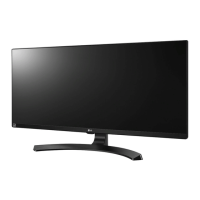
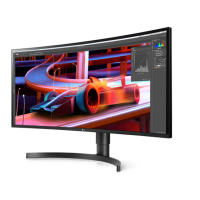
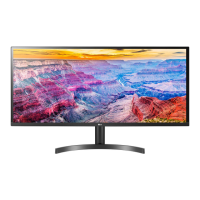
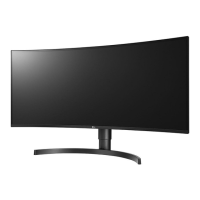
LG 34WL500-B Specifications

General IconGeneral
3D-
DDC/CIYes
HD typeUltraWide Full HD
Pixel pitch0.312 x 0.31 mm
Screen shapeFlat
Display diagonal34 \
Display resolution2560 x 1080 pixels
Display technologyLED
Native aspect ratio21:9
Maximum refresh rate75 Hz
sRGB coverage (typical)99 %
Contrast ratio (typical)1000:1
Display number of colors16.78 million colors
Display brightness (typical)300 cd/m²
Supported graphics resolutions2560 x 1080
Headphone outputs1
Product colorBlack
Cables includedAC, HDMI
Package typeBox
Package depth235 mm
Package width940 mm
Package height490 mm
Package weight10600 g
AC input voltage100 - 240 V
AC input frequency50 - 60 Hz
Energy efficiency scaleA to G
Power consumption (standby)- W
Tilt angle range-5 - 15 °
Panel mounting interface100 x 100 mm
Operating temperature (T-T)0 - 40 °C
Operating relative humidity (H-H)0 - 80 %
Harmonized System (HS) code85285210
Weight and Dimensions IconWeight and Dimensions
Depth (with stand)209 mm
Height (with stand)487 mm
Weight (with stand)6900 g
Depth (without stand)51 mm
Width (without stand)826 mm
Height (without stand)370 mm
Weight (without stand)5900 g

Related product manuals