EasyManua.ls Logo

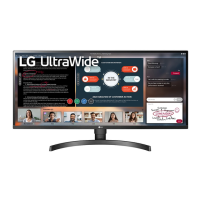
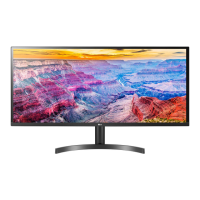
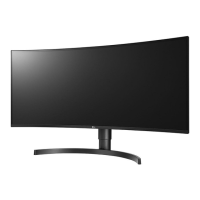
LG 34WL750 - User Manual

LG 34WL750
25 pages
Print Icon
To Next Page IconTo Next Page
Loading...
* LG LED Monitor applies LCD screen with LED backlights.
Please read this manual carefully before operating your set and
retain it for future reference.
34WL750
OWNER’S MANUAL
LED LCD MONITOR
(LED Monitor*)
www.lg.com
Copyright © 2019 LG Electronics Inc. All Rights Reserved.

Questions and Answers

  • P
    psanchezJul 28, 2025
    What to do if nothing is displayed on my LG Monitor screen?
    • T
      Thomas HarperJul 29, 2025
      If nothing is displayed on your LG Monitor screen, try the following: * Ensure the power cord is correctly plugged into the power outlet. * Check the power cable connection and press the power button. * Verify that the connected input is enabled in the monitor's settings (Settings > Input). * Check the signal cable between the PC and the monitor and reconnect it. * Ensure signals transferred from the PC (graphics card) are within the horizontal or vertical frequency range of the monitor. Refer to the Product Specification section of the manual to set the appropriate frequency.
  • P
    Patricia RoseAug 2, 2025
    Why is my LG 34WL750 screen display unstable and shaky?
    • P
      Patricia YoungAug 2, 2025
      An unstable or shaky display, or images leaving shadow trails on your LG Monitor, can occur if the selected resolution is HDMI 1080i 60/50 Hz (interlaced). To resolve this, change the resolution to 1080p or the recommended resolution. Also, not setting the graphics card to the recommended (optimal) resolution may result in blurred text, a dimmed screen, a truncated display area or misalignment of the display.
  • A
    alvarezkatelynAug 7, 2025
    How to fix no sound from the headphone port on my LG Monitor?
    • A
      Andrea BassAug 7, 2025
      If you're not getting any sound from the headphone port on your LG Monitor, ensure the headphone port connections are properly made. You can also try increasing the volume using the joystick. Additionally, set the audio output of the PC to the monitor you are using. The settings may differ depending on your operating system.
  • C
    Cindy ReedAug 13, 2025
    What to do if my LG Monitor shows an 'Unrecognized monitor' message?
    • K
      Kara BlackAug 13, 2025
      If your LG Monitor displays an "Unrecognized monitor, Plug and Play (VESA DDC) monitor found" message, be sure to install the display driver from the LG website. Also, make sure to check if the graphics card supports the Plug and Play function.
  • C
    clarkjoshuaAug 17, 2025
    Why does image sticking occur on my LG 34WL750 even when it's off?
    • M
      Mrs. Susan Love PhDAug 17, 2025
      Displaying a still image for a prolonged time may cause damage to the screen, resulting in the retention of the image. To extend the lifetime of your LG Monitor, use a screensaver.
  • J
    Jason Melton Jr.Aug 23, 2025
    How to enable disabled features on my LG 34WL750 Monitor?
    • Y
      ywarnerAug 23, 2025
      If some features are disabled on your LG Monitor, disable OSD Lock in the General settings.

Summary

ASSEMBLING AND PREPARING

Assembly CAUTION

Important safety precautions for assembly and handling.

Product and Button Description

Joystick Button Operation

Instructions on operating the monitor using the joystick button.

Moving and Lifting Guide

Guidelines for safely moving and lifting the monitor.

Product Handling CAUTION

Warnings about handling the screen and stand to prevent damage or injury.

Wall Mount Specifications

Wall Mount CAUTION

Safety precautions for wall mounting, including screw length and VESA standards.

USING THE MONITOR

Connecting to a PC

How to connect the monitor to a computer.

HDMI Connection Guide

Details on connecting the monitor via HDMI for video and audio.

DisplayPort Connection Guide

Details on connecting the monitor via DisplayPort for video and audio.

Connecting AV Devices

HDMI Connection for AV

Information on HDMI connection for AV devices and recommended cable types.

USER SETTINGS

Activating the Main Menu

Step-by-step guide to access and navigate the monitor's main menu.

Joystick Button Functions

Detailed description of joystick button functions for menu navigation and control.

Main Menu Features

Menu Settings Navigation

Instructions on how to access and navigate various menu settings.

Quick Settings

Brightness Control

Adjusts the contrast and brightness of the screen.

Color Temperature Settings

Allows customization of screen color temperature.

Input Settings

Input List Selection

Allows selection of the monitor's input mode.

Aspect Ratio Adjustment

Adjusts the screen's aspect ratio for different viewing modes.

Picture Settings

Picture Mode Selection

Selects different picture modes for various content types.

Picture Mode for HDR

HDR Picture Mode Options

Options for HDR picture modes like Custom, Vivid, Standard, Cinema, FPS, RTS.

Picture Adjustments

Brightness Adjustment

Adjusts the color contrast and brightness of the screen.

General Settings

Additional General Settings

TROUBLESHOOTING

No Screen Display Troubleshooting

Troubleshooting steps for when the screen remains blank.

Unstable Display and Shaky Images

Solutions for unstable screen display and image ghosting.

Image Sticking Prevention

Information on preventing image retention and screen damage.

Additional Troubleshooting Steps

Unrecognized Monitor Message

Steps to resolve issues related to monitor recognition and driver installation.

Headphone Port Audio Issues

Troubleshooting steps for audio issues with the headphone port.

PRODUCT SPECIFICATION

LG 34WL750 Specifications

General IconGeneral
BrandLG
Model34WL750
CategoryMonitor
LanguageEnglish

Related product manuals