EasyManua.ls Logo

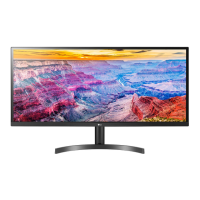
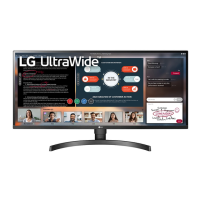
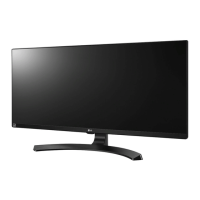
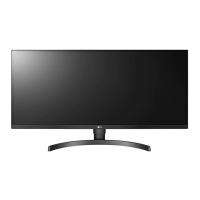
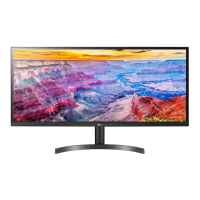
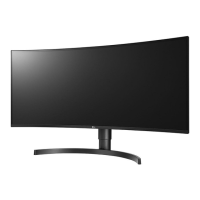
LG 34WL60TM - User Manual

LG 34WL60TM
24 pages
Print Icon
To Next Page IconTo Next Page
Loading...
* LG LED Monitor applies LCD screen with LED backlights.
Please read this manual carefully before operating your set and
retain it for future reference.
34WL600
34WL60TM
OWNER’S MANUAL
LED LCD MONITOR
(LED Monitor*)
www.lg.com
Copyright © 2019 LG Electronics Inc. All Rights Reserved.

Questions and Answers

  • S
    Sandra PetersJul 28, 2025
    How to fix an LG 34WL60TM Monitor when nothing is displayed on the screen?
    • R
      Ronald JohnsonJul 28, 2025
      If nothing is displayed on your LG Monitor screen, first, ensure the power cord is correctly plugged into the power outlet and test the outlet with another device. Next, check the power cable connection and press the power button. Also, verify that the connected input is enabled in the monitor settings. If the monitor is in sleep mode, move the mouse or press a key. Ensure your computer is turned on. If the issue persists and signals from the PC are out of range, refer to the Product Specification section of this manual to set the appropriate frequency. Finally, check the cable and reconnect it.
  • C
    Christopher WareAug 1, 2025
    How to fix LG 34WL60TM Monitor images displayed via DisplayPort or HDMI input without sound?
    • J
      Jessica VanceAug 1, 2025
      To resolve images displayed via DisplayPort or HDMI without sound on your LG Monitor, first, increase the volume using the monitor's button. Then, set the PC's audio output to the monitor. For Microsoft Windows, go to Control Panel > Hardware and Sound > Sound and set the monitor as the default device.
  • C
    Christian MacdonaldAug 5, 2025
    What to do if I selected the inappropriate resolution on my LG 34WL60TM?
    • S
      Shawn WilliamsAug 5, 2025
      If the selected resolution is HDMI 1080i 60/50 Hz (interlaced) on your LG Monitor, the screen may flicker. Change the resolution to 1080P or the recommended resolution to fix this.
  • J
    jon16Aug 9, 2025
    What to do if the display color appears unstable or monochrome on my LG 34WL60TM Monitor?
    • C
      Charles KelleyAug 9, 2025
      If the display color on your LG Monitor appears unstable or monochrome, check that the signal cable is properly connected. Try reconnecting the cable or reinserting the PC's graphics card.
  • V
    Veronica Hunter MDAug 13, 2025
    Why does my LG 34WL60TM Monitor display appear discolored (16 colors)?
    • T
      Tara PayneAug 14, 2025
      If your LG Monitor displays a discolored image (16 colors), set the color to 24 bit (true color) or higher. In Windows, navigate to Control Panel > Display > Settings > Color Quality to adjust this setting.
  • S
    Savannah ClaytonAug 18, 2025
    Why are some functions not available when I press the Menu button on my LG 34WL60TM Monitor?
    • J
      jonesbrittneyAug 18, 2025
      If some functions are unavailable when you press the Menu button on your LG Monitor, the OSD might be locked. To unlock it, go to Settings > General and set OSD Lock to Off.
  • A
    andrew97Aug 22, 2025
    How to prevent image sticking on my LG 34WL60TM Monitor even when turned off?
    • M
      Mary DavidsonAug 22, 2025
      To prevent image sticking on your LG Monitor, use a screensaver. Displaying a still image for a prolonged time may damage the screen, resulting in image retention. Using a screensaver can help extend the monitor's lifetime.

Summary

Assembling and Preparing the Monitor

Assembly Cautions and Notes

Warnings regarding components, potential damage, and general notes for assembly.

Product and Button Description

Joystick Button Usage

Instructions on controlling monitor functions using the joystick button.

Moving and Lifting the Monitor

Instructions to prevent damage during moving or lifting the monitor.

Monitor Installation and Angle Adjustment

Installing on a Table

Instructions for placing the monitor on a table for ventilation.

Adjusting the Angle

Steps for adjusting the screen angle for comfortable viewing.

Monitor Security and Wall Mounting

Wall Mounting Procedures and Safety

Using the Monitor: Connectivity

Connecting Peripherals

User Settings: Menu Navigation

User Settings: Menu Overview and Options

Troubleshooting: Display and Signal Issues

No Display or Signal Problems

Solutions for no display, power LED status, out of range, and no signal messages.

OSD Lock and Image Retention Solutions

Solutions for OSD lock and image sticking problems.

Troubleshooting: Display Color and Audio

Display Color and Recognition Issues

Solutions for abnormal display color, spots, and unrecognized monitor messages.

Audio Output Troubleshooting

Solutions for no sound from headphones or speakers.

Product Specifications

LG 34WL60TM Specifications

General IconGeneral
BrandLG
Model34WL60TM
CategoryMonitor
LanguageEnglish

Related product manuals