EasyManua.ls Logo

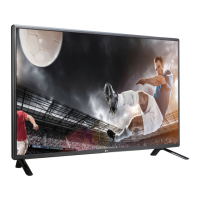
LG 55LS33A - User Manual

LG 55LS33A
76 pages
Print Icon
To Next Page IconTo Next Page
Loading...
www.lg.com
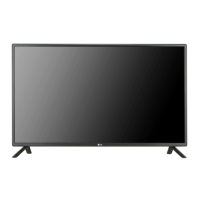
OWNER’S MANUAL
MONITOR SIGNAGE
32LS33A
42LS33A
47LS33A
55LS33A
65LS33A
42LS35A
47LS35A
55LS35A
Please read this manual carefully before operating the your set and
retain it for future reference.
MONITOR SIGNAGE MODELS

Questions and Answers

  • J
    Joanne KingSep 3, 2025
    How to prevent after-image appearing on LG Digital Signage?
    • B
      brandonbuchananSep 4, 2025
      If an after-image appears on your LG Digital Signage, and you've been using a fixed image for a long time, the pixels may be damaged quickly; use the screen-saver function. Also, when a dark image is displayed on the screen after an image with high contrast (black and white or gray), it may cause image sticking, which is normal for LCD screens.
  • L
    lcarsonSep 4, 2025
    Why does 'Unknown Product' message appear on LG 55LS33A?
    • D
      Donald KellySep 4, 2025
      If an 'Unknown Product' message appears when your LG Digital Signage is connected, check if the plug&play function is supported by referring to the video card user manual.
  • M
    Maria FrenchSep 5, 2025
    What to do if no image is displayed on my LG Digital Signage?
    • J
      Javier PetersSep 5, 2025
      If your LG Digital Signage isn't displaying an image, first ensure the power cord is properly connected to the outlet. Next, verify the signal cable between your PC and the display is securely connected. Also, check if the signal from the PC (video card) is within the product's vertical or horizontal frequency range, adjusting as needed by referring to the Specifications in this manual. Finally, press the 'INPUT' menu on the remote control to confirm the input signal.
  • E
    Emily NolanSep 6, 2025
    What to do if the screen image looks abnormal on my LG Digital Signage?
    • C
      Christina GuzmanSep 6, 2025
      If the screen image looks abnormal on your LG Digital Signage, and you're using a D-Sub analog signal, press the "AUTO" button on the remote control to automatically select the optimal screen status. If adjustment is not satisfactory, select [PICTURE] - [Screen] - [Position] in the OSD menu. Also, verify that the video card resolution and frequency are supported by the product; if the frequency is out of range, set to the recommended resolution in the Control Panel "Display" Setting menu. Ensure the correct input signal is connected to the appropriate signal port.

Summary

ASSEMBLING AND PREPARING

Wall Mounting Guidelines

Safety and procedural information for mounting the monitor on a wall.

REMOTE CONTROL

Remote Control Button Functions

Explains the primary buttons and their operations on the remote control.

Additional Remote Control Features

Describes further functions and buttons of the remote control.

MAKING CONNECTIONS

PC Connectivity and RGB Setup

How to connect and configure a PC using RGB input.

HDMI and IR Receiver Connections

Instructions for connecting via HDMI and setting up the IR receiver.

USB and LAN Connectivity

Guide to connecting USB storage and setting up LAN network connections.

USING THE MONITOR

ENTERTAINMENT

My Media and USB Storage

Connecting USB devices and accessing multimedia features.

Viewing Movies from USB

Instructions for playing movie files stored on a USB device.

Viewing Photos from USB

Instructions for displaying photo files stored on a USB device.

Listening to Music from USB

How to play music files stored on a USB storage device.

CUSTOMIZING SETTINGS

Accessing Main Menu Settings

Guide to navigating the monitor's main settings menus.

Picture Settings and Modes

Adjusting picture quality, brightness, contrast, and selecting picture modes.

Basic Image Adjustment Options

Fine-tuning basic image parameters like backlight, sharpness, and color.

Advanced Picture Controls

Advanced settings for picture modes, color management, and noise reduction.

Audio Settings and Sound Modes

Adjusting sound quality, effects, and audio synchronization.

Network Settings and Status

Configuring network settings and checking network status.

TROUBLESHOOTING

Image Display Problems

Solutions for issues like no image, out of range messages, or check signal.

Connection and Driver Issues

Troubleshooting 'Unknown Product' messages and driver installation.

Screen Image Anomalies

Resolving issues with screen position, lines, noise, and general display abnormality.

After-Image and Screen Sticking

Solutions for after-images and image sticking on the screen.

Audio Function Troubleshooting

Addressing problems with no sound, low volume, or poor sound quality.

Screen Color Issues

Troubleshooting poor color resolution, instability, or black spots.

CONTROLLING THE MULTIPLE PRODUCT

RS-232 C Communication Parameters

Details on RS-232C wiring, communication parameters, and protocols.

RS-232 C Command Reference List

Comprehensive list of commands and their hexadecimal data for RS-232C control.

RS-232 C Transmission and Receiving Protocol

Explains the structure of commands and acknowledgements for RS-232C communication.

LG 55LS33A Specifications

General IconGeneral
BrandLG
Model55LS33A
CategoryDigital Signage
LanguageEnglish

Related product manuals