Connecting 25
Connecting
2
USB device connection
This player can play video, audio and photo les
contained in the USB device.
Playback content in the USB
device
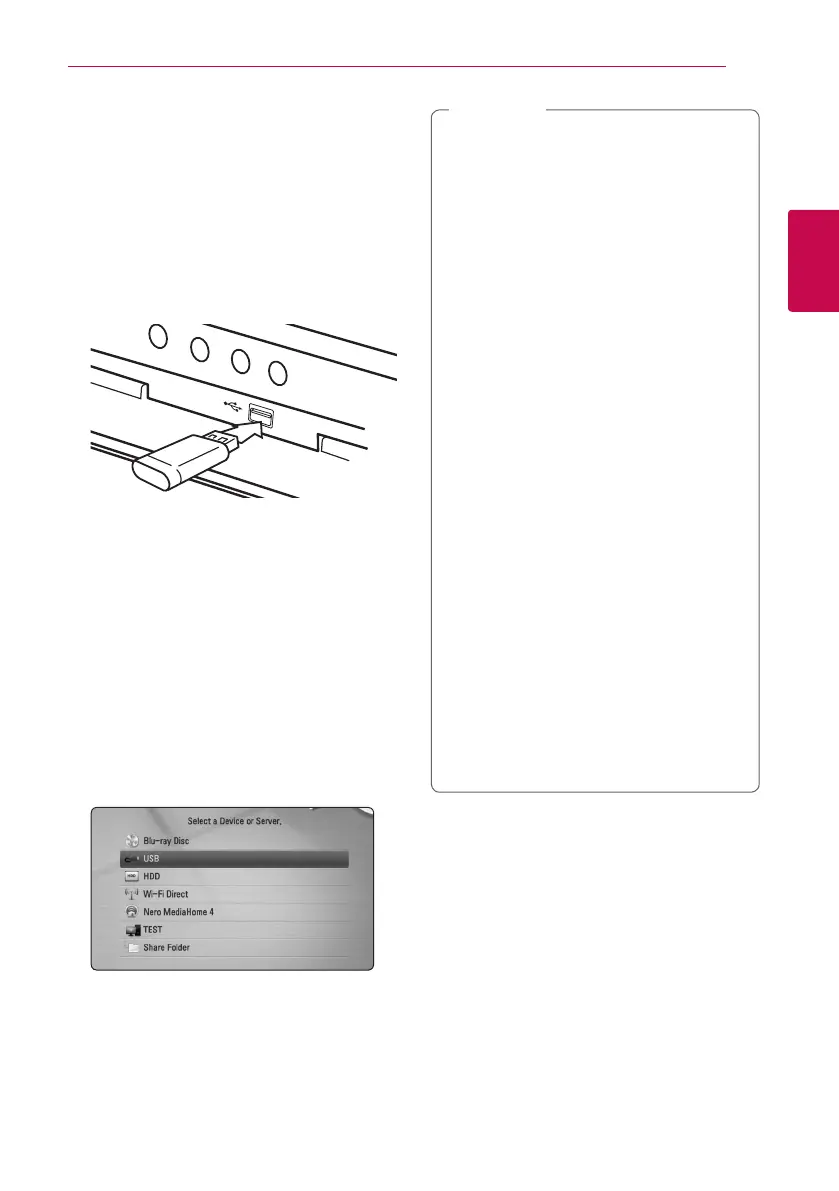
1. Insert a USB device to the USB port until it ts
into place.
When you connect the USB device on the HOME
menu, the player plays an audio le contained in
the USB storage device automatically. If the USB
storage device is containing various types of les, a
menu for the le type selection will appear.
File loading may takes few minutes depending on
the number of content stored in the USB storage
device. Press ENTER (
b
) while [Cancel] is selected
to stop loading.
2. Press HOME (
n
).
3. Select [Movie], [Photo] or [Music] using
A/D
,
and press ENTER (
b
).
4. Select the [USB] option using
W/S
, and press
ENTER (
b
).
5. Select a le using
W/S/A/D
, and press
PLAY or ENTER (
b
) to play the le.
6. Withdraw the USB device carefully.
y
This player supports USB ash drive/external
HDD formatted in FAT16, FAT32 and NTFS
when accessing les (music, photo, movie).
y
The USB device can be used for the local
storage for enjoying BD-Live discs with
Internet.
y
This unit can support up to 8 partitions of
the USB device.
y
Do not extract the USB device during
operation (play, etc.).
y
A USB device which requires additional
program installation when you have
connected it to a computer, is not
supported.
y
USB device: USB device that supports
USB1.1 and USB2.0.
y
Video, audio and photo les can be played.
For details of operations on each le, refer
to relevant pages.
y
Regular back up is recommended to
prevent data loss.
y
If you use a USB extension cable, USB HUB
or USB Multi-reader, the USB device may not
be recognized.
y
Some USB device may not work with this
unit.
y
Digital camera and mobile phone are not
supported.
y
USB Port of the unit cannot be connected
to PC. The unit cannot be used as a storage
device.
,
Note


 To Next Page