3 System Setting
System Setting 19
System Setting
3
Initial Setup
When you turn on the unit for the rst time, the
initial setup wizard appears on the screen. Set the
display language and network settings on the initial
setup wizard.
1. Press
1
(POWER).
The initial setup wizard appears on the screen.
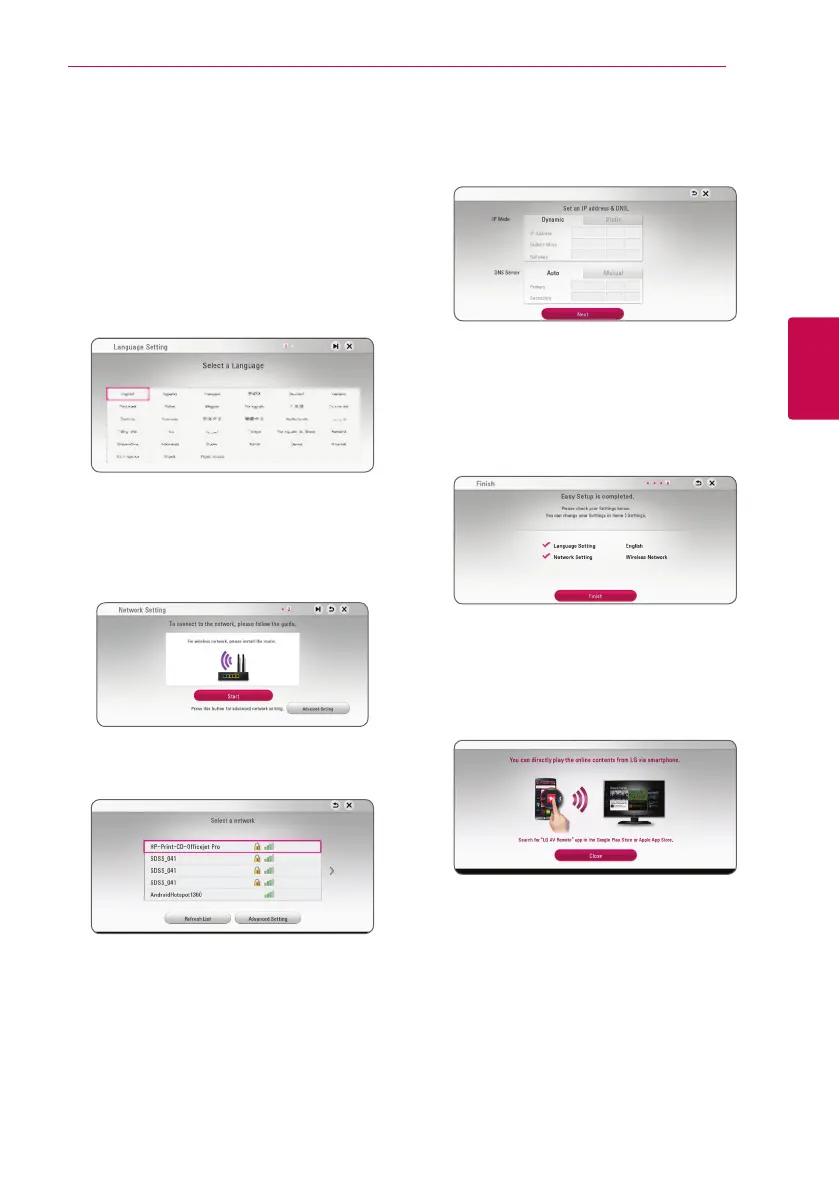
2. Use
w/s/a/d
to select a display language
and press ENTER (
b
).
3. After checking the Terms of Sevice, select
[Agree] to use the Premium Service and SW
Updates.
Read and prepare the preparations for the
network settings and then press ENTER (
b
)
while [Start] is highlighted.
4. All available networks are displayed on the
screen. Use
w/s
to select a desired SSID of
wireless network and press ENTER (
b
).
If you have security on your access point, you
need to input the security code as necessary.
5. Use
w/s/a/d
to select the IP mode
between [Dynamic] and [Static].
Normally, select [Dynamic] to allocate an IP
address automatically.
6. Select [Next] and press ENTER (
b
) to apply
network settings. Network connection status is
displayed on the screen. For details on network
settings, refer to “Connecting to your Home
Network” on page 16.
7. Check all the settings that you have set in the
previous steps.
Press ENTER (
b
) while [Finish] is highlighted
to finish the initial setup settings. If there is any
settings to be changed, use
w/s/a/d
to
select
1
and press ENTER (
b
).
8. Displays the guide to enjoy online contents
using LG AV Remote. Press ENTER (
b
).


 To Next Page