18
ENG
English
Using CLOUD Solution
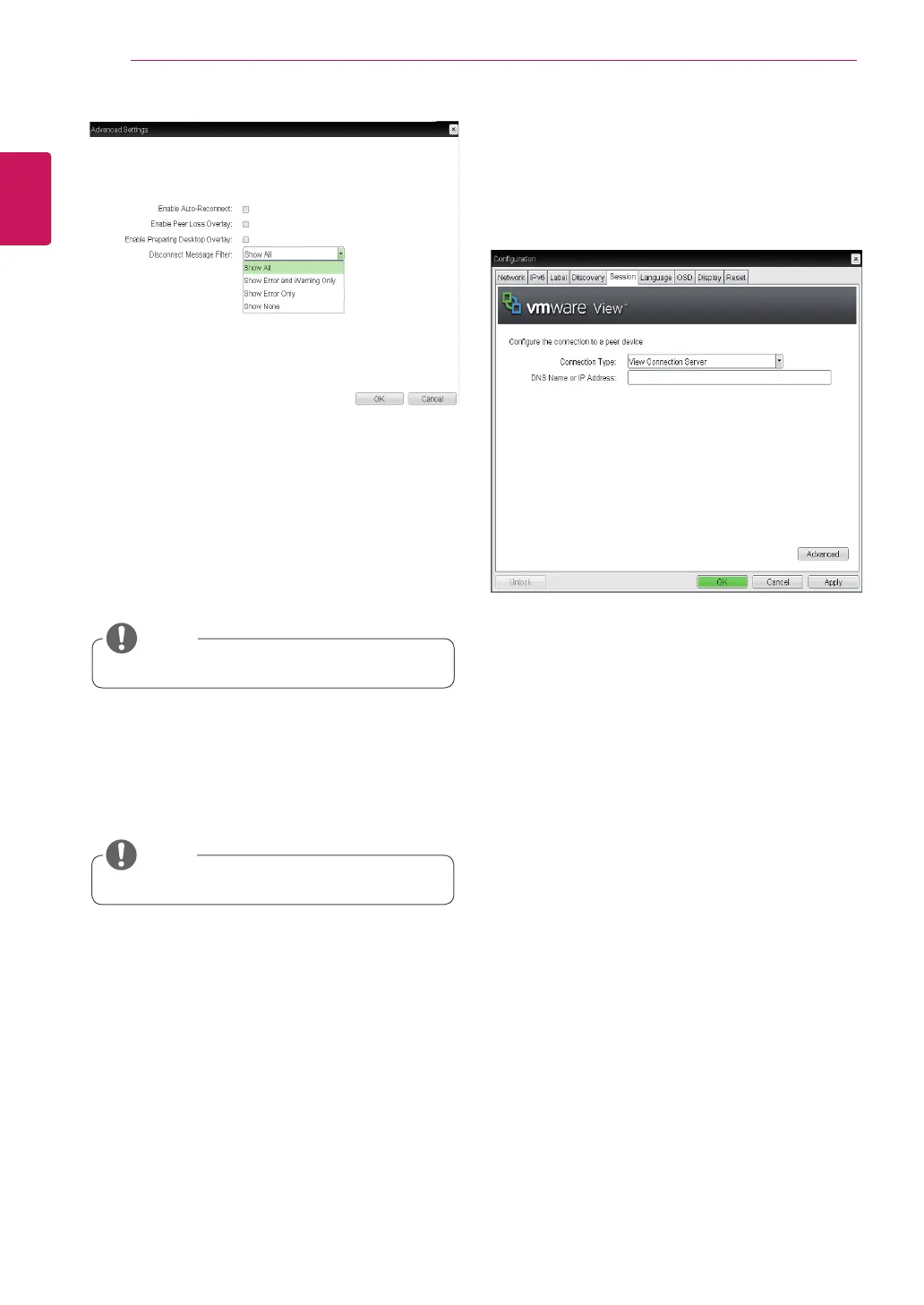
<Figure 2-15: Advanced Settings for Direct to Host
+ SLP Host Discovery>
y
Enable Auto-Reconnect
If this option is selected, reconnection is attempted
automatically when a session is disconnected or
the user is logged off.
y
This setting is provided only for the client.
NOTE
y
Enable Peer Loss Overlay
The "Connection Lost" message is displayed.The
display is the same as in the VDI environ-ment.
The default is Disable.
y
This setting is provided only for the client.
NOTE
y
Enable Preparing Desktop Overlay
If this option is selected, the "Preparing Desk-top"
message is displayed on the screen when the user
is logged in.
y
Disconnect Message Filter
This option determines the type of message to
display when a session is disconnected.
- Show All: Shows all the error messages.
- Show Error and Warning Only: Shows the
error and warning messages only.
- Show Error Only: Shows the error messages
only.
- Show None: Shows nothing.
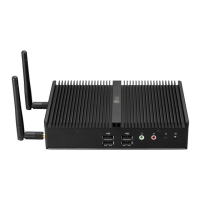
<Figure 2-16: View Connection Server Setting>
y
View Connection Server
In the Session tab, you can select to enable the
user client to access the VMware View Connec-
tionServer. To do this, select View Connection
Server for Connection Type.
y
DNS Name or IP Address
Enter the DNS name or IP address of the VM-
ware View Connection Server.


 To Next Page