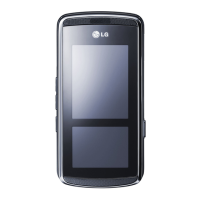
LG KF510 | User Guide
26
THE BASICS
Messaging
Your KF510 includes functions related to SMS
(Short Message Service), MMS (Multimedia
Message Service) and email, as well as the
network’s service messages. Simply touch
Menu and select Messaging.
Sending a message
1 Touch Menu, select Messaging and
choose
New message.
2 Choose Message to send an SMS or
MMS. (If you want to send an
Email
see page 28-29 or if you want to send
something using
Bluetooth, see page 51.)
3 A new message editor will open.
Message editor combines SMS and MMS
into one intuitive and easy to switch
between SMS mode and MMS mode. The
default setting of the message editor is
SMS mode.
4 Enter your message using either the T9
predictive mode or Abc manual mode. See
Entering text on page 27 to see how to
switch between the different text entry
modes.
TIP! You can select your message type as SMS
or MMS when you enter a text longer than
2 pages in the message fi eld. If you want to
change the type of message to send, see page
31 for Send long text as menu from Changing
your text message settings.
5 Touch Options and choose Insert to add
an
Image, Sound, Video, Symbol, Text
template
, Emoticon, Name & Number,
New slide, Subject or More (Contact/
My business card/Schedule).
6 Touch Send to.
7 Enter the phone number or touch Options
and select Contacts or Recent list
to open your contacts list. You can add
multiple contacts.
8 Touch Send.
WARNING: If an Image, Sound, Video,
New slide or Subject is added to the message
editor, it will be automatically converted to MMS
mode and you will be charged accordingly.
Messaging
En
Yo
th
e
na
cre
all
in
p
T9
12
No
inp
bo
To
ch
On
mo
tex
co
To
th
e
se
C
o
pre
To


 To Next Page