33
01
02
03
04
05
06
07
08
GET CREATIVE
er
or
to
us,
ry
Camera
Taking a quick photo
1 Open your headset and hold the camera
key down on the right side of the handset.
The camera’s viewfi nder will appear on
screen.
2 Holding the phone horizontally, point the
lens towards the subject of the photo.
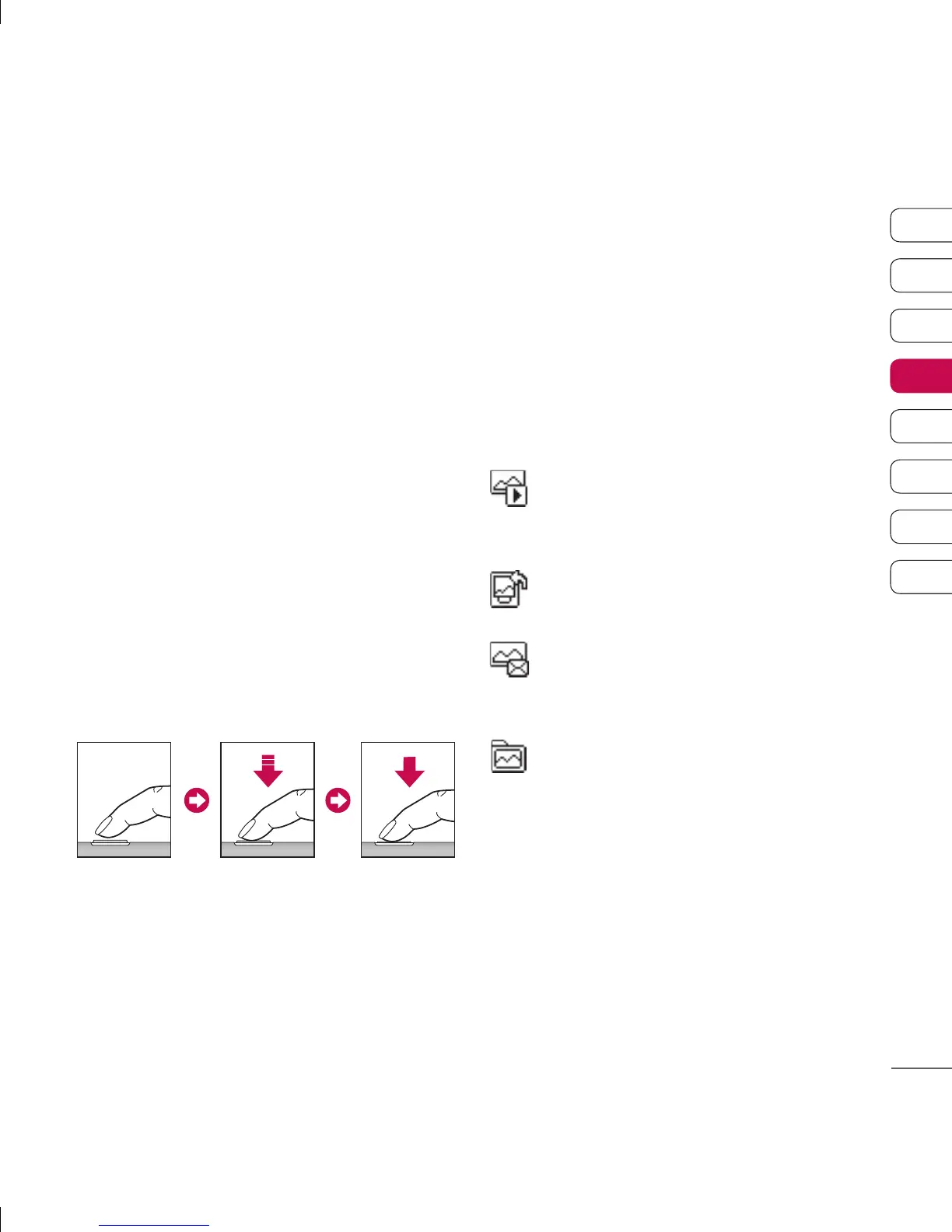
3 Press the camera key on the right side
of the handset halfway. A focus box will
appear in the centre of the viewfi nder
screen, position the phone so you can
see the subject of your photo in the focus
box. When the focus box turns green, the
camera has focused on your subject.
4 Touch the centre soft key or press the
camera key all of the way down to take a
photo.
Note: You can also access the camera menu
from the standby screen. Touch
Menu and
select
Multimedia, scroll down to and select
Camera to open the viewfi nder.
After you’ve taken your photo
Your captured photo will appear on the
screen. The name of the image runs along
the bottom of the screen and you will see
six options displayed on the right side of the
screen.
Delete - Touch to delete the photo you have
just taken and confi rm by touching
Yes.
The viewfi nder will reappear.
New image - Touch to take another
photo straightaway. Your current photo will be
saved.
Set as - Touch to open a sub menu to
set your image as
Wallpaper or Picture ID.
Send via - Touch to send the photo as
a
Multimedia message or Email. See page
26 for
Sending a message.
Album - Touch to look at the other
photos in your album. Your current photo will
be saved. See page 36 for
Viewing your
saved photos
.
OK - Touch to take another photo
straightaway. Your current photo will be saved.
Press the
camera key
halfway to
focus.
Press the
camera key
fully to take
photo.


 To Next Page