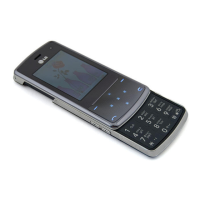
LG KF510 | User Guide
62
SETTINGS
Settings
KF510 removable device folder. See pages
49~51 for further details.
Pairing with another Bluetooth
device
By pairing your KF510 and another device,
you can set up a passcode protected
connection. This means your pairing is more
secure.
1 Check your Bluetooth is On and Visible.
You can change your visibility in the
Bluetooth settings menu, by selecting
My visibility, then Show.
2 Select Device list from the Bluetooth
menu and choose
New.
3 Your KF510 will search for devices. When
the search is completed
Pair and Refresh
will appear on screen.
4 Choose the device you want to pair with,
select
Pair and enter the passcode then
choose
OK.
5 Your phone will then connect to the other
device, on which you should enter the
same passcode.
6 Your passcode protected Bluetooth
connection is now ready.
Using a Bluetooth headset
1 Check your Bluetooth is On and Visible.
2 Follow the instructions that came with your
headset to place it in pairing mode and
pair your devices.
3 Your KF510 will automatically connect to a
Bluetooth headset and switch to headset
profi le.
C
h
A
St
Ba
Th


 To Next Page