The basics
36
Setting up your email
You can stay in touch on the move using
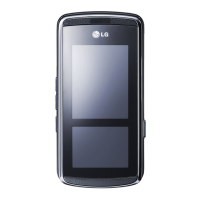
email on your KF900. It’s quick and simple
to set up a POP3 or IMAP4 email account.
If you complete sett up e-mail account,
“Update inbox now?” message will be
displayed. You can receive the e-mail of
selected account.
To scroll through a list of options, touch
the last item visible and slide your finger
up the screen. The list will move up so
more items are visible.
1. Touch from the standby screen, and
touch Messaging.
2. Select Settings.
3. Touch Mailbox then Email accounts.
4. Touch Add account.
5. You can now choose how your account
works:
°
Email address: Enter the e-mail address.
°
Password: Enter the account’s password.
°
Username: Enter the account’s
username.
°
Mailbox type: Enter the mailbox type,
POP3 or IMAP4.
°
Incoming server: Enter the incoming
email server address
°
Outgoing server: Enter the outgoing
email server address
°
SMTP authentication: Choose the
security settings for the outgoing mail
server
°
Account name
Now your account is set up, it will appear
in the list of accounts in your Email folder.
Retrieving your email
You can automatically or manually
check your account for new emails. See
Changing your email settings on page 37
to check automatically.
To check manually:
1. Touch
then Messaging.
2. Select Mailbox.
3. Touch the account you want to use then
.
4. Choose Retrieve or Sync and your
KF900 will connect to your email
account and retrieve your new
messages.



 To Next Page