EasyManua.ls Logo

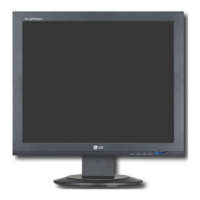
LG L17NT - User Manual

LG L17NT
34 pages
Print Icon
To Next Page IconTo Next Page
Loading...
EUT Type: 17” LCD Monitor
FCC ID: BEJL17NT
Test Report No.: GETEC-E3-05-083
FCC Class B Certification
APPENDIX H
: USER’S MANUAL

Questions and Answers

  • R
    rhaynesAug 15, 2025
    Why does my LG L17NT say "CHECK SIGNAL CABLE"?
    • I
      icastilloAug 15, 2025
      If your LG Monitor displays a "CHECK SIGNAL CABLE" message, it means the signal cable between your PC and the display is not connected. Check the signal cable and try again.
  • R
    robert81Aug 18, 2025
    Why is my LG L17NT screen blinking?
    • G
      Gail StevensAug 18, 2025
      If your LG Monitor screen is blinking, it may be set to interlace mode; change it to the recommended resolution. Also, ensure the power voltage is high enough, specifically higher than AC100-240V 50/60Hz.
  • D
    Donna HillAug 22, 2025
    What does "OUT OF RANGE" mean on my LG Monitor?
    • G
      gravesrickyAug 22, 2025
      If you see an "OUT OF RANGE" message on your LG Monitor, it means the signal from the PC (video card) is out of the horizontal or vertical frequency range of the display. See the 'Specifications' section of this manual and configure your display again.
  • K
    Karl RojasAug 25, 2025
    How to fix an LG L17NT Monitor when no image appears?
    • E
      Elizabeth HawkinsAug 26, 2025
      If no image appears on your LG Monitor, ensure the power cord is properly connected to the outlet and that the monitor is turned on by pressing the Power button. Also, adjust the brightness and contrast settings. If the display is in power saving mode, try moving the mouse or pressing a key on the keyboard. Finally, make sure your PC is turned on.
  • N
    nealmelindaAug 28, 2025
    What to do if the screen color on my LG L17NT is mono or abnormal?
    • H
      Hannah CastroAug 29, 2025
      If the screen color on your LG Monitor is mono or abnormal, first check if the signal cable is properly connected, tightening it with a screwdriver if necessary. Next, ensure the video card is correctly inserted in its slot. Finally, set the color setting to higher than 24 bits (true color) in Control Panel - Settings.
  • M
    Michelle HendersonAug 31, 2025
    How to correct an incorrect display image on my LG L17NT Monitor?
    • J
      Jessica ChristensenSep 1, 2025
      To correct an incorrect display image on your LG Monitor, first press the AUTO/SET button to automatically adjust the display image to the ideal setting. If needed, adjust the image position using the H position and V position icons in the on-screen display. Also, check Control Panel --> Display --> Settings and readjust the video card to the recommended resolution if the frequency or resolution were changed.
  • T
    Thomas CarterSep 4, 2025
    How do I fix horizontal noise on my LG L17NT?
    • L
      Lindsey CollierSep 4, 2025
      To fix horizontal noise or unclear characters on your LG Monitor, first press the AUTO/SET button to automatically adjust your display image to the ideal setting. You can also decrease the horizontal bars using the PHASE icon in the on-screen display. Check Control Panel --> Display --> Settings and adjust the display to the recommended resolution or adjust the display image to the ideal setting.
  • R
    Ricky GibsonSep 7, 2025
    How to remove vertical bars or stripes on my LG L17NT screen?
    • A
      Annette HooverSep 7, 2025
      To remove vertical bars or stripes on your LG Monitor screen, first press the AUTO/SET button to automatically adjust your display image to the ideal setting. If that doesn't work, decrease the vertical bars or stripes using the CLOCK icon in the on-screen display.
  • T
    Tyler PierceSep 12, 2025
    How to unlock OSD on LG Monitor?
    • R
      Richard ColemanSep 12, 2025
      To unlock the OSD controls on your LG Monitor when you see an "OSD LOCKED" message, push the MENU button for several seconds until the message “OSD UNLOCKED” appears.

LG L17NT Specifications

General IconGeneral
Screen Size17 inches
Resolution1280 x 1024
Panel TypeTN
Brightness250 cd/m²
ConnectivityVGA
Vertical Viewing Angle160°

Related product manuals