EasyManua.ls Logo

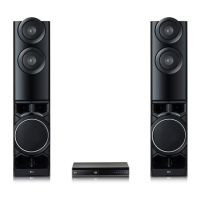
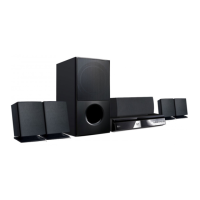
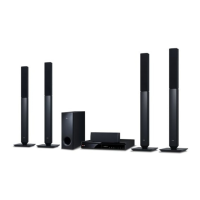
LG LHD687BG - User Manual

LG LHD687BG
45 pages
Print Icon
To Next Page IconTo Next Page
Loading...
OWNER’S MANUAL
DVD Home
Theater System
2002_Rev01
www.lg.com
Copyright © 2020 LG Electronics Inc. All Rights Reserved.
Please read this manual carefully before operating your set and retain it for future
reference.
MODEL
LHD687BG (LHD687BG, S60T1-S)
MFL71688102

Table of Contents

Other manuals for LG LHD687BG

Questions and Answers

  • J
    Jason GregoryAug 16, 2025
    What to do if my LG LHD687BG remote control doesn’t work?
    • A
      Ashley WangAug 16, 2025
      If the remote for your LG Home Theater System isn't working, ensure it's pointed directly at the unit and is within 23 feet (7 m). Remove any obstacles between the remote and the unit. Also, replace the batteries with new ones.
  • N
    Nancy RamosAug 19, 2025
    What to do if my LG LHD687BG has no power?
    • S
      Sherry MejiaAug 19, 2025
      If your LG Home Theater System has no power, ensure the power cord is securely plugged into the wall outlet.
  • A
    Angelica HarrisAug 22, 2025
    What to do if my LG LHD687BG is not working properly?
    • M
      Morgan RobertsonAug 22, 2025
      If your LG Home Theater System isn't working correctly, turn off the power of the unit and any connected external devices like your TV, Woofer, DVD player, or Amplifier, and then turn them back on. If that doesn't work, disconnect the power cord of the unit and connected devices, and then reconnect them.
  • O
    Olivia VanceAug 25, 2025
    Why is my USB not recognized by LG Home Theater System?
    • J
      Jared WhiteAug 25, 2025
      If your LG Home Theater System isn't recognizing the USB device, format the USB and connect it again. When formatting, select an available file system.
  • B
    Brian ValenzuelaAug 27, 2025
    How to fix no picture on LG LHD687BG?
    • L
      Lee CampbellAug 27, 2025
      If you're not getting a picture from your LG Home Theater System, select the appropriate video input mode on your TV so the picture from the unit appears. Also, make sure the video cables are securely connected to both the TV and the unit.
  • A
    Annette MeadowsAug 30, 2025
    Why won't a DVD/CD play on my LG LHD687BG Home Theater System?
    • R
      Ricky SimsAug 30, 2025
      If a DVD or CD won't play on your LG Home Theater System, first ensure that a disc is inserted. Then, verify that it is a playable disc, checking the disc type, color system, and regional code. Make sure the disc is placed with the label or printed side facing upwards. Finally, check if you need to enter a password or change the rating level.
  • T
    Tracy WeberSep 1, 2025
    How to improve DVD picture quality on LG LHD687BG Home Theater System?
    • S
      Samuel JacksonSep 2, 2025
      To improve the DVD picture quality on your LG Home Theater System, clean the disc using a soft cloth, wiping from the center outwards.
  • A
    Alan LewisSep 4, 2025
    Why does my LG LHD687BG make a humming noise when playing DVDs or CDs?
    • L
      Lisa ParkerSep 4, 2025
      If you hear a humming noise while playing a DVD or CD on your LG Home Theater System, clean the disc using a soft cloth with outward strokes. Additionally, try moving the unit and audio components further away from your TV.
  • Z
    zlopezSep 7, 2025
    Why can’t radio stations be tuned in properly on my LG Home Theater System?
    • A
      Alexandra SmithSep 7, 2025
      If you're having trouble tuning into radio stations with your LG Home Theater System, check the antenna connection and adjust its position. If needed, attach an external antenna. You can also try tuning to the station manually.
  • P
    Patty RamosSep 10, 2025
    Why doesn't the AUTO POWER function work on my LG Home Theater System?
    • D
      David MartinezSep 10, 2025
      If the AUTO POWER function isn't working on your LG Home Theater System, check the connection of the external device, such as a TV, DVD/Blu-Ray player, or Bluetooth device. Note that depending on the connected device, this function may not operate.

Summary

Getting Started

Safety Information

Provides essential safety precautions and warnings for using the system.

Unique Features

Highlights the special functions and capabilities of the DVD Home Theater System.

Introduction

Introduces the DVD Home Theater System and its capabilities.

Symbols Used in this Manual

Explains the meaning of various symbols used throughout the manual.

Regional Codes

Details the regional coding system for DVD playback compatibility.

Playable file Requirement

Lists requirements for playing music, photo, and video files.

Remote control

Explains the functions of all buttons on the remote control.

Front panel

Identifies and explains the controls and indicators on the unit's front.

Rear panel

Identifies and explains the ports and connections on the unit's rear.

Connecting

Attaching the speakers to the unit

Provides instructions on how to connect the speaker cables to the unit.

Positioning the system

Offers guidance on optimal placement of speakers for surround sound.

Connections to Your TV

Explains how to connect the unit to a TV using various methods.

HDMI Out Connection

Details the specific steps for connecting via HDMI for audio/video output.

What is SIMPLINK?

Explains the SIMPLINK feature for integrated device control.

Video Connection

Describes how to connect the unit to a TV using a video cable.

Resolution Setting

Guides on adjusting the video output resolution for HDMI.

Video Output Resolution

Lists the available video output resolutions based on connection type.

Optional Equipment Connection

Introduces connecting external audio devices.

AUX (L;R) INPUT Connection

Details connecting auxiliary audio sources via AUX (L/R).

PORT. IN (Portable Input) Connection

Explains how to connect portable audio devices via the PORT. IN jack.

USB Connection

Guides on connecting USB devices like memory sticks or MP3 players.

Listening to music from your portable player or external device

Instructions for playing audio from connected portable devices.

OPTICAL IN connection

Details how to connect digital audio equipment using an optical cable.

Antenna Connection

Instructions for connecting the FM antenna for radio reception.

Home theater speaker ez setup

Describes the simplified setup for 4.2 channel surround sound.

System Setting

Adjust the setup settings

Overview of making various adjustments to picture, sound, and other settings.

OSD Initial language settings - Optional

Guides through setting the initial display language upon first use.

To display and exit the Setup menu

Instructions on how to access and close the system setup menu.

Language

Options for setting menu language and audio/subtitle languages.

Display

Settings for TV aspect ratio and display modes.

Resolution

Details the available video output resolutions for HDMI.

Audio

Options for configuring speaker setup, DRC, and HD AV Sync.

Lock (Parental Control)

Manages parental control features like rating, password, and area code.

Operating

Using the Home Menu

Explains how to navigate and use the main Home Menu.

Basic Operations

Covers fundamental operations like disc insertion and playback.

Other Operations

Details various playback and media management functions.

Displaying Disc Information on-screen

How to view details about the loaded disc during playback.

To display the DVD Menu

Steps to access the DVD's main menu for content selection.

To display the DVD title

Steps to select and play different titles available on a DVD.

1.5 times speed playback

How to speed up playback for quicker viewing.

Screen Saver

Explains the automatic screen saver activation in stop mode.

Starting play from selected time

How to begin playback from a specific time within a file or title.

Resume playback

Functionality to continue playback from where it was last stopped.

Changing subtitle code page

How to adjust subtitle display for proper viewing.

Marked Playback

Feature to mark and store favorite files for quick access.

To delete a Marker

Instructions on removing marked files from the list.

To delete all Markers

How to clear all marked files from memory.

Viewing a PHOTO file

Guide to viewing photo files from discs or USB devices.

Sleep Timer Setting

How to set the unit to automatically turn off after a specified time.

Dimmer

Adjusts the brightness of the unit's display window.

Turn off the sound temporarily

How to mute the audio output of the unit.

Last Scene Memory

Unit memorizes the last playback scene for DVDs.

Power Resume - Optional

Automatically resumes playback after a power interruption.

System Select - Optional

Selects the appropriate system mode for the TV.

Adjust the speaker level settings

Customizes the sound level for individual speakers.

VOCAL FADER

Reduces singer vocals for karaoke-style playback.

Auto power down

Automatically turns off the unit to save power when idle.

Radio Operations

Covers tuning, presets, and managing radio stations.

Listening to the radio

Steps for tuning and listening to radio stations.

Presetting the Radio Stations

How to save favorite radio stations for quick access.

Deleting all the saved stations

Instructions to erase all stored radio presets.

Deleting a saved station

How to remove a specific saved radio station.

Improving poor FM reception

Tips for enhancing radio signal quality.

Sound adjustment

Explains how to adjust surround modes and sound effects.

Setting the surround mode

Selects desired sound modes for immersive audio experience.

Setting the USER EQ

Allows customization of Bass and Treble levels.

Advanced Operations

Covers advanced functions like USB recording and file management.

Recording to USB

Instructions on recording audio content to a USB device.

Using a Bluetooth wireless technology

Introduction to Bluetooth connectivity and its features.

About Bluetooth

Provides general information about Bluetooth technology.

Bluetooth Profiles

Explains the specific Bluetooth profiles supported by the unit.

Listening to music of a Bluetooth device

Steps for pairing and playing music from Bluetooth devices.

LG Sound Sync

Explains how to synchronize unit functions with an LG TV.

With wireless connection

Details the setup process for wireless LG Sound Sync.

Auto function change

How the unit automatically selects functions based on input signals.

AUTO POWER On;Off

Explains automatic power management based on input sources.

Troubleshooting

Appendix

Maintenance

Instructions for handling, cleaning, and maintaining the unit.

Notes on Discs

Guidelines for handling, storing, and cleaning discs for optimal playback.

Area Code List

A list of country codes used for DVD regional playback compatibility.

Language code List

A list of language codes for setting audio and subtitle preferences.

Trademarks and Licenses

Information on trademarks, logos, and licensing agreements.

Notes on Copyrights

Explains copyright protection technology and legal considerations.

Specifications

Technical details and operational parameters of the unit.

LG LHD687BG Specifications

General IconGeneral
BrandLG
ModelLHD687BG
CategoryHome Theater System
LanguageEnglish

Related product manuals