EasyManua.ls Logo

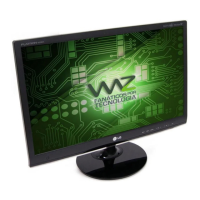
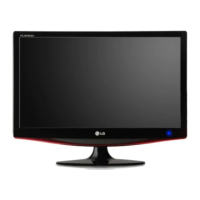
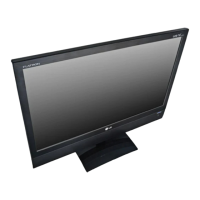
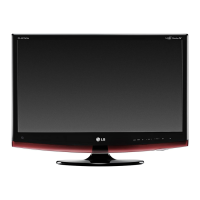
LG M2380D - User Manual

LG M2380D
156 pages
Print Icon
To Next Page IconTo Next Page
Loading...
www.lg.com
OWNER’S MANUAL
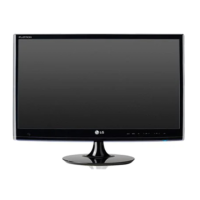
LED LCD MONITOR TV
LED LCD MONITOR TV MODELS
M2080D
M2280D
M2380D
M2780D
M2080DF
M2280DF
M2380DF
M2780DF
M2080DB
M2280DB
M2380DB
M2080DN
M2280DN
M2380DN
M2780DN
Please read this manual carefully before operating
your set and retain it for future reference.
ENGLISH

Table of Contents

Questions and Answers

  • N
    Nancy SawyerSep 12, 2025
    Why do back spots appear on the LG M2380D Monitor screen?
    • S
      Stanley PrestonSep 12, 2025
      The appearance of several pixels (red, green, white, or black) on the LG Monitor screen is due to the unique characteristics of the LCD panel and is not a malfunction.
  • P
    Patricia ArmstrongSep 12, 2025
    What to do if after-image appears on LG M2380D?
    • M
      Mark BennettSep 13, 2025
      If an after-image appears on your LG Monitor, especially after using a fixed image for a long time, it may be due to pixel damage. Use the screen saver function to prevent this.
  • T
    Tammy WalshSep 12, 2025
    What to do if ‘Unknown Product’ message appears when LG Monitor is connected?
    • R
      Ryan WellsSep 12, 2025
      If you receive an ‘Unknown Product’ message when your LG Monitor is connected, install the product driver provided with the monitor or download it from the LG website. Also, check your video card user guide to ensure it supports plug & play functionality.
  • J
    Julie ManningSep 9, 2025
    What causes unusual sounds from inside my LG LCD TV?
    • T
      Tyler ArnoldSep 9, 2025
      An unusual sound from inside your LG LCD TV may be due to changes in ambient humidity or temperature when the product is turned on or off. This doesn't necessarily indicate a problem with the product.
  • K
    kellychanSep 8, 2025
    Why does my LG LCD TV revert to initial picture settings?
    • A
      Anna GarnerSep 8, 2025
      If your LG LCD TV automatically reverts to the initial picture settings, it's likely set to Store Demo mode. To switch to Home use mode: From the TV Main menu, choose OPTION, then Initial Setting, and finally Home use.
  • K
    Krystal MurraySep 7, 2025
    How to fix no output from one speaker on LG LCD TV?
    • S
      sarabrownSep 7, 2025
      If there's no output from one of the speakers on your LG LCD TV, adjust the Balance in the menu option.
  • M
    Michael LaraAug 23, 2025
    How to fix no color or poor picture on LG LCD TV?
    • L
      laurenhughesAug 23, 2025
      If your LG LCD TV has no color, poor color, or a poor picture, try adjusting the Color settings in the menu. Ensure there's sufficient distance between the TV and any VCRs. Try switching to another channel, as the issue might be with the broadcast. Also, check if the video cables are installed properly and activate any function to restore the picture's brightness.
  • J
    Jesse ScottSep 5, 2025
    What to do if there is no picture when connecting HDMI to LG LCD TV?
    • C
      Carolyn WilliamsSep 6, 2025
      If there is no picture when connecting HDMI to your LG LCD TV, check that your HDMI cable is a High Speed HDMI Cable. Using non-High Speed HDMI cables can result in flickering or no screen display.
  • T
    Timothy BarrSep 4, 2025
    How to improve poor reception on some channels on LG LCD TV?
    • L
      Luis DavisSep 5, 2025
      If you're experiencing poor reception on some channels with your LG LCD TV, the station or cable product may be experiencing problems; try tuning to another station. If the station signal is weak, reorient your antenna. Also, check for any sources of possible interference.
  • D
    Douglas SmithSep 4, 2025
    Why is there no sound when connecting HDMI or USB to my LG LCD TV?
    • G
      Gary SimpsonSep 4, 2025
      If there's no sound when connecting HDMI or USB to your LG LCD TV, check that the HDMI cable is a High Speed HDMI Cable. For USB, ensure the cable is over version 2.0 and that you are using a normal MP3 file.

Summary

PREPARATION

FRONT PANEL CONTROLS

Identifies and explains the buttons and indicators on the front panel of the monitor.

BACK PANEL INFORMATION

Details the various input/output ports and connectors located on the back of the monitor.

STAND INSTALLATION

Provides step-by-step instructions for attaching the monitor stand to the display unit.

WALL MOUNT: HORIZONTAL INSTALLATION

Guides users on how to safely mount the monitor horizontally on a wall, ensuring proper ventilation.

DESKTOP PEDESTAL INSTALLATION

Explains how to set up the monitor using its desktop stand, ensuring correct placement and ventilation.

EXTERNAL EQUIPMENT SETUP

ANTENNA CONNECTION

Details how to connect an antenna for receiving TV signals, including different dwelling types.

HD RECEIVER SETUP

Guides the connection of an HD receiver using component or HDMI cables for optimal viewing.

PC SETUP

Explains how to connect and configure the monitor for use as a PC display via D-sub or HDMI.

SUPPORTED DISPLAY RESOLUTION

Lists the compatible display resolutions and frequencies for PC and HDMI/DVI modes.

WATCHING TV; PROGRAMME CONTROL

REMOTE CONTROL KEY FUNCTIONS

Describes the function of each button on the TV's remote control for navigation and operation.

ON SCREEN MENUS SELECTION AND ADJUSTMENT

Illustrates how to navigate and adjust settings using the On-Screen Display (OSD) menus.

AUTO PROGRAMME TUNING

Explains the process of automatically scanning and storing available TV and radio channels.

MANUAL PROGRAMME TUNING (IN ANALOGUE MODE)

Details how to manually tune and arrange TV stations in analogue mode for desired order.

EPG (ELECTRONIC PROGRAMME GUIDE)(IN DIGITAL MODE)

Switch on;off EPG

Instructions on how to activate or deactivate the Electronic Programme Guide feature.

Button Function in NOW;NEXT Guide Mode

Explains how to use remote buttons to select current or upcoming programs in EPG.

Button Function in 8 Day Guide Mode

Details how remote buttons function for navigating 8-day program schedules in EPG.

PICTURE CONTROL

PICTURE SIZE (ASPECT RATIO) CONTROL

How to adjust the picture aspect ratio (e.g., 16:9, 4:3, Zoom) for optimal viewing.

MANUAL PICTURE ADJUSTMENT

Guides on manually adjusting picture settings like brightness, contrast, colour, and sharpness.

EXPERT PICTURE CONTROL

Advanced settings for fine-tuning picture quality in Expert 1 and Expert 2 modes.

PICTURE RESET

Resets all picture settings to their default factory values for the selected mode.

SCREEN SETUP FOR PC MODE

Instructions for optimizing screen display settings when connected to a PC.

SOUND CONTROL

AUTO VOLUME LEVELER

Manages volume automatically to maintain a consistent level across different channels.

CLEAR VOICE II

Enhances human voice clarity in audio playback for better dialogue comprehension.

DIGITAL AUDIO OUT

Configuration options for digital audio output signals, including Dolby Digital and PCM.

TV SPEAKERS ON; OFF SETUP

Controls whether the TV's internal speakers are active or muted.

I;II Stereo;Dual Reception (In Analogue Mode Only)

Selects audio reception mode (Mono, Stereo, Dual) for analogue broadcasts.

TO USE A USB DEVICE

WHEN CONNECTING A USB DEVICE

Instructions for connecting and recognizing USB storage devices for media playback.

PHOTO LIST

How to view and manage photo files stored on a connected USB device.

MOVIE LIST

Details on playing movie files from a USB storage device, including supported formats.

DIVX REGISTRATION CODE

Information on registering the TV for DivX playback and managing DivX content.

APPENDIX

TROUBLESHOOTING

Provides solutions for common operational issues and problems with the TV.

MAINTENANCE

Guidance on cleaning the screen and cabinet, and care for extended periods of non-use.

PRODUCT SPECIFICATIONS

Lists the technical specifications of the monitor models, including dimensions and performance.

EXTERNAL CONTROL DEVICE SETUP

Instructions for connecting external control devices via RS-232C for system management.

LG M2380D Specifications

General IconGeneral
Aspect ratio16:9
Display diagonal23 \
Contrast ratio (dynamic)5000000:1
Display brightness (typical)250 cd/m²
USB hub version2.0
DVI-I ports quantity0
Built-in speaker(s)-
Built-in subwooferYes
Power consumption (standby)0.28 W
Power consumption (typical)37.8 W
Product colorBlack
Panel mounting interface- mm
Weight and Dimensions IconWeight and Dimensions
Depth (without stand)54 mm
Width (without stand)509.6 mm
Height (without stand)330.5 mm
Weight (without stand)3800 g

Related product manuals