Before Operation
12
Displaying Disc Information On-screen
You can display various information about the disc
loaded on-screen.
1
Press DISPLAY to show various playback infor-
mation.
The displayed items differ depending on the disc
type or playing status.
2
You can select an item by pressing / and
change or select the setting by pressing / .
• Title (Track) – Current title (or track) number/ total
number of titles (or tracks).
• Chapter – Current chapter number/ total number of
chapters.
• Time – Elapsed playing time.
• Audio – Selected audio language or channel.
• Subtitle – Selected subtitle.
• Angle – Selected angle/ total number of angles.
• Sound – Selected sound mode.
Note
Note
If any button is not pressed for a few seconds, the on-
screen display disappears.
Initial Settings
By using the Setup menu, you can make various adjust-
ments to items such as picture and sound. You can also
set a language for the subtitles and the Setup menu,
among other things. For details on each Setup menu
item, see the pages 12 to 15.
To display and exit the Menu:
Press SETUP to display the menu. A second press of
SETUP will take you back to the initial screen.
To go to the next level:
Press on the remote control.
To go back to the previous level:
Press on the remote control.
GENERAL OPERATION
1
Press SETUP. The Setup menu appears.
2
Use / to select the desired option then
press to move to the second level.
The screen shows the current setting for the select-
ed item, as well as alternate setting(s).
33
Use / to select the second desired option
and then press to move to the third level.
44
Use
/
to select the desired setting then
press
SELECT/
ENTER to confirm your selection.
Some items require additional steps.
5
Press SETUP or PLAY to exit the Setup menu.
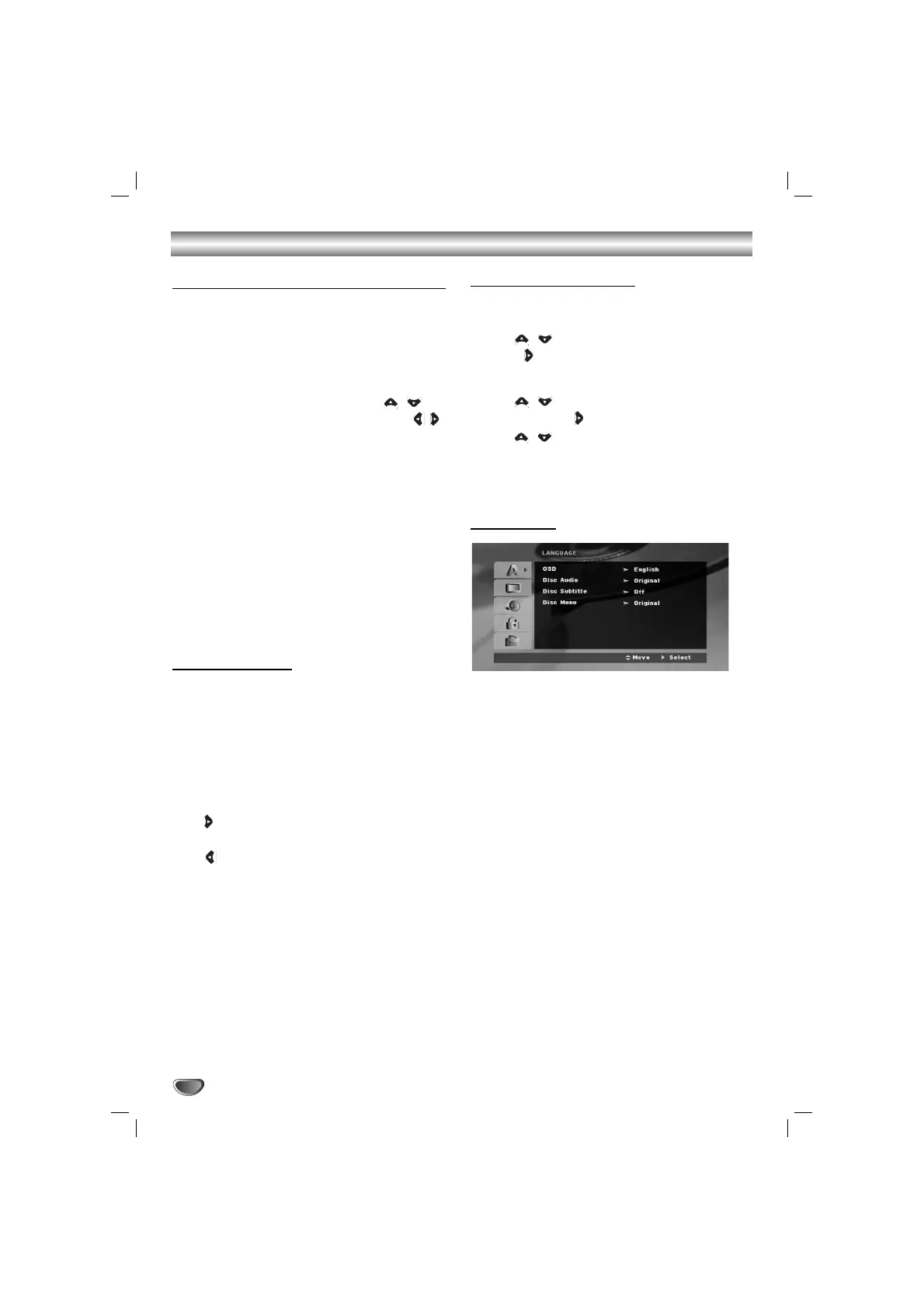
LANGUAGE
OSD
Select a language for the Setup menu and the on-
screen display.
Disc Audio / Subtitle / Menu
Select the language you prefer for the audio track (disc
audio), subtitles, and the disc menu.
Original – Refers to the original language in which the
disc was recorded.
Other – To select another language, press numeric but-
tons and then SELECT/ENTER to enter the correspon-
ding 4-digit number according to the language code list
on the page 29. If you enter the wrong language code,
press CLEAR.


 To Next Page