EasyManua.ls Logo

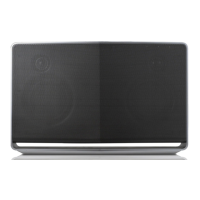
LG NP8740 - User Manual

LG NP8740
58 pages
Print Icon
To Next Page IconTo Next Page
Loading...
Please read this manual carefully before
operating your speaker and retain it for future
reference.
ENGLISH | OWNER’S MANUAL
SMART Hi-Fi AUDIO
Wireless Multi-room
Model : NP8740 (H7)
NP8540 (H5)

Table of Contents

Other manuals for LG NP8740

Questions and Answers

  • K
    Kathy RoyJul 26, 2025
    Why is there no sound coming from my LG Speaker System?
    • M
      moralesjenniferJul 26, 2025
      If your LG Speaker System isn't producing sound, first, check the volume level. It might be set to the minimum. If so, simply adjust the volume to a comfortable listening level.
  • M
    Melinda BellJul 30, 2025
    How to turn on my LG Speaker System if it's not powering up?
    • M
      Matthew BrownJul 31, 2025
      If your LG Speaker System's power won't turn on, the first thing to check is whether the power cord is securely plugged into the outlet. If it isn't, connect the power plug firmly into the outlet.
  • T
    Tanya ValdezAug 4, 2025
    Why can't I connect my LG Speaker System to my home network?
    • S
      sarah65Aug 4, 2025
      If you cannot connect your LG speaker to your home network, it might be due to wireless interference from other household devices using radio frequencies. Try moving the speaker away from these devices.
  • L
    Lisa WardAug 8, 2025
    What to do if my LG Speaker System isn't working properly?
    • B
      brightsarahAug 8, 2025
      If your LG Speaker System isn't working correctly, start by ensuring it's properly plugged in. If the front status LED indicator remains on, verify that the Wi-Fi router you're using is certified for Wi-Fi. Try unplugging the speaker, plugging it back in, and reconnecting it to the router. If problems persist, consider resetting the speaker. If you're using a Music Flow R1, ensure that both the smart device and the Music Flow R1 are connected to the same Wi-Fi network and that the Music Flow R1’s indicator LED shows it's working correctly. If issues continue, reset the Music Flow R1, or try unplugging and plugging in both the Music Flow R1 and the speaker. As a last resort, relocate the speaker closer to the wireless router or Music Flow R1.
  • V
    vwadeAug 12, 2025
    What to do if a button on my LG Speaker System doesn't work?
    • T
      Timothy FergusonAug 12, 2025
      If a function on your LG Speaker System isn't working when you press the button, it could be due to static electricity in the air. Try disconnecting the power plug and then connecting it again to resolve this.
  • E
    Eduardo CrawfordAug 16, 2025
    Why are media servers not showing up on my LG Speaker System device list?
    • K
      Kristin TaylorAug 17, 2025
      If media servers are not displayed on the device list for your LG Speaker System, it may be due to the firewall or anti-virus software running on your media server. Try turning off the firewall or anti-virus software. Also, ensure that the speaker is connected to the same local area network as your media server.
  • F
    fmcintyreAug 21, 2025
    What to do if my LG Music Flow Player (Speaker or Bridge) isn’t working properly?
    • J
      Jose KimAug 21, 2025
      If your Music Flow Player (Speaker or Bridge) isn't working correctly, ensure it's plugged in properly. Also, check that the LAN cable is correctly connected to both the wireless router and the Music Flow Player (Speaker or Bridge). Verify that the Music Flow Player’s LED indicates it is operating correctly. If connection troubles persist, try relocating the speakers closer to the wireless router or Music Flow Player. If you restart the router, turn the speaker’s power off and on again. If you install a new router, perform a factory reset and setup the network connection for the speaker.

Summary

Getting Started

Safety Information

General safety precautions, warnings, and compliance notices for the product.

Compliance and Disposal

Information on EU notices, RF exposure, and proper disposal of the old appliance.

Main Features

Key functionalities and capabilities of the LG Music Flow speaker.

Accessories

List and identification of included accessories with the speaker.

Introduction

Explains symbols used in the manual and basic notes.

Understanding Connection

Explains basic wired and wireless connection methods for the speaker.

Top Panel Overview

Identifies and describes the controls and indicators on the top surface of the speaker.

Rear Panel Overview

Identifies and describes the ports and buttons on the rear of the speaker.

Connecting

Connecting the AC Adapter

Step-by-step guide to connect the speaker to a power source using the AC adapter.

Installing the Music Flow Player App

Instructions to download and install the companion mobile application.

Starting the Music Flow Player App

Guide on launching the app for the first time and initial setup steps.

Connecting to Home Network

Explains requirements and preparation for connecting the speaker to a home network.

Wired LAN Connection

Detailed steps for establishing a wired network connection using a LAN cable.

Wi-Fi Setup for Android

Steps to connect the speaker to the network using Wi-Fi on Android devices.

Wi-Fi Setup for iOS

Steps to connect the speaker to the network using Wi-Fi on iOS devices.

Adding Additional Speakers

Guide on connecting multiple speakers to expand the multi-room audio setup.

Connecting with Music Flow R1

Instructions for using the Music Flow R1 to extend network range for speakers.

Operating

Basic Operations

Fundamental controls like power, standby, and mode switching.

Using the;I;F Button

Details on using the power/function button for power, standby, and mode changes.

Using the Volume Control

How to adjust the speaker's volume using the control wheel.

Music Playback with App

How to play music using the Music Flow Player mobile application.

Home Menu Overview

Explanation of the main interface elements in the Music Flow Player app's Home screen.

Side Menu Overview

Description of the navigation options available in the app's side menu.

Playing a Song

Step-by-step guide to select and play music tracks from your smart device.

Managing Playlists

Instructions on how to add songs to playlists, play next, or add to queue.

Playback Screen Overview

Details on the information and controls displayed during music playback.

Selecting Sound Effects

How to choose different surround sound modes and equalizer settings.

Group Playback

Instructions for synchronizing music playback across multiple connected speakers.

Seamless Playback

How to switch music playback between speakers or devices without interruption.

Changing Speaker via Smart Device

Guide on how a pop-up allows selecting a speaker for playback.

Changing Speaker with NFC Tag

Using NFC to switch the active speaker without pausing music.

Speaker Settings with App

Overview of how to configure speaker settings using the Music Flow Player app.

Setting Menu Overview

Explains the main categories within the app's settings menu.

General Menu Settings

Configuration options for lock screen, user guide, and music curation.

Speaker Menu Settings

Options to rename, control LED, initialize, or check system version of speakers.

Alarms and Sleep Timer

How to set alarms and timers for the speaker.

Music Library Management

Managing the music index and sync schedule for the library.

Account Management

Managing social networking and streaming service accounts.

Software Updates

Instructions for updating the speaker's firmware and application versions.

Using Bluetooth Wireless

Guide on connecting and using Bluetooth for audio playback.

Bluetooth Pairing

Steps to pair a Bluetooth device with the speaker for music streaming.

NFC Pairing for Android

Connect NFC-enabled Android devices via Bluetooth using NFC.

Music from External Device

How to play music from external devices via the PORTABLE IN jack.

PC Media Server Setup

How to share music files from a PC using Media Server software.

Mac Media Server Setup

Instructions for using Nero MediaHome to share files from a Mac.

Standby Modes

Information on speaker power modes and LED indicators.

Resetting the Speaker

Procedures for resetting the speaker to factory settings or clearing network info.

Troubleshooting

General Issues

Solutions for common issues like no power, buttons not working, or no sound.

Network Connectivity Issues

Solutions for connectivity problems, media server display, and grouping issues.

App and PC Software Issues

Troubleshooting steps for the Music Flow Player app and PC software.

Appendix

File Format Requirements

Supported audio file formats, sampling frequency, and bit rate.

Trademarks and Licenses

Information on Bluetooth technology and legal notices.

Status LED Indicators

Explains the meaning of different LED colors and blinking patterns for modes.

Product Specifications

Technical details including power, dimensions, weight, and system requirements.

Handling and Cleaning

Guidelines for shipping, keeping exterior surfaces clean, and general cleaning.

Network Services Information

Details on third-party content, services, and LG's liability.

Terms of Use

Legal terms and conditions for using the LG Software and services.

Open Source Software Notice

Information on obtaining source code for open-source components.

Gracenote License Agreement

End-user license agreement for Gracenote software used for music identification.

LG NP8740 Specifications

General IconGeneral
Product colorBlack
Recommended usageUniversal
Suitable for outdoor use-
Speaker placementTabletop/bookshelf
Audio output channels1.0 channels
Impedance- Ω
Frequency range- Hz
RMS rated power70 W
EqualizerYes
Connectivity technologyWired & Wireless
Power source typeAC
Power consumption (standby)0.5 W
Power consumption (typical)12 W
Weight and Dimensions IconWeight and Dimensions
Depth110 mm
Width370 mm
Height232 mm
Weight4100 g

Related product manuals