41
Video camera
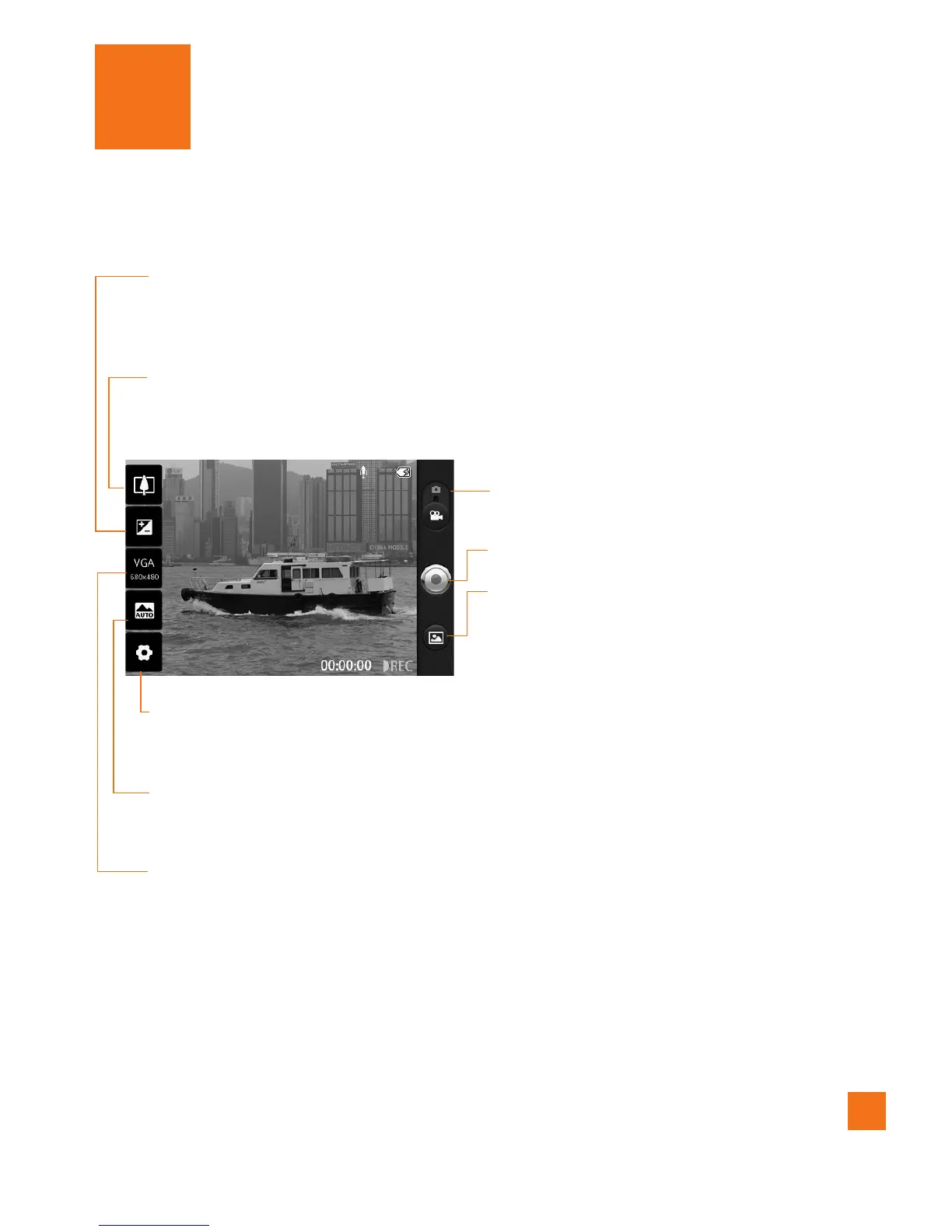
Getting to know the viewfinder
Zoom
– Zoom in or zoom out. Alternatively you can use the Volume Keys. Before
starting record a video, you can use the zoom function. You cannot control the zoom
function during recording.
Brightness
– This defines and controls of the amount of sunlight entering the Video.
Slide the brightness indicator along the bar, towards “-” for a lower brightness
Video, or towards “+” for a higher brightness Video.
Settings
– Touch this icon to open the settings menu. See
Using the advanced
settings
.
Video size
– Touch to set the size (in pixels) of the video you record. Choose your
video image size from
VGA (640x480), QVGA (320x240) or QCIF (176x144)
.
Scene mode
– Set the camera to adjust to the environment. Choose from
Auto,
Portrait, Landscape, Sports, Night,
and
Sunset.
Camera mode
– Slide this icon up to switch
to camera mode.
Record
– Allows you to start recording.
Gallery
– This enables you to access your
saved photos and videos from within the
video camera mode. Simply touch and your
Gallery will appear on the screen.



 To Next Page