10
ENGLISH
LG Tone & Talk
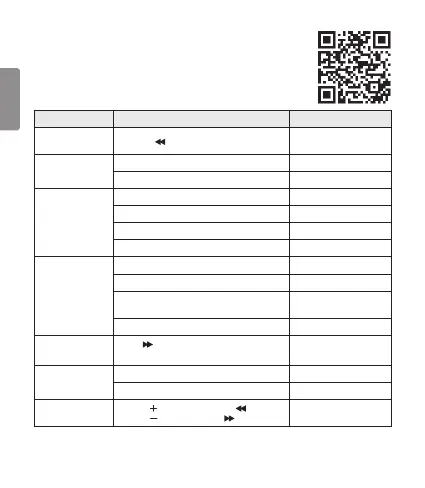
Tone & Talk supports various functions, including text and voice directions,
and calling. Go to the Google Play™ store and search for “LG Tone & Talk”
or scan the QR code on the right to install Tone & Talk.
NOTE: Tone & Talk can be used on Android™ smartphones.
Function Button / Description HBS-A80 Action
Reading Recent
Messages
Previous ( ) button Press and hold for 1 second.
Using Speed Dial to
Make a Call
Select a speed dial contact in Tone & Talk. -
Call button (Making a call) Briey press twice.
Using Favorites to
Make a Call
Select a favorite contact in Tone & Talk. -
Call button (Bringing up a favorite contact) Briey press twice.
Select a contact with the Previous/Next button. Press and hold for 1 second.
Call button (Making a call) Briey press twice.
Making a Call From
Call History
Select call history in Tone & Talk. -
Call button (Bringing up call history) Briey press twice.
Press and hold the Previous/Next button to select
a call history number.
Press and hold for 1 second.
Call button (Making a call) Briey press twice.
Current Time Alert/
Voice Memo
Next ( ) button
(This feature may not be supported on some devices.)
Press and hold for 1 second.
Changing the Voice
Prompt Language
Select Advanced > View more in Tone & Talk. -
Select Voice prompt language menu. -
Find Me
(Find my phone)
Volume ( ) button and Previous ( ) button /
Volume ( ) button and Next ( ) button
Simultaneously press and hold
for 1 second.
NOTE: The Current Time Alert and the Voice Memo functions cannot be used at the same time.
You can only use one function at a time when you make selections in the Tone & Talk app.



 To Next Page