INGTMKJ
INGTMKJ
'[ZU
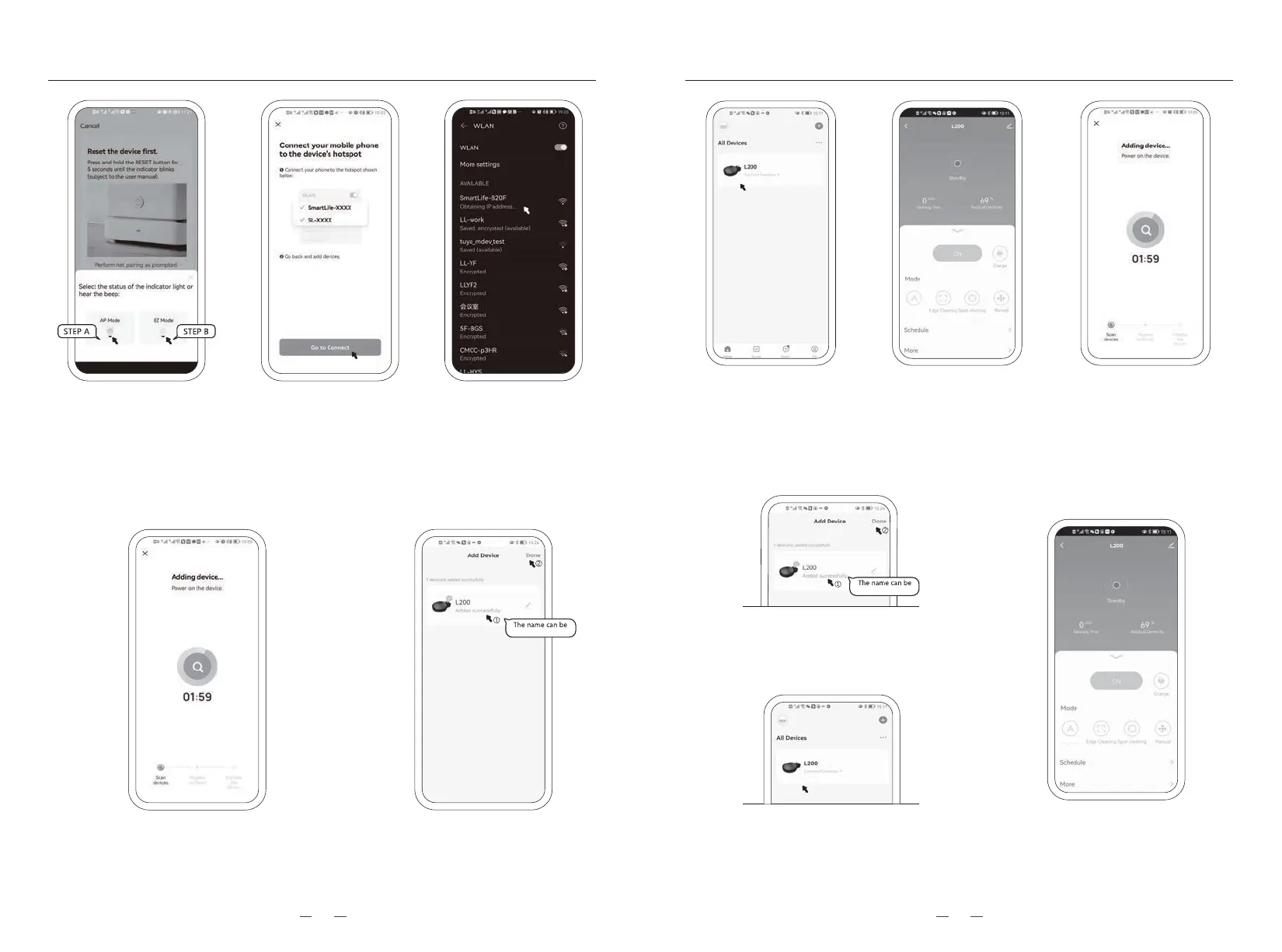
A4.9. When the device is connected to the
Internet, please pay attention to the tips
in the interface.
A4.10. When prompted "add successfully", the
device icon will be displayed, and the
name can be changed according to its
own preferences, and click “Done”.
A4.7. Click "Go to
Connect" to enter the
WiFi selection
interface.
A4.8. Please select the WiFi
signal sent by the
equipment. Named
after "SmartLife-XXXX".
Then return to the
application connection.
A4.11. After the completion of
the add up, the device
icon will be displayed
on the front page of
APP. Click to enter the
control interface.
B4.8. When prompted "add successfully", the
device icon will be displayed, and the name
can be changed according to its own prefer-
ences, and click “Done”.
B4.9. After the completion of the add up, the device
icon will be displayed on the front page of
APP. Click to enter the control interface.
'[ZU
A4.12.Click “ON” to default
to work in "auto"
mode, or select the
appropriate mode and
operation function
according to the actual
situation.
B4.7. After clicking "EZ
mode", the application
will search for smart
devices in the same
WiFi environment by
itself. Meanwhile pay
attention to the tips.
B4.10. Click “ON” to default to work in
"auto" mode, or select the
appropriate mode and operation
function according to the actual
situation.
A4.6 /B4.6. There are two connection
modes,“AP Mode” and “EZ Mode”.
(step A4.6): Please select “AP Mode”;
(step B4.6): Please select “EZ Mode”.
(step B4.7, Please jump to page 12.)
METHOD OF USAGE METHOD OF USAGE
1211


 To Next Page