5
Add Additional Keychain Remote(s)
If you have more than one Remote, you must create new
User Codes before those keychains can be added. The
LifeShield system can support up to 8 Users—1 Master
User, who is able to change System Settings—and 7
Normal Users, who are only able to Arm and Disarm
the system.
*FOR MULTIPLE KEYCHAINS, YOU MUST CREATE A
UNIQUE USER FOR EACH KEYCHAIN
User Codes can easily be added, changed or deleted
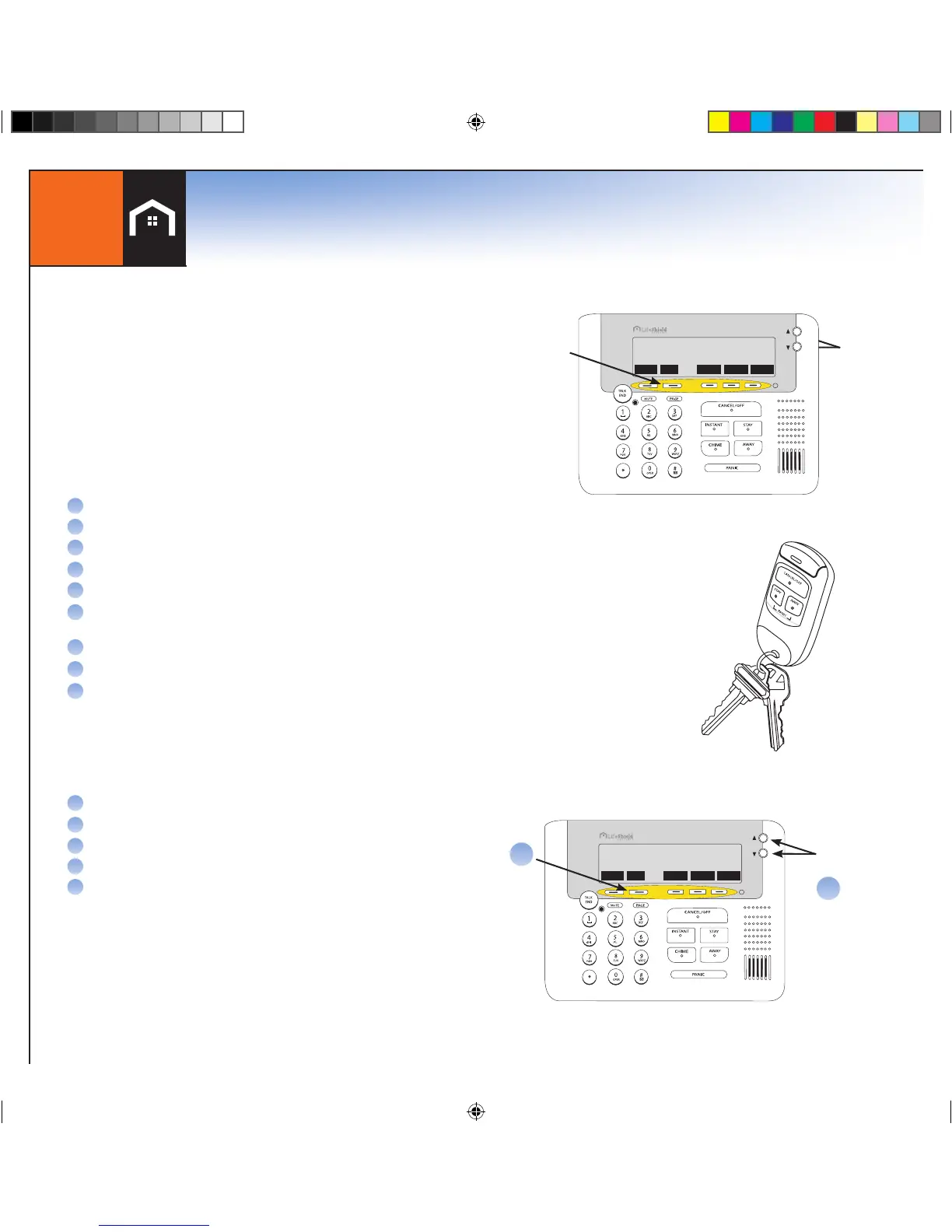
from the system Console. Here are the steps to add a
pregrogrammed Keychain Remote:
Scroll
Buttons
Menu
A
B
PHNBK MENU CONNCT WEATHR ALERTS
Ready To Arm
Thu 2/8 11:48a
Scroll
Buttons
Menu
PHNBK MENU CONNCT WEATHR ALERTS
Ready To Arm
Thu 2/8 11:48a
Keychain
Remote
A
B
C
D
E
F
Press Menu on Console
Scroll to Security Setup on the screen, press Select
Enter Master Code*
Scroll to Users
Select <Add New>
It defaults to User 1, use the delete button to erase default
username.
Enter desired name using keypad numbers, press OK.
Create a unique 4 digit arming code for this user, press OK
System will ask you to confirm <New User> add, press OK
*NOTE - IF YOU HAVE ADDITIONAL USERS TO CREATE
SELECT <ADD NEW> AND REPEAT.
Press the Button under Back (which displays on the Screen)
Scroll down to Keychains
Select <Add New>
Press all 3 Keychain buttons.
Select user to assign the Keychain to
G
NOTE: Your Keychain Remote is ready to go and preprogrammed for a Master User.
H
I
J
K
L
M
N
If you are ready to add additional keychain
remotes please continue with steps below:
7
*NOTE: WHEREVER MASTER CODE IS SHOWN P
LEASE USE YOUR UNIQUE MASTER CODE FOUND IN THE FRONT COVER OF THIS BOOK


 To Next Page