
 Need help?
Do you have a question about the LifeSize Icon700 and is the answer not in the manual?
Lists default username and password for system access.
How to initiate a call from the home screen.
Steps to mute and unmute audio during a call.
Method to terminate an active call.
Lists necessary hardware and bandwidth for a demo.
Guidelines and restrictions for conducting demonstrations.
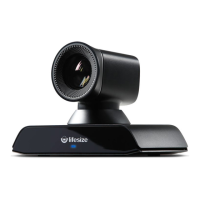
The Lifesize Icon 700 is a sophisticated 4K video conferencing solution designed to deliver an exceptional meeting experience. It integrates seamlessly with the Lifesize cloud service, offering high-quality video, content sharing, and robust collaboration features. The system is controlled primarily through the Lifesize Phone HD, a dedicated device that streamlines the management of audio, video, and web conferencing, as well as screen sharing.
The Lifesize Icon 700 serves as a complete 4K video conferencing system, enabling users to conduct video calls with stunning picture quality and breathtaking zoom capabilities. It is built upon a modern, streamlined microservices architecture, which ensures industry-leading call quality, content sharing, high service availability, and reliability. This architecture also improves resilience and performance on low-bandwidth networks and accelerates feature development, providing a continuously evolving and robust communication platform. The system is designed for both individual users and conference rooms, offering flexibility in how it is associated with a Lifesize account. When configured for a conference room, it can be used by multiple users and can have its own dedicated Lifesize account and directory listing.
The Lifesize Icon 700, paired with the Lifesize Phone HD, provides an intuitive and comprehensive set of features for managing video conferences.
To initiate a call, users tap the "Call" icon from the Home Screen on the Lifesize Phone HD. They can then access the "Directory" icon to select a contact and choose to "Dial as Video" or "Dial as Voice." For quick access, contacts can be located and added using "Recents," "Directory," or "Favorites." Meetings can be joined directly through the "Meetings" option, and phone numbers can be dialed using the "Keypad."
During a call, audio can be muted by tapping the "Mute Audio" icon. A helpful visual cue is provided by the lights on the Lifesize Phone HD, which turn red when audio is muted. Volume can be adjusted during a call by tapping the "Volume" icon and using the slider. Before a call, the volume can be adjusted by tapping the "Start" icon on the Home Screen to access the "Volume" icon.
Calls can be ended by tapping the "End" icon. The system offers flexibility in ending calls, allowing users to remove themselves or individual participants from a multiparty call.
To start a presentation during a call, users tap the "Present" icon. The Lifesize Phone HD also offers "Layouts" icon for various screen layout options. To exit presentation mode, the "Presenting" icon is tapped. A key feature is the ability to share screens whether in a video call or giving a presentation to others in the conference room, enhancing collaborative efforts. The system is capable of displaying 4K content, ensuring sharp and detailed presentations.
Video can be muted during a call by tapping the "More" icon, followed by the "Mute Video" icon.
The camera can be moved during a call by swiping left and tapping the "Camera" icon. For pre-call adjustments, the "Camera" icon is available on the Home Screen. Users can reposition and zoom the camera using the on-screen controls. Presets can be added by pressing and holding a number in the "Presets" bar, allowing for quick recall of preferred camera angles.
To enable "Do Not Disturb" mode during a call, users tap the "More" icon and then the "Do Not Disturb" icon.
Calls can be recorded by tapping the "Record" icon during a call and selecting the person to own the recording. This feature requires Lifesize Record and Share to be enabled.
The system's language can be changed by tapping the "Language" icon.
The Lifesize Phone HD incorporates several intuitive gestures for quick control during a call:
The Lifesize Icon 700 offers several administrative and configuration options to ensure optimal performance and customization.
The initial configuration involves navigating to the system's IP address in a browser, selecting language and time zone, and optionally configuring a proxy connection. After completing the setup, the system is paired with the Lifesize service through the "Go to Admin Console." The system can be associated with an "Individual user" (allowing end-users or admins to link the device) or a "Conference room" (creating a separate Lifesize account for the system, ideal for shared spaces). After activation, the system may undergo a software update, which typically reboots the system within five minutes.
Accessing the "Admin" icon on the Lifesize Phone HD provides access to additional administrative settings:
The Lifesize admin console provides extensive customization options for the Lifesize Phone HD:
These features collectively ensure that the Lifesize Icon 700 is not only a powerful communication tool but also a flexible and user-friendly system that can be tailored to various organizational needs and preferences, with robust maintenance and administrative controls to keep it running smoothly.
 General
| Frame Rate | 60 fps |
|---|---|
| Zoom | 12x optical zoom |
| Audio Support | Yes |
| Microphone Range | Up to 20 feet |
| Video Resolution | 1080p |
| Field of View | 72.5 degrees |
| Connectivity | Ethernet |
| Camera Control | Pan, tilt, zoom (PTZ) |
| Microphones | Built-in |
| Power | AC power adapter |

 To Next Page