To access the setup pages, press and hold the TA P footswitch then press
the
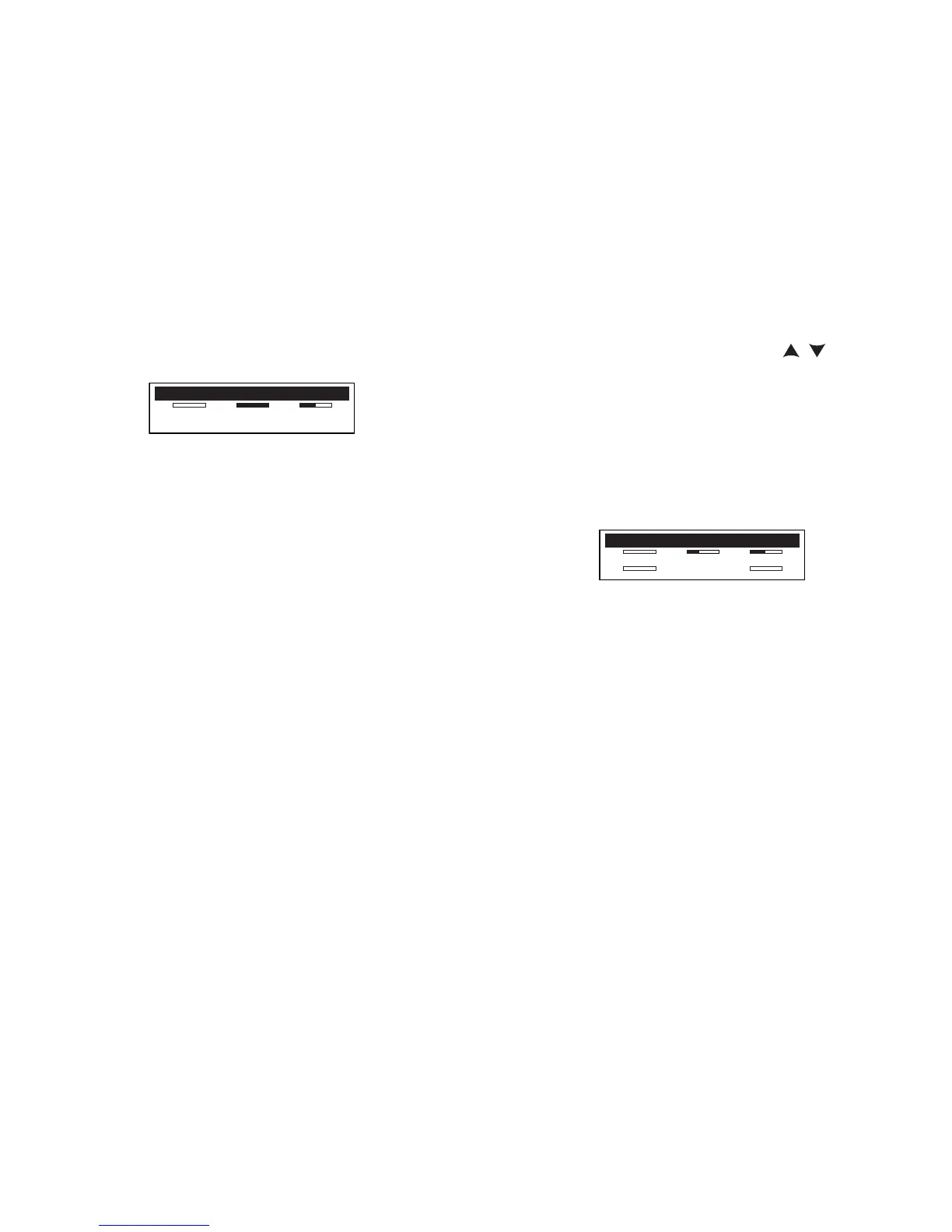
MODEL SELECT knob. The DISPLAY should look similar to this:
CONTRST
Prefs Presets Display
DSP BYP
V. 1.0
REL
AUTOSAVE
POTS
LOAD
PRESET
You can exit the setup pages at anytime by pressing the TA P button.
True Bypass / DSP Bypass
ChooseTrueBypasswhenyouwanttoremovetheM5StompModeler
fromyoursignalpathwhentheFXUnitorTunerisnotinuse.When
choosingDSPBypassyou’llgetthebenetofhearingdelayandreverb
trails smoothly decay when disengaging those effects.
Manual / Auto Save (Presets)
As you adjust an effect those adjustments are retained as you switch
away to a different preset and back again—no save function is required.
It’sjustasifyouwereadjustingdifferentphysicalstompboxes,eachof
which would still have the last knob settings you made to it.
If you prefer that presets not remember new adjustments, use the top
center
PARAMETER KNOBtochangethesettingto“MANUAL”.To
save any new adjustments you will now need to follow the steps described
in the [Save, Renaming & Arranging Presets] section of this manual.
Contrast
This sets the brightness of display.
Relative / Absolute Pots
InRELmodewhenyouturnaknobtheparameterswillnotjumptothe
position of the knob but change proportionally to the amount of your
parameterknobmovementupordown.WhensettoABSitisnotpos-
sible to make incremental edits of an effect parameter. The parameter
value always adjusts from the current pot position.
Load / Instant Preset
YourM5factorydefaultsthissettingto“LOAD”.WhenyouenterPreset
Modeanewpresetselectionwillnotinitiateuntilyoupressboth
ON/
OFF and TA P or by pressing the MODEL SELECT knob.
Youcansetthisto“INSTANTPRESET”byturningthebottomcenter
PARAMETER KNOB. In this setting, once you enter Preset Mode,
presets will load instantaneously as you use the
footswitches or
turn the
MODEL SELECT knob.
Firmware Version
ThebottomrightcorneroftheSetuppage1displaysyourcurrentrm-
wareversion.YoucanusethefreeLine6Monkeysoftwareapplication
availableatwww.line6.comtocheckforupdatestoyourM5.
Toaccesspage2oftheSetupscreenspresstheMODEL SELECT knob
once. The
DISPLAY should now look similar to this:
THRESH
MIDI Tempo Gate
DUMP ALL?
CH1
DECAY
120.0BPM
PRESET
TAP
MIDI
WithaMIDIinterfaceandasysexapplication,youcanbackupallyour
M5presetstoyourcomputer.Thismakesiteasytobuildacustompreset
library, or exchange presets with others. To backup your presets, or to
dump the current preset, follow these steps:
•Turn bottom left
PARAMETER KNOB to set your MIDI
Channel(Ch.1-16orOmni-thedefaultisCh.1).
•TurntheModelSelectknobtoselect“DUMPALL?”(toback
up all 24presets) or“DUMP PRE?”(to back up your current
preset).
•Withyourcomputersetuptorecordsysex,pressandhold
TA P
while you press down on the
MODEL SELECT knob.
TheM5willimmediatelytransmitthesysexletoyourcomputer,creat-
ing a backup of your presets that you can store and recall at any time.
ToloadpresetsbackintoyourM5,simplytransmitthesysexlefrom
yourcomputerintotheM5viaMIDI.Asinglepresetwillbeloadedinto
M5’scurrentlocation.


 To Next Page
 Loading...