MIDI • MIDI Basics
7• 2
MIDI Channel
MIDI allows 16 different channels of information to be transmitted and received
through one MIDI cable. The MIDI channel is independent of, and has nothing to do
with, POD
XT’s preset channels for storing individual sound programs.
You tune POD
XT in to listen to a particular MIDI channel (like choosing a channel on
a TV or a station on a radio), and make sure the device that you want POD
XT to listen
to is transmitting on that same MIDI Channel. To set POD
XT’s MIDI channel, press
the T
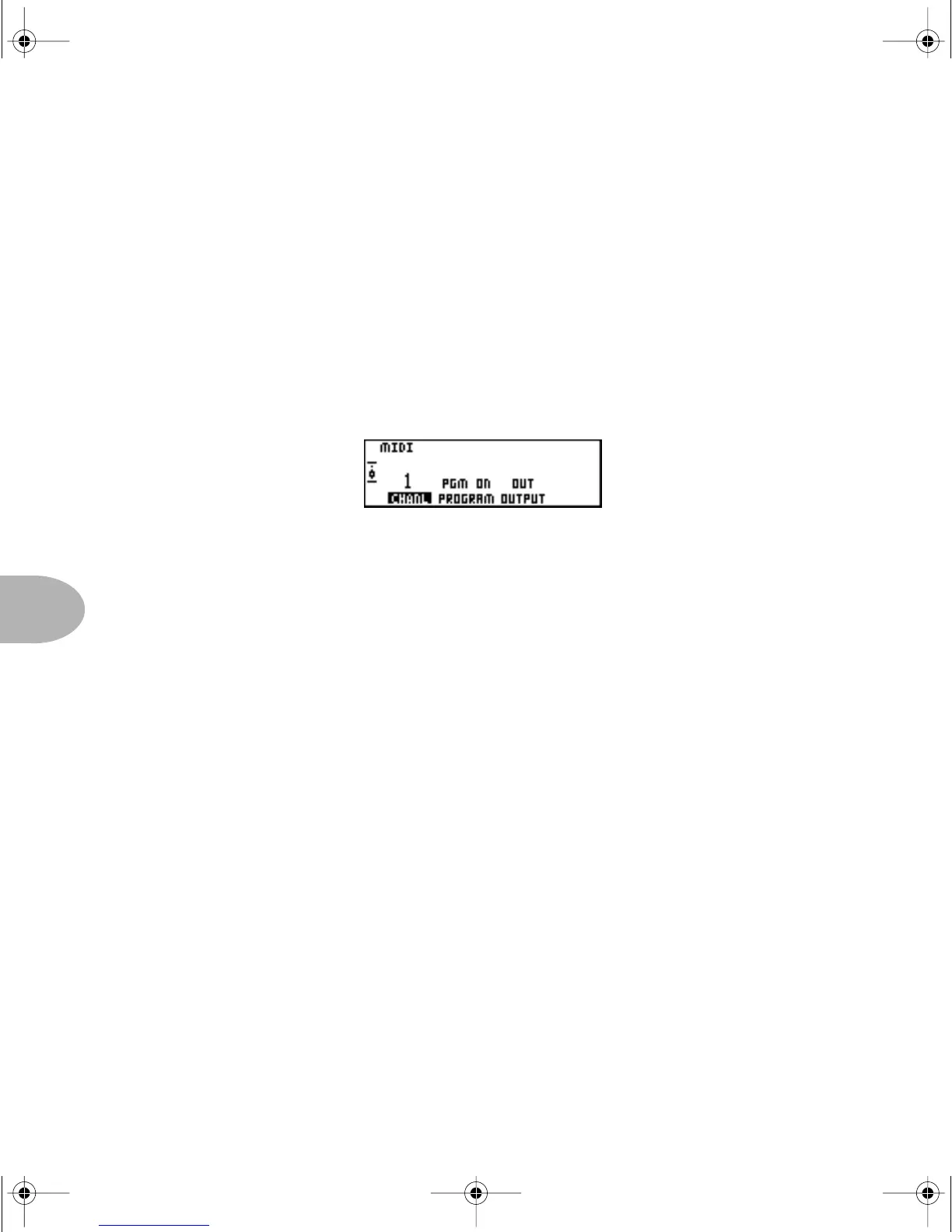
UNE/SYSTEM button (which will light up). Use the Select knob to find the MIDI
page that looks like this:
Channel—Press the button under
CHANL and start spinning the EFFECT TWEAK
knob to change the MIDI Channel. You can choose channels 1 thru 16, or OMNI—
this means POD
XT will ‘listen’ on all MIDI channels, which is fine if it’s your only
connected MIDI device. POD
XT always accepts SysEx data on any channel, so if you
are only working with Sysex data, this channel setting is only important to determine
what channel your POD
XT will send on.
Program Change—The POD
XT allows you to process incoming MIDI Program
Change messages (
PGM ON), ignore these messages (PGM OFF), or pass the received
program change regardless of the MIDI Output setting (
PGM ECHO).
Output—POD
XT’s MIDI Out generally sends out the MIDI messages generated by
your POD
XT when this parameter is set to OUT. You also have the option of
changing it to act as a MIDI Thru. When you choose
THRU for the OUTPUT, PODXT
will not generate any outgoing MIDI messages. Instead, it will take whatever comes
in at its MIDI In and send it straight “thru” to the MIDI Out so you can get this same
info to some other MIDI device. Note that in Thru mode, the MIDI Out simply
passes on what’s received at its MIDI In; it does not combine POD
XT MIDI messages
with this incoming MIDI data.
PODxt Manual Book RevC.book Page 2 Friday, August 29, 2003 5:43 PM


 To Next Page