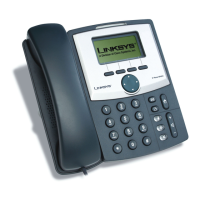
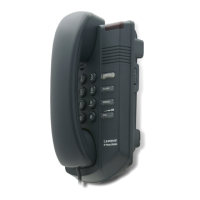
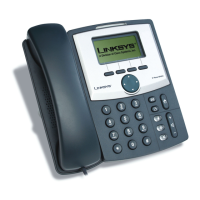
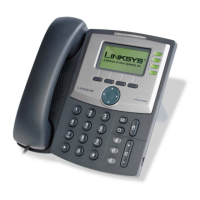
The Linksys SPA942 IP Phone is a sophisticated communication device designed for use with Zayo Managed Services' Hosted PBX Service. It offers a comprehensive suite of telephony features, catering to both basic and advanced communication needs within a professional environment. The phone's design emphasizes user-friendliness, with a clear LCD display and well-organized physical buttons for intuitive operation.
Function Description
The primary function of the Linksys SPA942 is to facilitate voice communication over an IP network, integrating seamlessly with a Hosted PBX system. It supports a wide array of calling features that enhance productivity and call management.
Core Calling Features:
- Ad-Hoc 3-Way Conference Calling: This feature allows users to easily initiate a three-way conference call. During an active call, the user can press the "CONF" soft key, which places the current caller on hold and provides a dial tone. The user then dials the number of the third party, and once they answer, pressing "CONF" again adds them to the existing call. An extended functionality allows the user to hang up while leaving the two remote parties joined by pressing the "JOIN" soft key.
- Call Forward Always: Users can redirect all incoming calls to another phone number. This can be activated or deactivated using either soft keys or a feature code. When using soft keys, pressing "CFWD" and entering the forwarding number programs the redirection, indicated by a stutter tone and a "CALLS FORWARDED" message on the screen. Deactivation involves pressing the "-CFWD" soft key. When using feature codes, dialing "*72" (activate) or "*73" (deactivate) and following IVR instructions manages the forwarding. It's crucial to use the same method for activation and deactivation.
- Call Forward Busy: This feature redirects calls to another destination when the user's line is busy, typically to voicemail. Activation involves going off-hook, dialing "*90," and following IVR instructions. Deactivation is done by going off-hook and dialing "*91."
- Call Forward No Answer: Incoming calls not answered within a specified number of rings are redirected, usually to voicemail. Activation involves going off-hook, dialing "*92," and following IVR instructions. Deactivation is done by going off-hook and dialing "*93."
- Call Park: This enables a user to place an active call on hold and retrieve it from another phone. During an active call, pressing the "HOLD" button places the caller on hold. Then, dialing "*68" and following IVR instructions parks the call.
- Call Park Retrieve: To pick up a call that has been parked, the user goes off-hook, dials "*88," and follows IVR instructions.
- Call Pickup: Users can pick up a call ringing on another user's line, provided both users are in the same pre-configured "pickup group." This is done by going off-hook and dialing "*98."
- Directed Call Pickup: This allows picking up a call from another user's line without being in a common group, provided the other user has the Directed Call Pickup feature assigned. The user goes off-hook and dials "*97" followed by the extension to pick up.
- Call Return: This feature enables calling back the last number that called the user's line, regardless of whether the call was answered. The user goes off-hook and dials "*69."
- Call Transfer – Blind: Incoming calls can be transferred to another line without prior consultation with the receiving party. During a call, the user presses the "RIGHT NAVIGATION" key, then the "BXFER" soft key, enters the transfer number, and presses "DIAL."
- Call Transfer – Consult: This allows transferring calls to another line after consulting with the receiving party. During a call, the user presses the "XFER" soft key, which places the caller on hold and provides a dial tone. The user then enters the transfer number, consults with the second party, and presses "XFER" again to complete the transfer. Alternatively, pressing the "FLASH HOOK" key returns to the first caller without transferring.
- Call Transfer – To Voicemail: Incoming calls can be transferred directly to any user's voicemail. During a call, the user presses "HOLD," dials "*55," and follows IVR instructions. Pressing "#" sends the caller to the user's own voicemail, while entering an extension followed by "#" sends it to another voicemail box.
- Call Waiting: This feature allows a user to answer a second incoming call while already engaged in another call. A waiting tone and caller information appear on the screen. The user can answer the second call by pressing the blinking green "LINE" key, which places the first call on hold. To return to the first call, the user presses the flashing red "LINE" key.
- Cancel Call Waiting Per Call: Users can temporarily disable call waiting for a specific call. This is done by going off-hook, dialing "*70" (indicated by a stutter dial tone followed by a normal dial tone), and then dialing the number of the party to call.
- Caller ID Blocking Per Call: This allows users to block their caller ID on a call-by-call basis. The user goes off-hook, dials "*67" (indicated by a stutter dial tone followed by a normal dial tone), and then dials the number of the party to call.
- Caller ID Delivery Per Call: This feature enables users to deliver their caller ID on a call-by-call basis, even if they have the Caller ID Blocking feature turned on via the Web Portal. The user goes off-hook, dials "*65" (indicated by a stutter dial tone followed by a normal dial tone), and then dials the number of the party to call.
- Dialing: The basic function of making a call involves picking up the handset, pressing a "LINE KEY" or "SPEAKERPHONE KEY," and entering the desired number. For predialing, the user can enter the number using the keypad without going off-hook, then press the "DIAL" soft key.
- Do Not Disturb (DND): Users can set their station as unavailable, directing incoming calls to voicemail or another forwarded line. This can be activated by pressing the "DND" soft key, which displays a "Do Not Disturb" message. Deactivation is done by pressing the "-DND" soft key. Alternatively, feature codes "*78" (activate) and "*79" (deactivate) can be used. It is important to use the same method for activation and deactivation.
- Hold: This feature allows a user to place an active call on hold and retrieve it. Pressing the "HOLD" button places the call on hold. Retrieving the call involves pressing the flashing red "LINE" key. If the phone number is shared, a call on hold can be picked up from another phone sharing that number.
- Last Number Redial: Users can redial the last number dialed using a feature code or a button. Pressing the "REDIAL" soft key allows selecting a number from the Redial List and pressing "DIAL." Alternatively, going off-hook and dialing "*66" redials the last number.
- Push-to-Talk: This provides intercom-like functionality, allowing a user to dial another station that will automatically answer via speakerphone. The called station must support an enhanced calling protocol and be in the calling party's Push-to-Talk allowed access list. To use, pick up the handset or press the "SPEAKERPHONE KEY," dial "*50" (indicated by a stutter dial tone then a normal dial tone), and then dial the extension of the target phone.
- Speed Dial 100: This feature allows users to complete a call using a feature code and two digits. To configure, go off-hook, dial "*75" (stutter dial tone then normal dial tone), use the keypad to enter a Speed Dial 100 Code (00-99) followed by the desired number, and then press "#." The IVR will confirm successful programming. To use, go off-hook, press "#," and then enter the Speed Dial 100 Code.
- Speed Dial 8: This allows users to complete a call by pressing a single button. To configure, go off-hook, dial "*74" (stutter dial tone then normal dial tone), use the keypad to enter a Speed Dial 8 Code (2-9) followed by the desired number, and then press "#." The IVR will confirm successful programming. To use, go off-hook, press the Speed Dial 8 Code (2-9) using the keypad, and then press the "DIAL" soft key.
- Voicemail: Users can listen to messages left in their voicemail box. From the desk phone, press the "MESSAGES" button, enter the password at the voice prompt, and follow IVR choices. From outside the office, dial the phone number, press "*" when the voicemail system answers, enter the extension, enter the password, and follow IVR choices. Voicemail navigation keys include: Save (#), Delete (7), Replay Message / Skip Envelope (2), Fast Forward (3), Rewind (4), Play Message Envelope (5), Call Back Sender (8), and Go to Menu 2 (9).
Usage Features
The Linksys SPA942 is designed for ease of use, incorporating both physical controls and software-based tools.
- Physical Interface: The phone features a clear LCD display that shows caller information, menu options, and status messages. It includes line status keys, soft keys (context-sensitive buttons that change function based on the current operation), a navigation rocker button for menu navigation, and a standard telephone keypad. Dedicated buttons are provided for voicemail, call hold, setup, microphone mute, headset, volume control, and speakerphone.
- Soft Keys: These dynamic buttons adapt their function to the current context, providing quick access to relevant features like "CONF" for conferencing, "CFWD" for call forwarding, "BXFER" for blind transfer, "XFER" for consultative transfer, "DND" for Do Not Disturb, and "REDIAL" for last number redial.
- Navigation Rocker Button: This allows users to scroll through menus and lists on the LCD display, making it easy to access call history, directories, and other settings.
- Web Portal Integration: The Zayo Managed Services Web Portal is a robust online tool that complements the phone's features. It allows users to configure calling features such as selective call forward and find-me/follow-me. While many features can be activated via the phone, the Web Portal offers a comprehensive suite of call management tools for more advanced configurations. Access to the Web Portal is typically managed by a company administrator.
- Telephony Toolbar: This is a software application compatible with Microsoft Outlook, Internet Explorer, or Mozilla Firefox. It enables users to configure calling features like Do Not Disturb and call forward, and provides click-to-call functionality. The Telephony Toolbar works in conjunction with the Web Portal, offering convenient access to frequently used calling features.
- Call Directory: The phone's setup menu includes a "CALL HISTORY" option, allowing users to view "ANSWERED CALLS" or "MISSED CALLS." Users can highlight a phone number from these lists and press the "DIAL" soft key to call it back.
- Account Codes: The phone supports both verified and unverified account codes. Verified account codes require the user to enter a unique number after dialing the desired party, prompted by an IVR, before the call connects. Unverified account codes involve dialing "*02" after going off-hook, entering the account code when prompted (indicated by a stutter dial tone followed by a normal dial tone), and then dialing the desired party. These codes help identify which account an outbound call should be assigned to.
Maintenance Features
While the document primarily focuses on usage, some aspects touch upon the maintenance and management of the phone's features.
- Feature Consistency: A key maintenance aspect highlighted is the need to use the same method (soft key or feature code) to activate and deactivate certain features, such as Call Forward Always and Do Not Disturb. Failure to do so means the system will not recognize the 'off' command, leading to persistent feature activation. This implies a user responsibility in managing feature states.
- System Administration: The document frequently refers to "System Administrator" for access to the Web Portal and pre-configuration of features like "pickup groups" for Call Pickup. This indicates that some maintenance and setup tasks are handled at an administrative level, ensuring consistent and controlled feature deployment across an organization.
- IVR Instructions: Many features rely on Interactive Voice Response (IVR) instructions for configuration and use. This provides a guided, audible interface for users to interact with the system, reducing the need for complex manual configurations on the device itself.
- Visual Cues: The phone provides visual cues on its LCD display, such as "CALLS FORWARDED" messages or "Do Not Disturb" indicators, which help users confirm the active status of certain features. This aids in self-monitoring and troubleshooting.
- Web Portal for Configuration: The Web Portal serves as a central point for managing and maintaining various calling features. This allows users or administrators to adjust settings remotely and comprehensively, rather than relying solely on the phone's physical interface. This centralized management simplifies feature maintenance and updates.
In summary, the Linksys SPA942 IP Phone, integrated with Zayo Managed Services, is a robust and versatile communication tool designed to streamline business telephony. Its extensive feature set, intuitive interface, and integration with online management tools make it a powerful asset for modern communication needs.

 Need help?
 General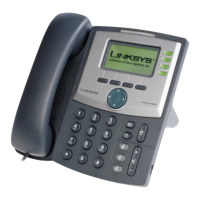

 To Next Page