Note: When using “Join to Network” mode, you may experience control lags due to latency in the
network when the network is experiencing heavy traffic.
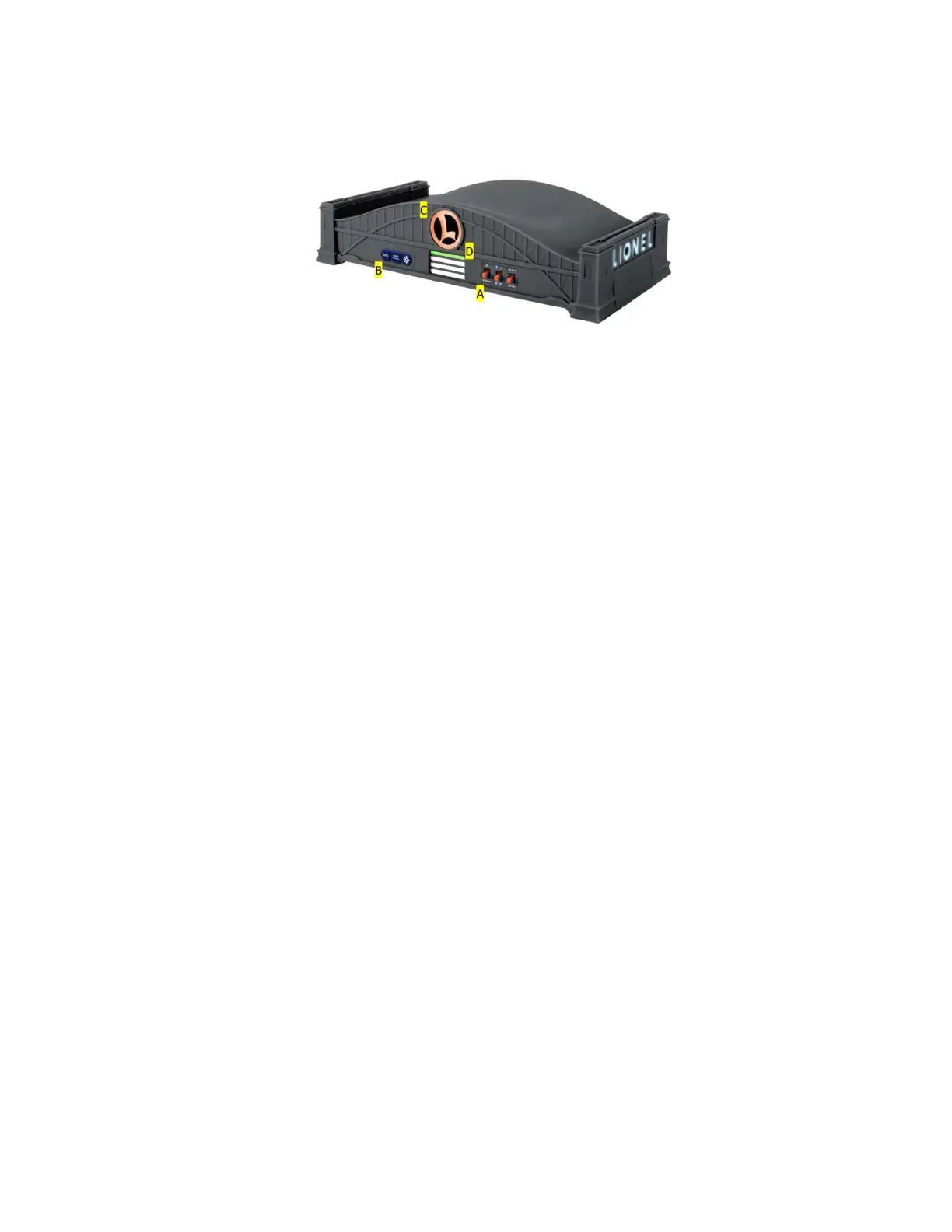
ACCESS POINT MODE
When you do not have a Wi-Fi network, or you do not wish to connect your Base3 to your Wi-Fi
network, use “ACCESS POINT”. This mode creates an entirely new network with a SSID of “Lionel Base3 –
NNNN”. The “NNNN” represents the last 4 digits of the Base3’s Wi-Fi radio MAC address. This is unique
to each Base3.
To select “ACCESS POINT” mode:
1. Slide the “ACCESS POINT / JOIN to NETWORK” switch to “ACCESS POINT”.
2. Connect your smart device to your Base3’s Wi-Fi network.
3. Launch the App to control your layout.
JOIN to NETWORK Mode (WPS)
The Base3 can be added to your home’s Wi-Fi network using most wireless routers.
If your wireless router supports WPS (Wi-Fi Protected Setup), you can easily connect the Base3 to the
home network so you can control your trains and have internet access at the same time.
1. Slide the “ACCESS POINT/JOIN To NETWORK” switch to “JOIN To NETWORK” and power the
Base3 on.
2. Press and hold the “WPS” button on the Base3 for two seconds and then press the “WPS”
button on your wireless router. The devices will automatically negotiate a secure connection.
3. Connect your smart-device to your wireless router network.
4. Open the Cab3 APP and connect to the Base3.
Remember, if your home network is busy, you may experience latency (slower response to commands)
when using the Base3 with a wireless router. Also, when connecting the Cab3 APP to the Base3 through
a wireless router for the first time, the connection may take a couple of minutes.
JOIN To NETWORK Mode (no WPS)
Set B3 to A/P mode.



 To Next Page