The Lippert Insight™ Back-up Camera is a 12V wireless camera designed to provide a rear view of a trailer to a mobile device. It integrates with the OneControl application, allowing users to monitor the rear of their trailer directly from their smartphone or tablet. The camera requires the trailer's running lights to be ON to function, as they serve as its power source.
Function Description:
The primary function of the Lippert Insight™ Back-up Camera is to enhance safety and convenience when maneuvering a trailer. By streaming live video to a mobile device, it helps drivers see obstacles, other vehicles, or people behind the trailer, reducing blind spots and making backing up, parking, and changing lanes safer. The camera connects wirelessly to the OneControl app, which acts as the display interface for the video feed.
Usage Features:
- Wireless Video Streaming: The camera transmits video wirelessly to a mobile device, eliminating the need for complex wiring to an in-dash monitor.
- Mobile Device Integration: It operates in conjunction with the Lippert OneControl app, available for both iOS and Android devices. This allows users to utilize their existing smartphones or tablets as the camera monitor.
- Easy Setup and Connection:
- App Download: Users first download and install the OneControl app from their device's app store.
- License Agreement: The app requires users to read and accept a license agreement before proceeding.
- Login/Account Creation: Users can log in with an existing community account, or create a new one using Facebook, Google, Apple ID, or a direct account creation process.
- Camera Scanning: The app prompts users to scan a gateway label, typically found on the bottom of the camera or on a sticker placed in the unit by the OEM, to connect to the specific camera unit. This process involves granting location and camera permissions to the app.
- Temporary Wi-Fi Connection: The app will ask to connect the mobile device to a temporary Wi-Fi network, which is the camera itself, to establish communication.
- RV Details Input: After successful connection, users are guided to enter details about their RV, such as year, make, model, and floor plan, to complete the setup.
- Security PIN Setup: Users can set up a 4-digit security PIN for the OneControl app for added security. This step can be skipped if desired.
- Camera Password Update: The app will prompt users to set a password for the camera itself, which must be between 8 and 20 characters long. This password is crucial for securing the camera's video feed.
- Adjustable Viewing Angle: The camera can be physically rotated up or down to achieve the desired viewing angle, allowing users to customize the field of view based on their trailer's height and specific needs.
- Pinch Zoom Functionality: Within the OneControl app, users can use a "pinch zoom" gesture with their thumb and index finger to magnify specific areas of the camera's view.
- Full View Window: When zoomed in, a small full view window appears in the lower right corner of the screen, providing context of the overall scene while focusing on a magnified area. Users can use their index finger to move around the main zoomed-in view.
- Quick Return to Full View: Double-tapping the full view window allows users to quickly revert to the full camera view from a zoomed-in state.
- Password Management: The app provides access to camera settings where users can view the current password or change it if desired.
- Camera Removal: Users can remove the camera connection from the OneControl app through the settings menu if they no longer wish to use it with a particular device or are setting up a new connection.
- Power Source: The camera is powered by the trailer's 12V system, specifically requiring the running lights to be on for operation. This ensures the camera is active when the trailer is in use for towing.
Maintenance Features:
- Troubleshooting Guide: The manual includes a comprehensive troubleshooting section to address common issues such as the mobile device not connecting to the camera, the camera not powering up, or the camera displaying a blank screen. This guide offers solutions like checking Wi-Fi connections, verifying SSID, ensuring running lights are on, and cycling power to the unit.
- Camera Reset Procedure: In cases where the camera password is forgotten, lost, or unknown, a factory reset procedure can be performed. This involves:
- Pressing a physical reset button on the bottom of the camera for 15 seconds. During this process, four red LEDs around the camera are expected to light up for approximately 1 second, indicating the reset is in progress.
- Disconnecting all power from the trailer for 2 minutes by turning off the battery disconnect, disconnecting shore power, and disconnecting the 7-way connection from the tow vehicle.
- After 2 minutes, restoring power to the trailer.
- Opening the OneControl app and selecting the camera, then creating a new password when prompted.
- Physical Installation Maintenance:
- Cleaning: The manual advises cleaning the mounting area on the trailer before installation to ensure proper adhesion and a secure mount.
- Sealing: After installation, it is recommended to use all-weather silicone sealant around the perimeter of the camera and the heads of the panhead screws to protect against water intrusion and ensure durability.
- Antenna Attachment: The antenna is screwed clockwise to the antenna base on the camera, ensuring a secure connection for optimal wireless performance.
- Firmware and App Updates: While not explicitly detailed as a maintenance feature, the nature of app-based devices often implies that Lippert will release updates for the OneControl app and potentially camera firmware to improve performance, add features, and address bugs. Users should regularly check for and install these updates to ensure optimal functionality.
- Customer Support: For further assistance beyond the provided troubleshooting, users are directed to contact the Lippert Customer Care Center, indicating ongoing support for the device.

 Need help?
 General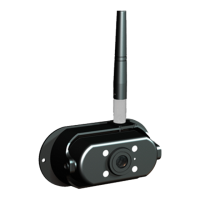

 To Next Page