41
GB
Using the Features via USB Port
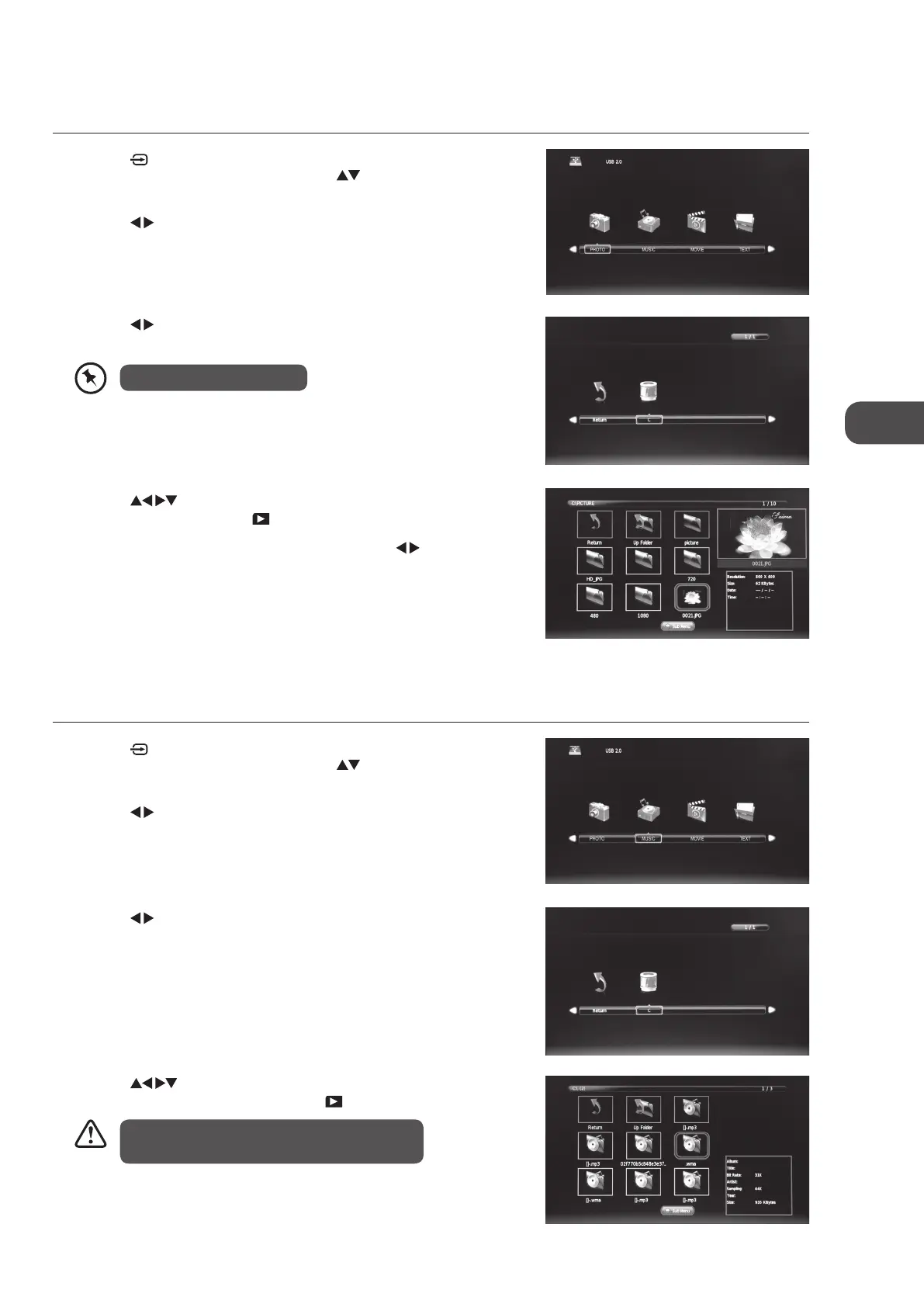
4. Press the buttons to navigate in the music folder. Select the
music you want to play and then press the
PL AY button to play it.
4. Press the
buttons to navigate in the picture folder. Select the
picture file and then press the
PL AY button to view.
5. Press the i button to display the function bar. Press the
buttons and
then press the OK button to select the function: Pause / Prev. / Next /
Stop / Repeat All / Music / Playlist / Info / Rotate clockwise / Rotate anti-
clockwise / Zoom In / Zoom Out / Move View.
6. Press the EXIT button to return back to the previous menu.
3. Press the
buttons to select your storage device and then press the
OK button.
My Music
1. Press the button on the right side panel of the TV or the INPUT
button on the remote control then press the
buttons to select the
DMP mode and then press the OK button.
2. Press the
buttons to select MUSIC and then press the OK button.
3. Press the
buttons to select your storage device and then press the
OK button.
My Photo
1. Press the button on the right side panel of the TV or the INPUT
button on the remote control then press the
buttons to select the
DMP mode and then press the OK button.
2. Press the
buttons to select PHOTO and then press the OK button
File format supported: JPG.
Using the Features via USB Port
Some audio file formats will not be supported.
Supported file formats: mp3 / wma
L22LDIB11_IB_Running Change120222_Annie.indd 41 12年2月22日 下午3:49


 To Next Page