GETTING STARTED
Quick Setup
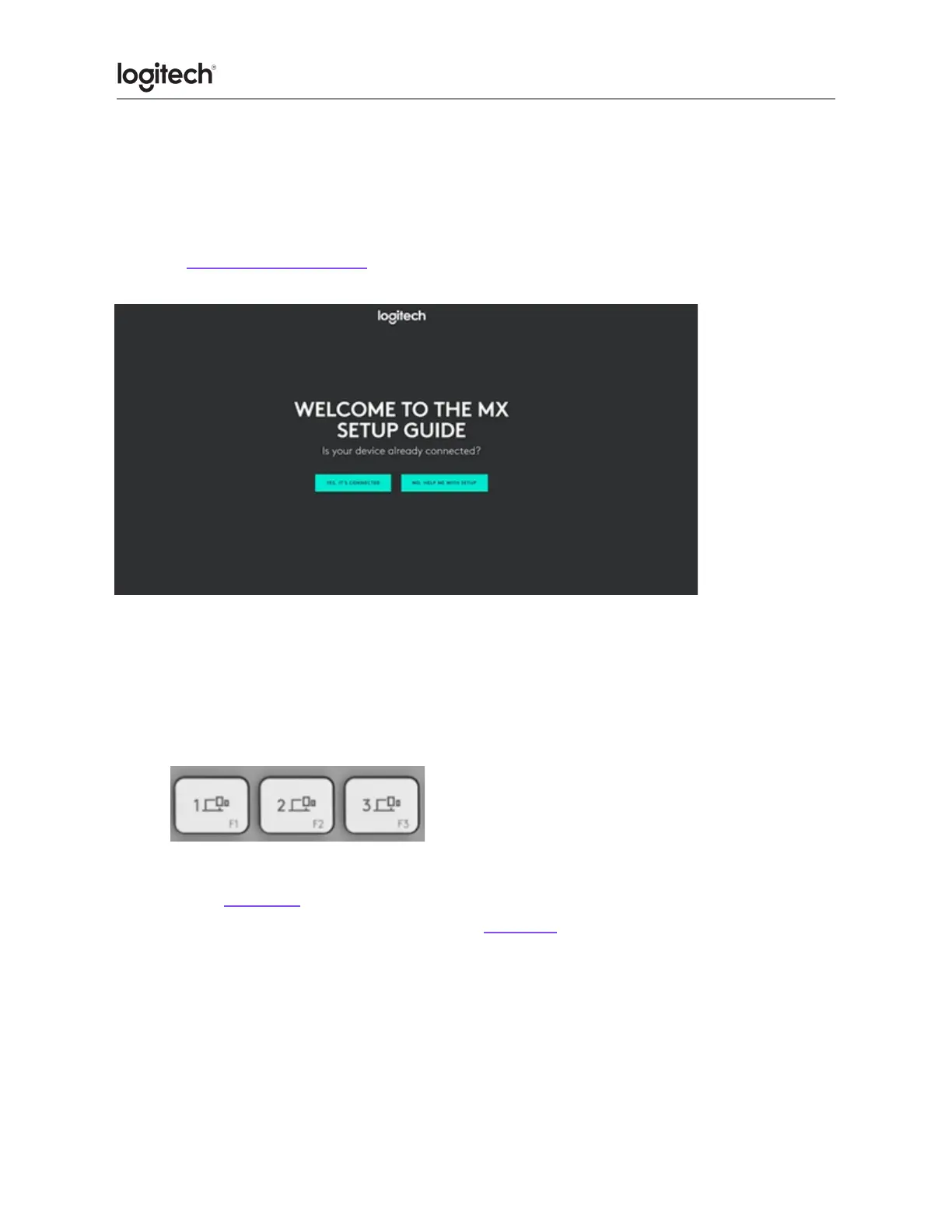
Go to the interactive setup guide for quick interactive setup instructions.
If you want more in-depth information, go to the ‘Detailed Setup’ below.
Detailed Setup
1. Make sure the keyboard is turned on.
The LED on the Easy-Switch button should rapidly blink. If not, perform a long press for
three seconds.
2. Connect your device via Bluetooth:
● Open the Bluetooth settings on your
computer to complete the pairing.
● Click here for more details on how to do this on your computer. If you
experience issues with Bluetooth, click here for Bluetooth troubleshooting.
Important
FileVault is an encryption system available on some Mac computers. When enabled, it
might prevent Bluetooth® devices from connecting with your computer if you have not
yet logged in. If you have FileVault enabled, you can either use your MacBook
keyboard and trackpad to log in or you can use a USB keyboard or mouse to log in.
3. Install Logitech Options+ Software.





 To Next Page