Adjustment Layers
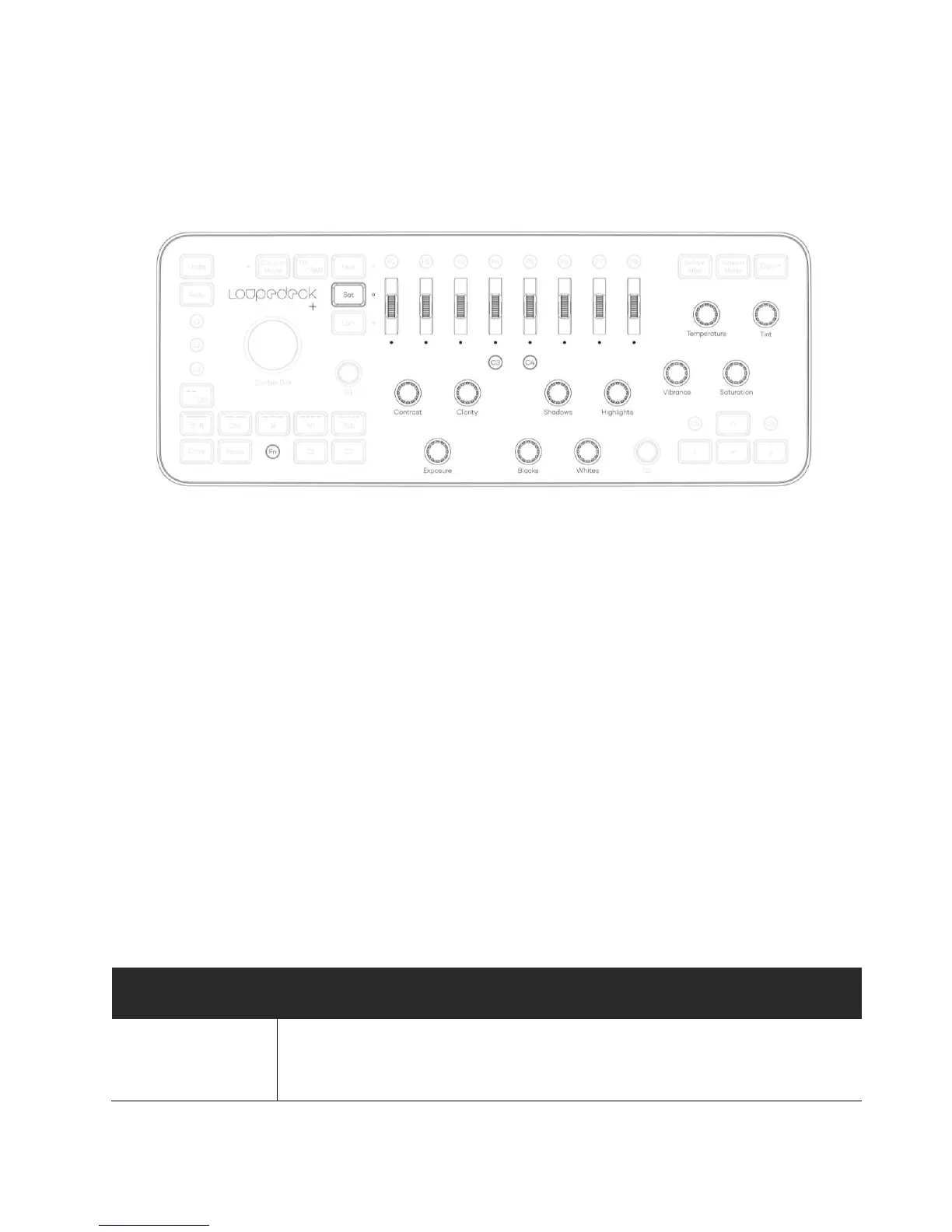
Adjustment layers are paired with basic dials, pressing a corresponding dial will create an
adjustment layer (e.g. pressing Exposure dial will create Exposure adjustment layer).
When an adjustment layer is selected and active:, parameters can be adjusted with
corresponding dials (listed below) and by using SAT Scrolls. SAT Scrolls are active when LED light
is on next to the SAT button. Another possibility is to use Mouse Tool: Horizontal or Mouse Tool:
Vertical by moving a mouse pointer over a slider or a control point and rotating Clarity
(Horizontally) or Shadows (Vertically).
There are some values which are not identically named with the Loupedeck+’s dials however,
you can still use a corresponding dial if the effect resembles the dial’s name (e.g. Exposure
Adjustment Layer’s Offset is adjusted with Blacks dial and Gamma Correction is adjusted by
Contrast dial).
When the SAT LED is on, there are 16 scroll adjustments available (Scrolls 1-8 and FN+Scrolls 1-8
as numbers 9-16). The scrolls have been set to corresponding parameter sliders in a natural order
(e.g. If the adjustment layer has only three values available, then Scrolls 1-3 are used and 4-8 are
unused).
Tip! Most of the Layer Adjusting options presented in the previous chapter are also available
when working with Adjustment Layers.



 To Next Page