Rotate FN+Whites to set brush spacing.
Press FN+Whites to reset brush spacing to 1%.
Rotate FN+Shadows to set brush mode.
Press FN+Shadows to reset brush mode to normal.
Rotate FN+Highlights to set brush roundness.
Press FN+Highlights to reset brush roundness to 100%.
Layer Controlling
Working with layers can be separated into two different workflow styles
1) Using Loupedeck+ & Pen/Mouse:
Left hand on Loupedeck+’s left side controlling layer commands and right
hand on pen or mouse.
2) Using Loupedeck+ with two hands:
Left hand on Loupedeck+’s left side, controlling layer commands and right
hand on Loupedeck+’s right side, controlling layer navigating
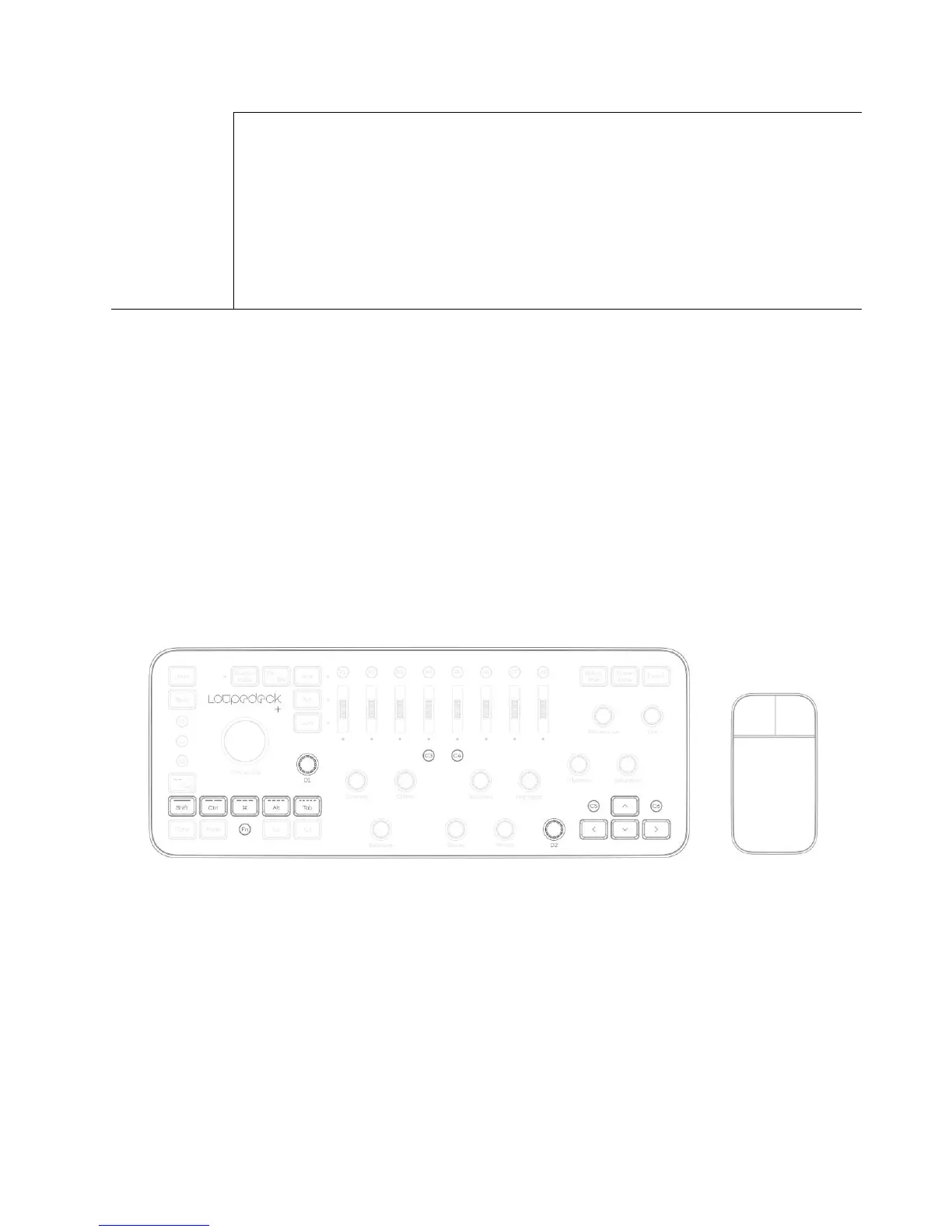
Left hand 2) Right hand 1) Right Hand on
Loupedeck+ on Loupedeck+ on mouse
Tolls used for grouping such as, merging, clipping masks, layer visibility and layer or mask creating
are located on the left side of the Loupedeck+ Mapped functions are grouped as pairs with using
FN (like Group Layers <-> Ungroup Layers).
For selecting multiple layers Shift-modifier and mouse is needed. This is achieved by activating
keyboard modifiers (press --/Col). After multiple layers have been selected, press --/Col again to
access layer controlling buttons (R1-R5), and group or merge selected layers.



 To Next Page