Need help?
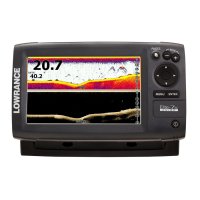
Do you have a question about the Lowrance Elite-7m and is the answer not in the manual?
Cautions against unauthorized modifications and explains potential radio frequency interference.
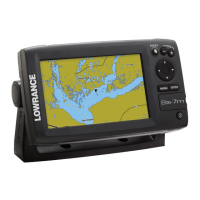
Lists the functions of the Power, Keypad, Pages, Menu, Enter, MOB, and Zoom keys.
Explains the purpose and usage of the microSD card slot for saving captures and mapping.
Instructions on how to turn the unit on and off using the LIGHT/POWER key.
Procedure for setting a Man Overboard waypoint using Zoom keys.
How to change the backlight level using the LIGHT/POWER key.
Steps to mute the unit's audio through the System menu.
Guide to choosing the GPS source from the System settings menu.
Explains the setup wizard's appearance and how to restart it.
Instructions on using the Pages key to switch between Steer and Chart views.
Details how to access menus for Steer and Chart pages.
Explains how to access the main settings menu.
Describes scrollbars and on/off features for menu adjustments.
Explains using keypad and ENTER to select menu items and submenus.
How to select items from dropdown menus using the keypad.
Explains the use of dialogs for user input and information display.
Step-by-step guide for entering text, including character selection and keyboard switching.
How the keypad moves the cursor for map scrolling and item selection.
Procedure for moving the cursor to a specific location.
Lists features enabled when Advanced Mode is turned on.
Explains how Standby mode lowers power consumption by turning off sonar and display.
Process for resetting unit options and settings to their default values.
Details the Steer page's compass, track, destination direction, and data panel.
Describes the Chart page as a real-time map display with a bird's-eye view.
Explains enabling/disabling overlay data on the Chart page.
Allows selection and customization of overlay data.
Used to select the network device supplying source data for a data type.
How to open the Chart menu from any Chart page.
Procedure for creating waypoints at current or cursor positions.
How to access and use the Waypoints screen and its menu options.
Allows editing name, icon, and coordinates of a selected waypoint.
Instructions for saving and loading waypoint data to/from an SD card.
Steps to create a new waypoint with name, icon, and coordinates.
How to show selected waypoints on the map display.
Procedure for navigating to a specific waypoint.
How to delete individual waypoints or all waypoints.
Used to create, edit, navigate, and delete routes.
Explains how routes are created using waypoints or cursor positions.
Step-by-step guide to build a route using existing waypoints.
Method to create a route by selecting points directly from the chart.
Instructions for navigating a route in forward or reverse direction.
Steps to cancel an active route navigation.
Accessing Edit/New Route menus and finalizing changes.
How to show or hide routes to manage screen clutter.
Process for deleting specific routes or all routes.
Used to create, edit, navigate, and delete trails.
Steps to create a trail, including customizing name and color.
Allows editing trails, converting to routes, and managing display/recording.
How to navigate a trail after it's saved as a route.
Options to show/hide trails and manage recording status.
Covers recording trails and deleting individual or all trails.
How to select North Up or Course Over Ground (COG) for map orientation.
States overlay data setup is covered in the Pages section.
Indicates that chart settings are accessed via the Settings menu.
Selects map data source (Lowrance or Navionics) for the Chart display.
Shows a line estimating time and distance ahead based on Course Over Ground.
Displays latitude/longitude values for location reference on the chart.
Controls the on/off display of waypoints, routes, and trails on the map.
Sets the arrival radius threshold for the Arrival alarm.
Sets the threshold for the Off Course alarm.
Controls whether bearing is calculated using True North or Magnetic North.
Defines the arrival radius for the arrival alarm.
Defines the off course distance threshold for the off course alarm.
Controls bearing calculation using True or Magnetic North.
Controls automatic or manual calculation of magnetic variation.
Accesses installation and configuration settings for the unit.
Adjusts unit settings like language, mute audio, and advanced mode.
Configures trip time, speed, and distance tracking.
Enables advanced features and settings.
Resets unit options and settings to their default values.
Allows viewing a list of files saved to the microSD card.
Selects the language for menus and text boxes.
Adjusts volume and turns audio features like key beeps on/off.
Sets local time, time format, and date format.
Monitors satellite location and quality of lock-on.
Tracks trip time, speed, and distance when moving above a threshold.
Enables features only available in Advanced Mode.
Switches the unit back to default settings.
Allows viewing a list of files saved to the microSD card.
Procedure for saving screenshots to a microSD card.
Displays software version and update information.
Configures the arrival alarm threshold.
Configures the off course alarm threshold.
Configures the anchor alarm threshold.
Selects NMEA 0183 sentences and adjusts Baud rate.
Connects to NMEA 2000, selects GPS source, shares waypoints.
Explains limitations on sharing existing waypoints over NMEA 2000.
Simulates GPS and sonar activity with customizable options.
Allows selection of the unit's GPS data source.
Used to view data for devices connected to the NMEA 2000 network.
Provides phone numbers and operating hours for customer service.
Provides a URL for ordering accessories.
Provides the URL for the official website.
 General
| Display Resolution | 800 x 480 pixels |
|---|---|
| GPS | Yes |
| Waterproof Standard | IPX7 |
| Display Size | 7 inches |
| Display Type | TFT LCD |
| Voltage | 12V |
| Operating Temperature | -15°C to 55°C |
| Sonar Frequency | 83/200 kHz |
| Frequency | 83/200 kHz |

 To Next Page