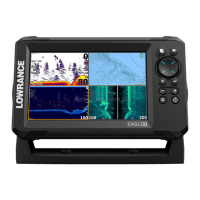
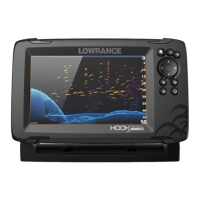
The Lowrance Elite FS (Fishing System) is a multi-function display designed for marine navigation and fishfinding. Available in 7-inch and 9-inch models, it integrates various sonar technologies, charting capabilities, and system controls to enhance the user's experience on the water.
Function Description
The Elite FS serves as a central hub for marine electronics, offering a comprehensive suite of features for anglers and boaters. Its primary functions include:
- Navigation: The device provides detailed chartplotting capabilities, allowing users to view their current position, create and follow routes, and mark waypoints. It supports various chart types and offers features like orientation control (North up, Look ahead) and measurement tools.
- Fishfinding (Sonar): The Elite FS integrates multiple sonar technologies to help users locate fish and understand underwater structures. This includes traditional CHIRP sonar, DownScan, SideScan, and compatibility with advanced technologies like ActiveImaging and ActiveTarget. It allows for detailed customization of sonar views, including range, frequency, sensitivity, and colorline.
- System Control: The unit acts as a control interface for various connected marine devices, including NMEA 2000® compatible sensors (such as fuel, alarms, vessels), Ethernet-connected devices (like radar and additional sonar modules), and wireless accessories (Bluetooth® and Wi-Fi).
- Data Management: Users can manage waypoints, routes, and tracks, as well as record sonar logs and other data. The device includes a microSD™ card reader for storage and data transfer.
Usage Features
The Elite FS is designed for intuitive operation with a combination of physical keys and a multi-touch touchscreen interface.
Keys:
- Pages Key (A): Press once to activate the home page. Repeated short presses cycle through favorite pages.
- Waypoint Key (B): Press once to open the new waypoint dialog. Press twice to save a waypoint at the current vessel position. Press and hold to access the find dialog.
- Zoom In/Out Keys (C): Press to zoom the image in or out. Simultaneously pressing both keys saves a Man Overboard (MOB) waypoint at the current vessel position.
- Quick Access Key (D): Configurable via the system settings dialog for quick access to a user-defined function.
- Power Key (E): Press to turn the unit ON. Press and hold to turn the unit OFF. When ON, press once to display the System Controls dialog. Repeated short presses cycle through backlight brightness levels.
Card Reader:
- To insert a microSD™ card (max 32 GB, FAT32), slide it into the slot until it clicks into place.
- To remove, push the card in until it clicks out of place.
System Controls Dialog:
- Activated by pressing the power key.
- Provides quick access to system settings such as standby, power off, brightness, night mode, touch lock, wireless settings, data overlay, and mobile app synchronization.
- The content of this dialog adapts based on connected equipment and the active panel.
Home Page:
- Activated by pressing the pages key.
- Displays a grid of application buttons for quick access to different functions (e.g., Chart, Sonar, SideScan, DownScan, Radar, Waypoints, Alarms, Vessels, Steer, Info, Storage, ActiveTarget).
- Includes a settings button, close button, and toolbar buttons.
Application Pages:
- Tap an application button for a full-page panel.
- Tap a favorites button for a pre-configured layout.
- Press and hold an application button to select a predefined quick split page.
- Each application page features a control bar, the main application panel, and a menu for specific settings and options.
Adjust Panel Size:
- In a quick split page or favorite page, tap the "Adjust splits" button in the System Control dialog.
- Drag the resize icon to set the desired panel size.
- Save changes by pressing the enter key or selecting the save button.
Favorite Pages:
- Adding: From the home page, select an empty favorite slot. This opens the Page Editor where users can drag and drop panels from the left-hand side to compose a custom page layout.
- Editing: Select an existing favorite page, then choose the edit option to modify its layout in the Page Editor.
- Deleting: Select an existing favorite page, then choose the delete option to remove it.
- Panel Menu: Appears on the right side of application pages. Swipe the menu to the right to hide it. Press the menu button to restore it.
- Settings Menu: Activated by selecting the settings button in the system controls dialog or on the home page. Provides access to detailed system configurations, including language, boat settings, display options, time, datum, coordinate system, magnetic variation, and unit settings.
Chart Features:
- Zooming: Use spread/pinch gestures on the touchscreen or the physical zoom buttons.
- Panning: Move the view in any direction by dragging a finger across the chart.
- Information: Tap on a chart item to display detailed information about it.
- Waypoints: Create a new waypoint by selecting the "New waypoint" option from the menu. Waypoints can be placed at the vessel's position (cursor inactive) or at a selected cursor position (cursor active).
- Routes: Create a route by activating the cursor on the chart, selecting "New route" from the menu, tapping points on the chart, and then saving the route.
- Navigation: Navigate to a cursor position by selecting "Go to" from the menu. Navigate a route by making it active and selecting "Start route" from the menu, or by selecting it from the routes dialog.
Sonar Features:
- Zooming: Use spread/pinch gestures or the physical zoom buttons.
- Panning: View sonar history by dragging across the image.
- Adjustments: Adjust sensitivity and colorline from the panel menu.
- Frequencies: Toggle available sonar frequencies from the menu.
- Customization: Experienced users can customize range, frequency, sensitivity, and colorline settings for optimal performance.
- Fishing Modes: Predefined sonar settings for specific fishing conditions (e.g., Shallow, Fresh, Deep, Slow troll, Fast troll). For example, use "Shallow" mode for depths less than 18 meters (60 feet).
- Cursor Mode: When the cursor is active on the sonar screen, some menu options are replaced with cursor-specific features. Select "Clear cursor" to return to the normal sonar menu.
SideScan and DownScan Features:
- Zooming: Use the physical zoom keys.
- FishReveal™: Select FishReveal to overlay fish arches from traditional sonar onto the DownScan image, providing a clearer view of fish targets in relation to structure.
Radar Features:
- Transmit On/Off: Turn the radar transmitting function on or off from the menu.
- Zooming: Use spread/pinch gestures or the physical zoom buttons.
- Adjustments: Adjust gain, sea clutter, and rain clutter settings from the adjust menu.
Maintenance Features
- Software Updates: The device supports high-speed updates for GPS (WAAS, MSAS, EGNOS, GLONASS) and other system components.
- Data Storage: The microSD™ card slot allows for external storage of maps, sonar logs, and other user data, which can be backed up or transferred.
- Cleaning: The multi-touch screen and unit housing can be cleaned with appropriate marine electronics cleaning solutions and soft cloths.
- Troubleshooting: The system controls dialog and settings menu provide access to diagnostic information and options to restore default settings if needed.
- Wiring: The manual provides clear wiring diagrams for power, NMEA 2000®, Ethernet, and sonar connections, facilitating proper installation and maintenance. The unit is protected against reverse polarity, under-voltage, and over-voltage for limited durations. A fuse or circuit breaker should be fitted to the positive supply for additional protection.

 Need help?
 General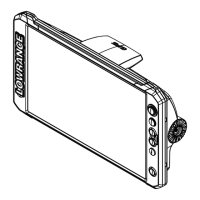




 To Next Page