Digital Video Recorder Quick Start Guide
12
Ensure the network connection is valid and correct, and the IP camera to add has already been activated. Please
refer to the User Manual for activating the inactive IP camera.
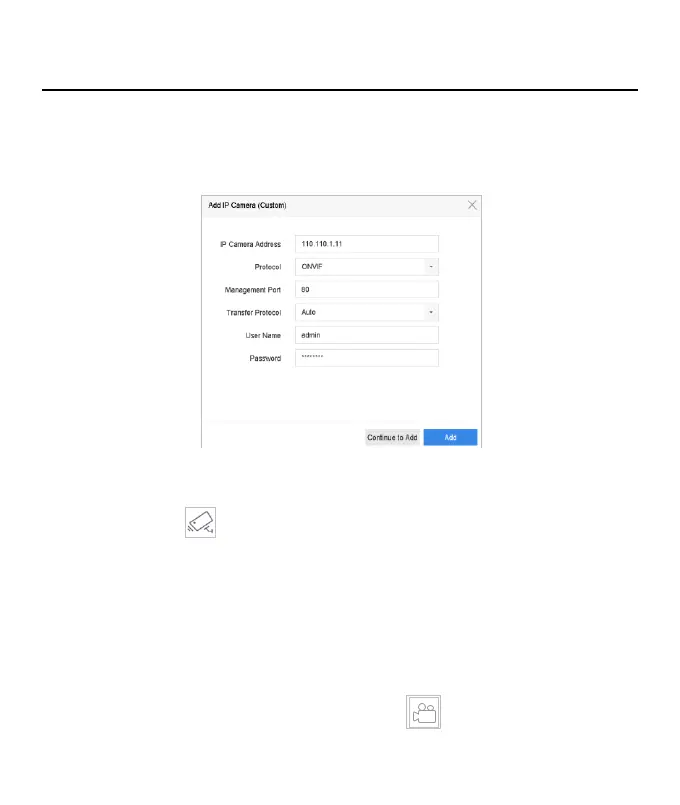
Step 1 Go to Camera > IP Camera.
Step 2 Click Custom Add.
Step 3 Enter IP address, protocol, management port, and other information of the IP camera.
Step 4 Click Add.
Figure 3-6 Add IP Camera
3.9 Live View
Enter the live view mode ( ).
You can select a window and double click a camera from the list to play the video from the camera in the
selected window.
Use the toolbar at the playing window bottom to achieve functions of capture, instant playback, audio
on/off, digital zoom, live view strategy, show information and start/stop recording.
3.10 Recording Settings
Before you start
Make sure that the disk has already been installed. If not, please install a disk and initialize it. You may refer to
the user manual for detailed information.
In the live view mode, select a connected camera window and click at the toolbar to start recording.



 To Next Page